Knowledge Base Article
How to Arrange Your Dashboard
You can change the order of the blocks on your dashboard and hide the ones you do not use. What you pick is saved to your own login, so it does not change what anyone else on your team sees.
Where to Find It
Open your Dashboard. At the top of the page, beside the dashboard picker, click Arrange Dashboard. The Arrange Your Dashboard panel opens above your blocks, and the button reads Done while it is open.

Arrange Dashboard sits beside the dashboard picker.
Changing the Order
Each block on the dashboard is one row in the panel. There are two ways to move a row and they do the same thing:
- Drag the row by the handle on its left and drop it where you want it.
- Use the up and down arrows at the end of the row.
The arrows are there on purpose for anyone working from a keyboard or a touch screen, where dragging is awkward or does not work at all.
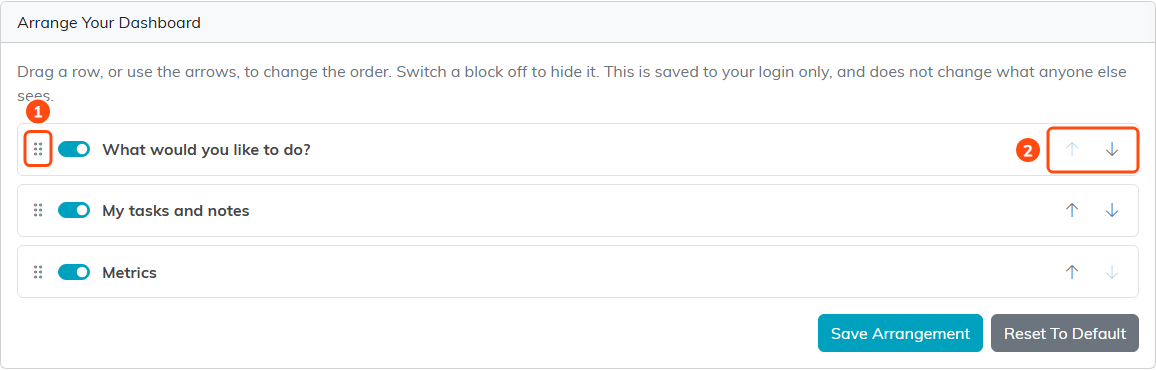
Drag by the handle (1), or use the arrows at the end of the row (2).
Hiding a Block
Every row has a switch. Turn it off to keep that block off your dashboard, and back on to bring it back.

The switch on each row turns that block on or off.
Saving
Click Save Arrangement to keep what you have set up. Click Reset To Default to throw your arrangement away and go back to the standard order with everything showing.

Save Arrangement keeps your layout. Reset To Default puts it back.
Each Dashboard Is Arranged Separately
If you have more than one dashboard to choose from, each keeps its own arrangement. Arranging your Marketing dashboard does not touch your Main one.
What It Cannot Do
The panel only orders and hides the blocks you already have. It cannot add a block you would not otherwise see, because what you are allowed to see is worked out fresh every time the page loads. If a new block is added to Argenta later it appears on your dashboard in its normal place, rather than being left out because your saved arrangement was set up before it existed.
