Knowledge Base Article
Peer-to-Peer Fundraising: How Supporter Pages Work
Peer-to-peer fundraising is when your supporters raise money on your behalf. Each one gets a page of their own, shares their own link, and everything given through it is credited to them. Argenta calls this Peer Fundraising, and the pages your supporters get are called supporter pages.
A supporter needs no Argenta login, and they only ever see their own page and their own donors.
What a supporter page looks like
This is what your supporter shares and what their friends and family land on. Their name, their goal, how far along they are, their own reason for asking, and a button that gives through them.
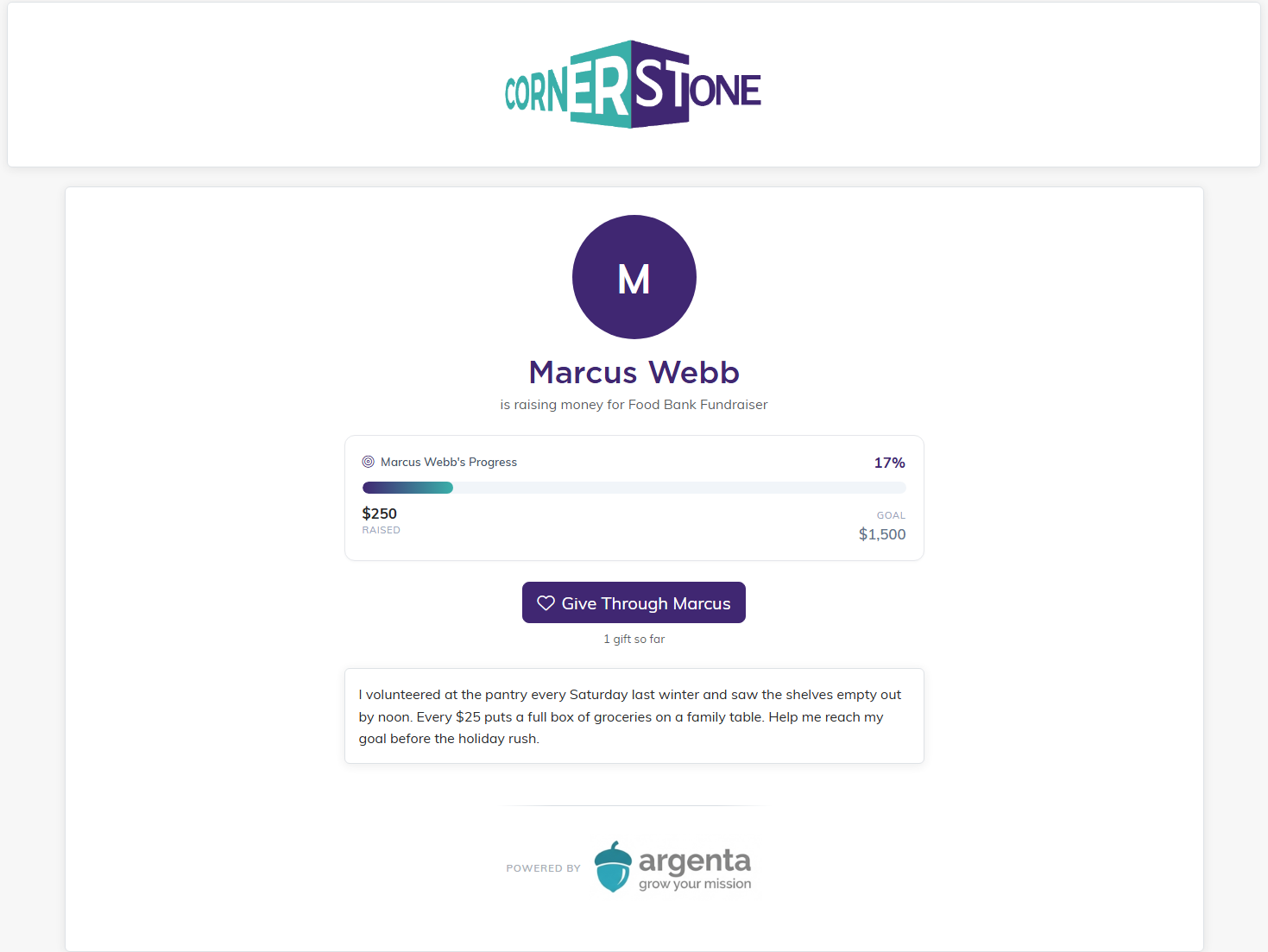
The page carries your branding, not theirs, so it still reads as your campaign.
Turning it on
Open the campaign, go to Public Form Design, and open the Peer Fundraising section. Switch on Accept new supporter signups on this campaign, then press Save Peer Fundraising Settings. The section then shows a signup link, and that link is what you share with the people you want raising money for you.
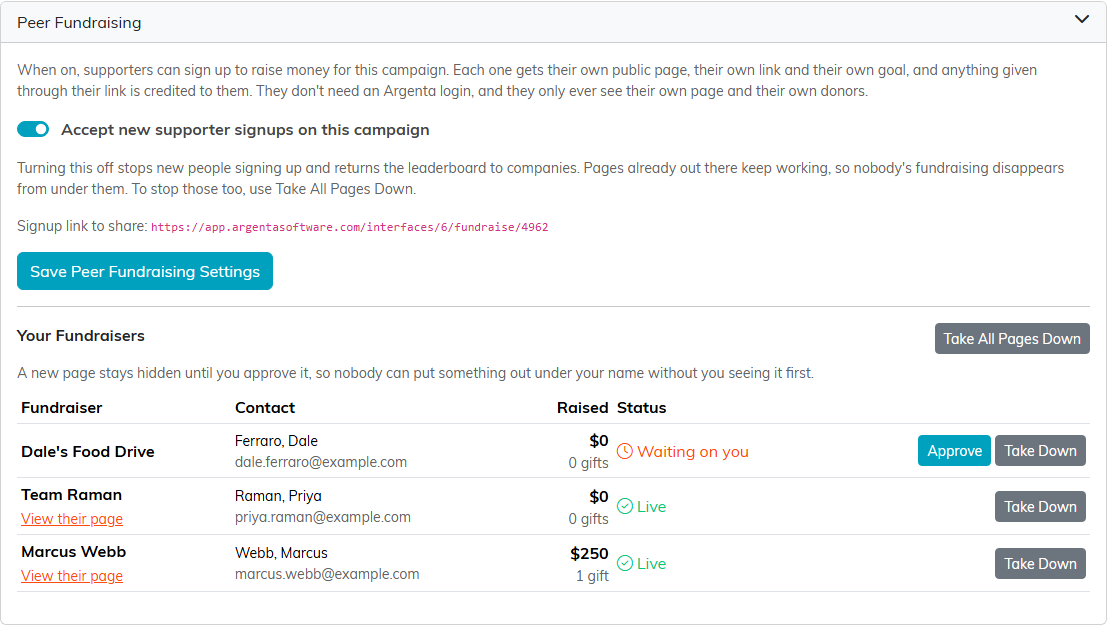
The campaign also has to be open
The switch on its own is not enough. If the campaign has an end date that has passed, or its status is closed, anyone opening your signup link sees Not accepting fundraisers instead of the form. The settings screen warns you when the campaign is not open, and tells you to extend the campaign's end date or reopen the campaign to make the link work again. It is still worth checking that date before you send the link out.
A campaign with no end date at all is treated as open.
What a supporter fills in
First name, last name and email are required. They can also choose the name that appears on their page, set a fundraising goal, and write a few lines about why they are raising money. A goal is what puts the progress bar on their page. They can change any of it later.
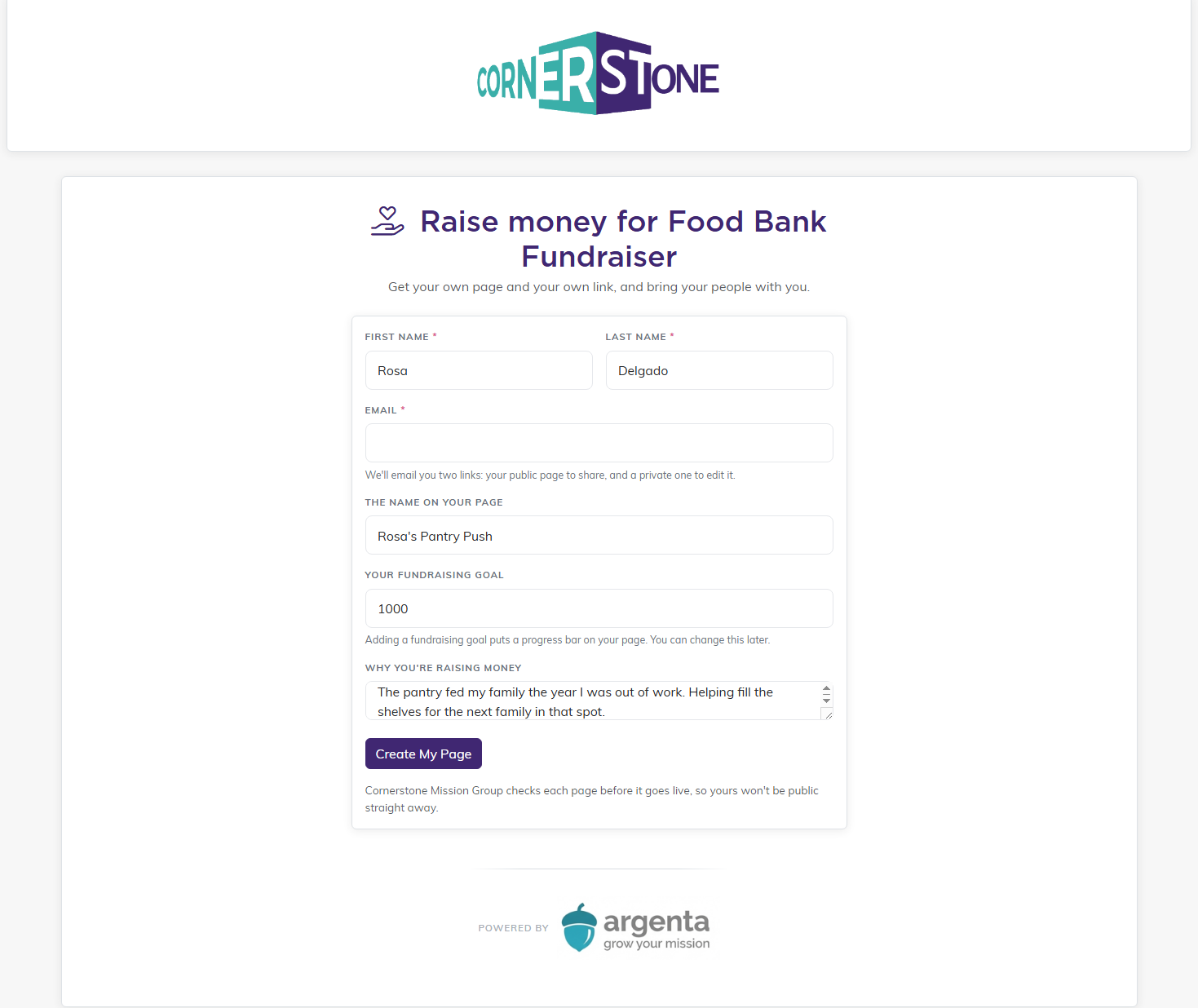
The two links they get
When they finish, the confirmation screen shows two links, and the same two arrive by email:
- Their public page, which is the one to share.
- A private link, which is how they edit their page and see who has given. There is no password to remember, so that link is not one to pass around.
Approving a page
A new page stays hidden until you approve it, so nobody can put something out under your name without you seeing it first. The Your Fundraisers list shows everyone who has signed up, what they have raised, and a status:
- Waiting on you means the page is not public yet and is sitting in your queue.
- Live means it is public. Those rows also get a View their page link so you can see exactly what donors see.
- Taken down means you have pulled it.
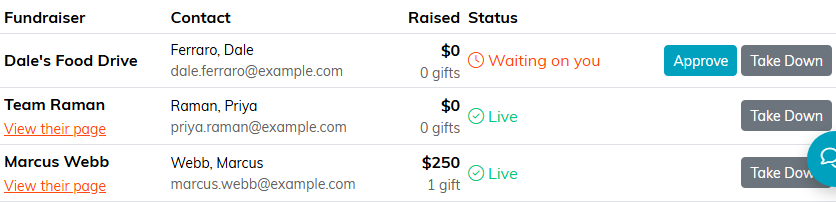
Press Approve to put a page live, or Take Down to pull one.
Tell your supporters to wait for approval before sharing
This one catches people out. A supporter gets their public link the moment they sign up, before you have approved anything. If they start sharing it straight away, gifts still go through, but they are recorded as ordinary donations to the campaign and the supporter gets no credit for them. The money is never lost. The credit is.
So approve pages promptly, and when you send out your signup link, say plainly that we will switch their page on before they start sharing.
The leaderboard
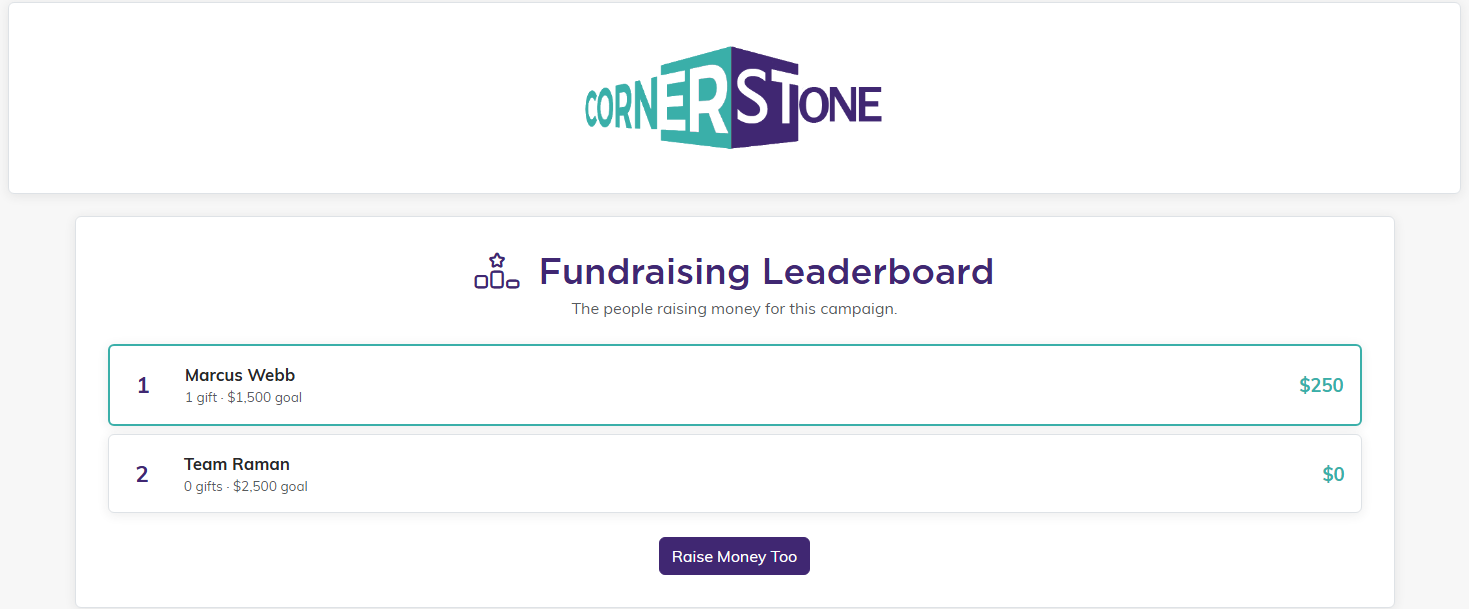
While peer fundraising is on, the campaign leaderboard ranks individual fundraisers rather than companies. Only approved pages appear on it, so a supporter waiting on you is not listed. Your campaign's own giving page also carries a See who's raising money for this campaign link that takes a donor straight to the board.
How the money is credited
A gift made through a supporter link is credited to that supporter and counts toward their goal, and the donation form names who the donor is giving through. If the donor types a different name into the referral box on the form, what they typed wins over the link. The gift is recorded as a normal donation either way.
Stopping it
These are two different things and it matters which one you want.
- Switching off Accept new supporter signups on this campaign only stops new people signing up. Every page already live stays live, so nobody's fundraising disappears from under them. It also returns the leaderboard to ranking companies.
- Take All Pages Down is what pulls the public pages themselves. It asks you to confirm, then takes down every live page at once.
