Knowledge Base Article
How to Use Schedule Polls to Find a Meeting Time
Schedule Polls take the back and forth out of finding a meeting time. You offer a few times that could work, send one link to the people you need, and they mark which of those times they can make. Once you can see who can make what, you pick the winner and Argenta puts the meeting on your calendar and emails everyone.
Nobody you invite needs an Argenta login.
Where to find it
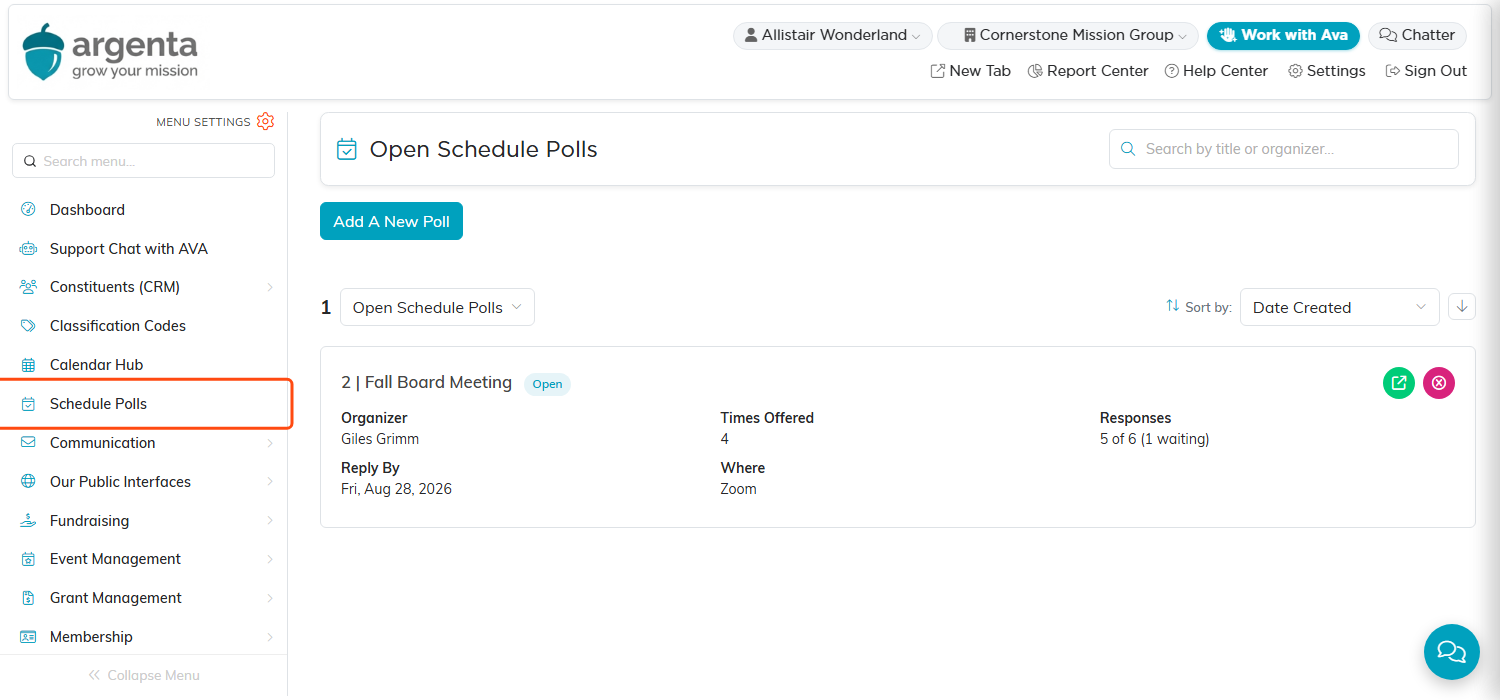
Click Schedule Polls in the main menu, just under Calendar Hub.
The list shows every poll your team has, not only the ones you set up, and each row names the organizer. That means a meeting can still be chased, read or finished when the person who arranged it is out.
The dropdown above the list starts on Open Schedule Polls, and also offers Finished, Canceled and All. Whichever you pick becomes the heading at the top of the page, so you can always see which set you are looking at.
1. Start the poll and say what the meeting is
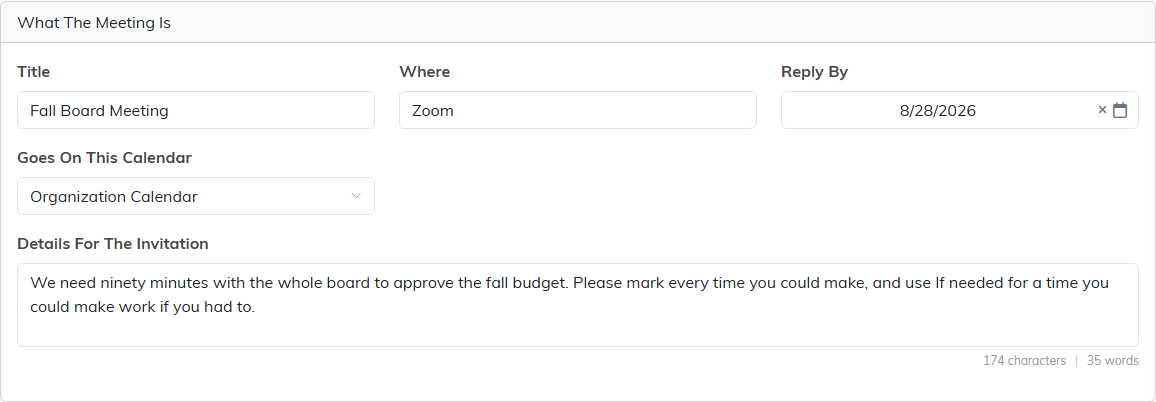
Click Add A New Poll, then fill in the top card.
- Title. What people see at the top of the invitation.
- Where. Zoom, a room, an address. Whatever your invitees need to know.
- Reply By. The date you would like answers by. You can clear it later and save to take it off the poll. Read Reply By is a request below before you rely on it.
- Goes On This Calendar. Which of your calendars the meeting lands on once a time is chosen. Set it now, because you cannot lock in a time without it.
- Details For The Invitation. Anything else people need before they answer: how long you need them for, what the meeting is about, how to read the choices.
2. Offer your times
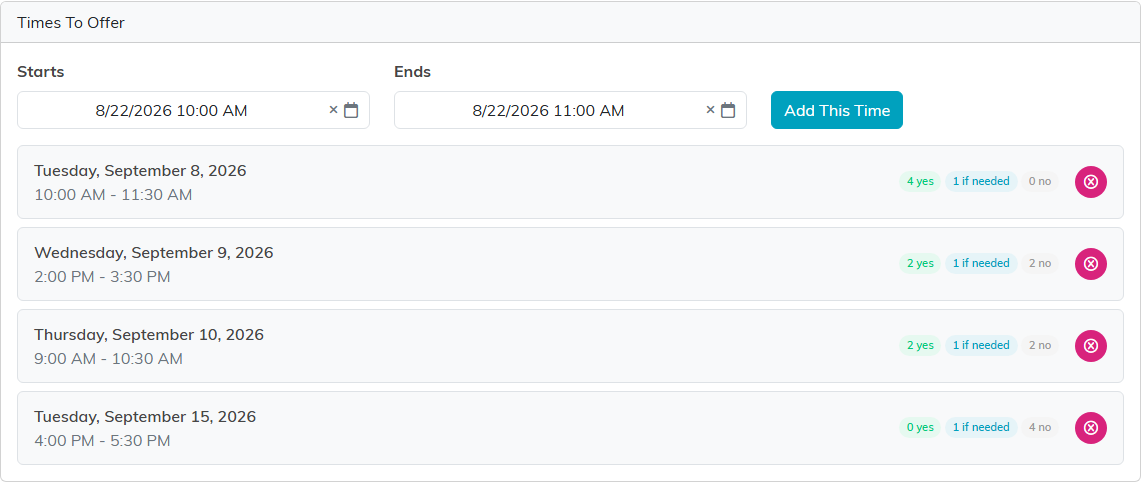
Set a Starts and an Ends and click Add This Time. Do that for every option you want to give people. Three or four is usually plenty. A long list makes answering harder, not easier.
Every time you add appears underneath, and once answers start coming in each one carries a running tally.
3. Add the people you are asking
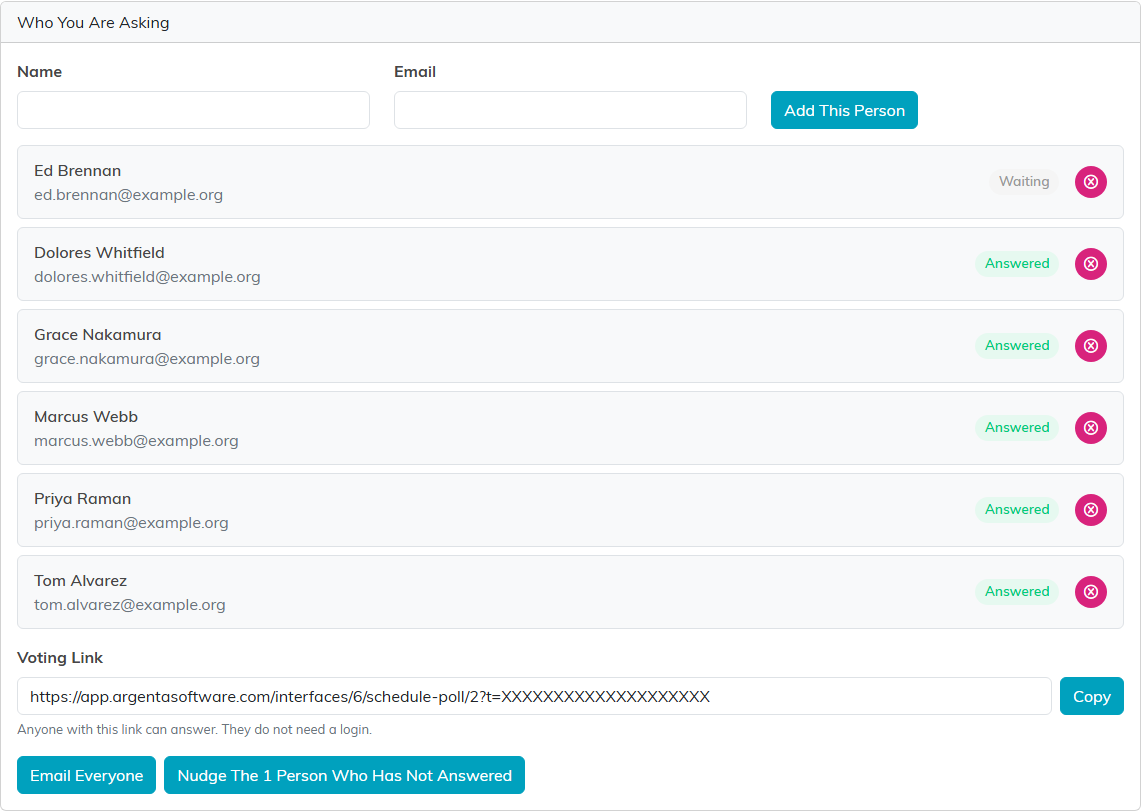
Type a name and an email address and click Add This Person. Everyone shows as Waiting until they reply, then Answered, so you can see at a glance who you are still missing.
4. Send it out
There is one Voting Link and everybody uses the same one. Copy it into your own email or your group chat, or let Argenta send it for you with Email Everyone.
Once some people have answered and some have not, a second button appears offering to nudge only the ones still outstanding, so nobody who already replied gets chased.
5. What your invitees see
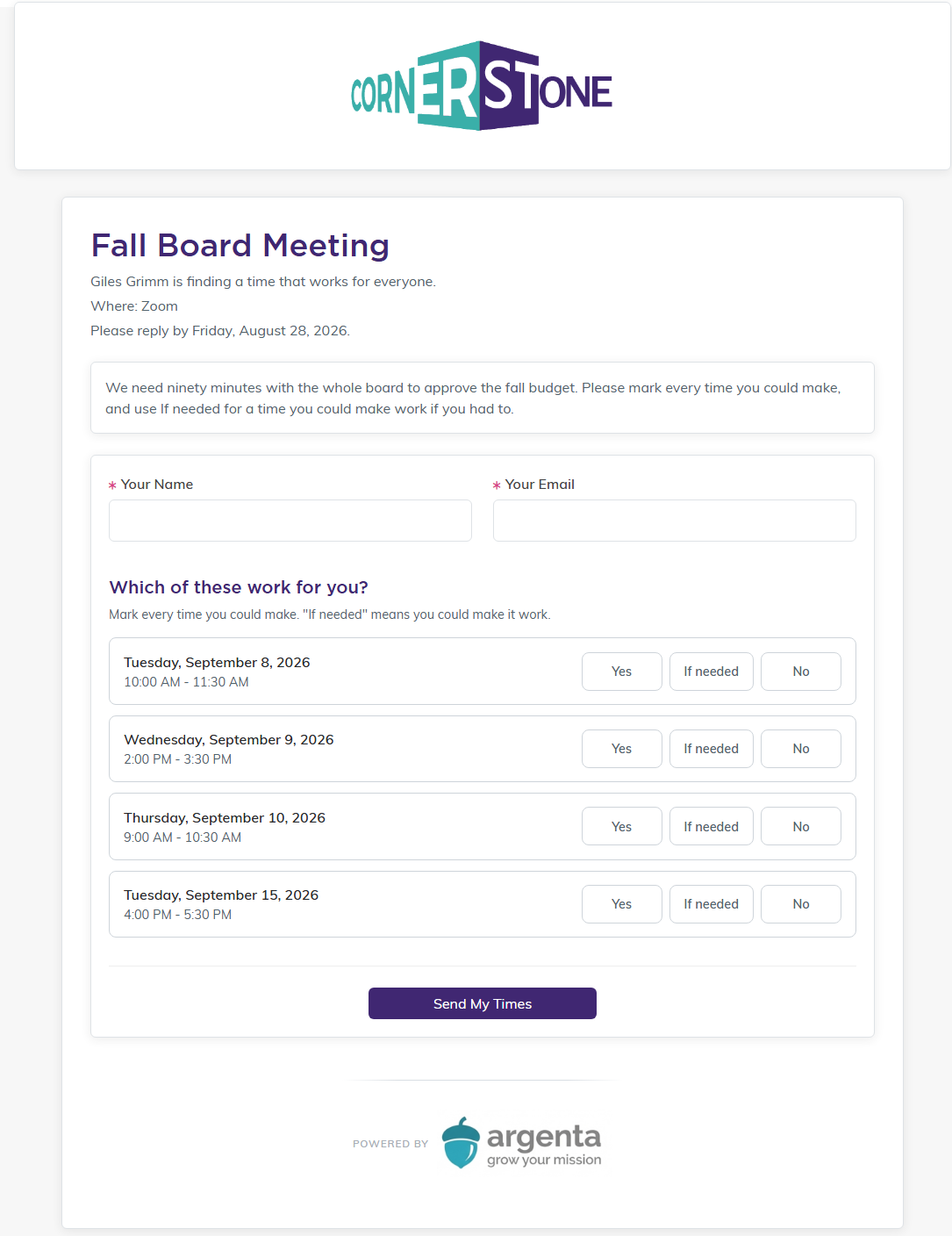
They land on a page carrying your organization's own branding, with your title, your location, your reply by date and your notes. They put in their name and email, mark each time Yes, If needed or No, and press Send My Times. If they change their mind they can open the same link again and answer once more, and that second answer replaces the first one completely.
If needed is the one that earns its place. It lets somebody tell you they could make a time work if it came to that, which is different from a cheerful yes and different from a flat no.
6. Read the answers
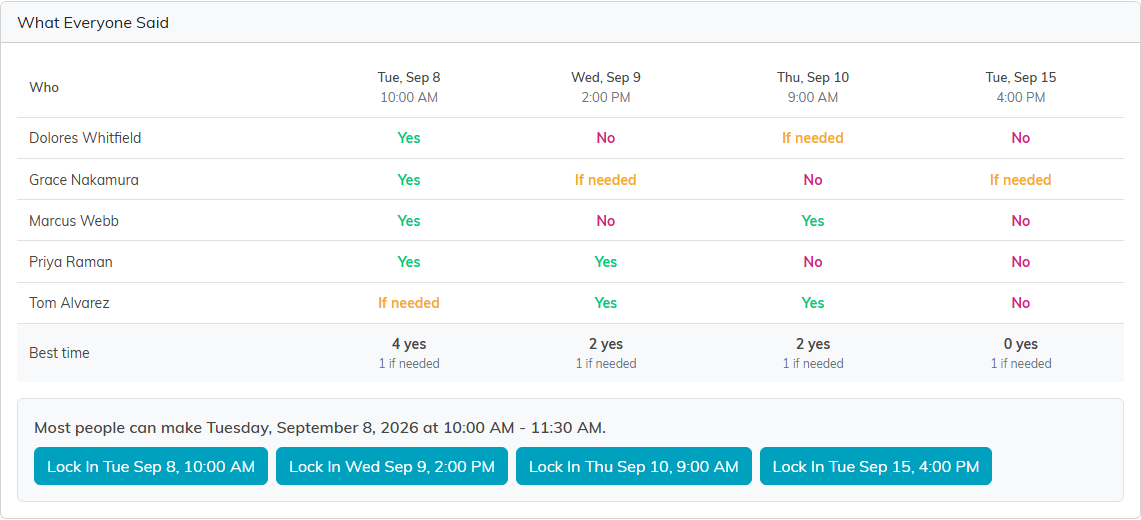
What Everyone Said lays the answers out as a grid, one row per person and one column per time, with a tally along the bottom and a line that reads the tally as it stands. It names the time most people can make only when more people said yes than no. When the top time is one that more people turned down, it tells you that instead, and when nobody has answered yet it says so.
Names always show, so you can go back to a particular person rather than to a number.
7. Lock in the time
Click Lock In beside the time you want. Argenta then writes the meeting onto the calendar you chose, so it behaves like any other meeting and picks up your calendar views, your Google sync and your reminders. It emails everyone to tell them the time is set, and it closes the poll. You can lock a time in even when nobody has answered yet, so the meeting still reaches the calendar.
Pick the time that suits the meeting rather than only the one with the most votes. The tallies are there to inform the decision, not to make it.
Things worth knowing
- Reply By is a request, not a cut off. Voting stays open past that date. Nothing closes until you lock in a time or cancel the poll, on purpose, because a late answer is still worth having.
- Locking in or canceling does close it, there and then. If somebody still has the voting page open when you choose a time, their answer is not taken. They are shown the time you picked, or that the poll was canceled, rather than a thank you for an answer that arrived too late to count.
- Calling it off keeps the answers. Cancel Poll stops the poll collecting answers and keeps the ones already given, and anyone opening the voting link is told the meeting was called off. It is the alternative to deleting the poll, which throws the answers away.
- Once a time is locked in or the poll is called off, the times and the people stop changing. Adding a time, removing one and sending invitations are all refused, and the page says so rather than appearing to work. Email Everyone and the nudge button stop too, so nobody is invited to a meeting that is not happening.
- Removing a person or a time asks first. The confirmation tells you whether there are answers attached, because those answers go with whatever you remove.
- View-only access shows the poll greyed out. Somebody who can read the poll but not change it sees the details plainly disabled, rather than a form that looks editable and then throws away what they typed.
- Choose the calendar before you lock in. If you have not picked one, Argenta stops you and tells you which step is missing, rather than closing the poll and leaving nothing on anybody's calendar.
- A long title gets shortened on the calendar. The calendar entry keeps the first 50 characters of your poll title, so put the words that matter at the front.
- One link, everybody. There is not a separate link per person. Everyone answers through the same one and says who they are on the page.
See also How to Create a Calendar in Calendar Hub.
