Knowledge Base Article
How To Convert A Lead
When a lead finally says yes, converting turns them into the record type that actually fits: a donor, a member, a volunteer, a client. It is the same person underneath, so the history you already logged stays right where it is.
Convert a lead
- Go to Marketing & Engagement > Leads/Opportunities. (Constituents (CRM) > Leads opens the same list.)
- Find the lead and click the green open icon beside it. The Lead Workspace opens on Lead Details.
- Start the conversion either way:
- The convert icon. Two circling arrows in the title bar at the top of the page, labeled "Convert Lead To...". It is there on every tab of the workspace.
- The Convert Lead... button. In the row of buttons at the bottom of Lead Details or Sales Cycle.
- Argenta saves the record first, then opens the Convert This Lead window.
- Open the Convert This Lead To... dropdown and pick the relationship you want to create: Board Member, Client/Customer, Donor, Member, Participant, Partner, Staff Member, Volunteer, or Other.
- Click Convert This Lead.
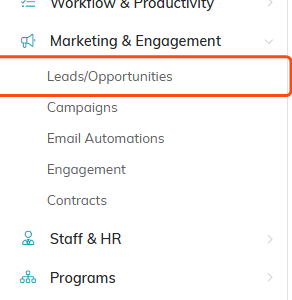
Leads/Opportunities sits under Marketing & Engagement.
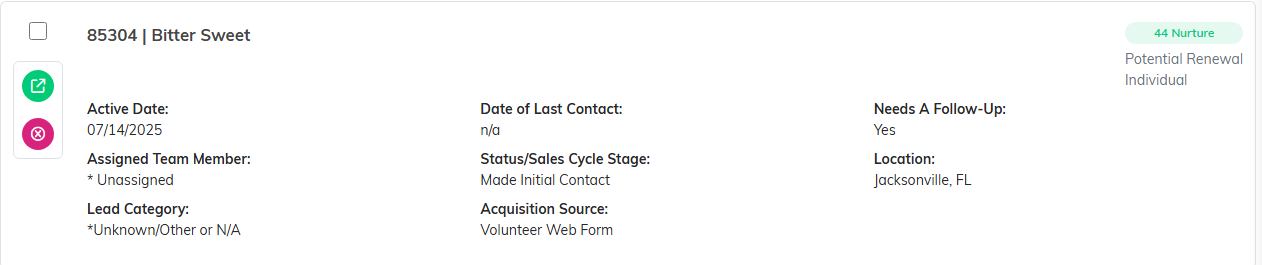
The green icon on the left of the row opens the Lead Workspace.

The convert icon sits in the title bar, on every tab of the workspace.

The same job is done by the Convert Lead button at the bottom of the page.
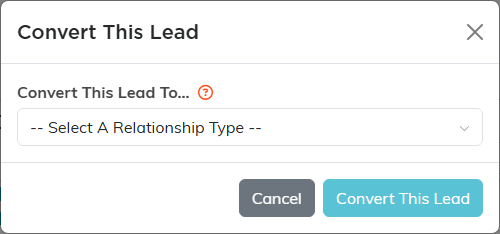
Argenta saves the lead first, then opens this window.
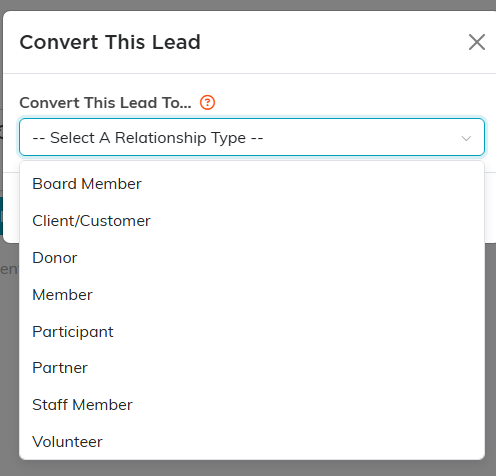
Pick the relationship you want to create. The list scrolls for the rest.
What happens after you convert
Argenta creates the new record, marks the lead Successfully Converted, and stamps the conversion date on the Sales Cycle tab. You get a confirmation message and then land on the new record itself, so you can finish filling it in while you are already there.
Other is the exception. Nothing new is created, the lead is still marked converted, and you go back to the lead list. Use it when the relationship does not match any of the built in types.
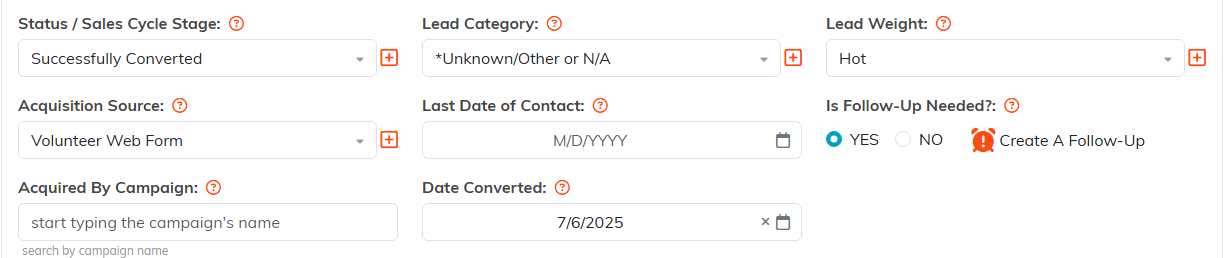
After the conversion, the Sales Cycle tab carries the status and the date.
Things worth knowing first
- Active Date has to be filled in. The save that runs ahead of the conversion will stop and ask for it if it is blank.
- Anything they already are is greyed out. A person who is already a donor shows as "Donor (Already Converted)" in the dropdown, so you cannot create the same relationship twice.
- Converted leads leave the default view. The list opens on Active Leads, which hides converted records. Switch the dropdown at the top to All Leads to find them again.
- Set the Lead/Opportunity Type early. It is your own note about what this lead could become (potential donor, potential volunteer), and it makes the right conversion obvious months later when someone else picks the record up.
- If a record is locked or set to view only, the convert icon and the button are hidden.
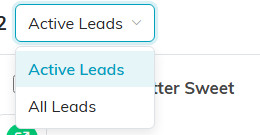
Switch this to All Leads to see the ones you have already converted.
For the full record and every tab in the workspace, see Add Leads/Opportunities.
