Knowledge Base Article
Overview Part 1 of the Argenta Event Management System
Argenta's Event Management covers the whole life of an event: setting it up, selling tickets to the public, tracking who is coming, seating and feeding them, and seeing what the event actually made. This overview shows you the shape of it so you know where to go.
The Event Management Menu
- Event List: every event, and where you create a new one
- Public Event Form: the default look and fields for the public forms your attendees fill in
- Event Participants/Guests: attendees across all your events
- Event Seating: the seating chart
- Event Sessions: breakouts or classes within an event
- Event Ticket Sales and Event Ticket Purchasers: the money side, and who bought
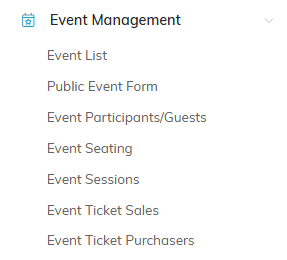
The Event Management menu on the left.
Inside an Event
Open an event and the workspace menu runs across the top, grouped into sections. There is a lot there because events vary so much, and most organizations use a handful of these:
- Setting it up: Event Details, Contact & Location, Event Itinerary, Event Checklists, Event Committee
- Taking registrations: Public Form Design, Notifications, Event Sessions, Wait List
- Who is coming: Participants/Guests, Additional Guests, Participant/Guest Groups, Comments, Seating, Meal Choices
- The money: Event Financials, Event Sponsorship
- Everything else: Connections, Event Vehicles, Event Files, Event Notes, Record Permissions

The workspace menu runs across the top of an open event.
You do not have to fill in every section. Use what your event needs and leave the rest alone.
The Order That Works
- Create the event and fill in Event Details, then Contact & Location
- If you are selling tickets or taking registrations, set up Public Form Design and publish the form
- Set Notifications so the right people hear about registrations
- As people register, watch Participants/Guests and Event Ticket Sales
- Closer to the day, work through Meal Choices, Seating, and your Event Checklists
- Afterward, check Event Financials to see where you came out
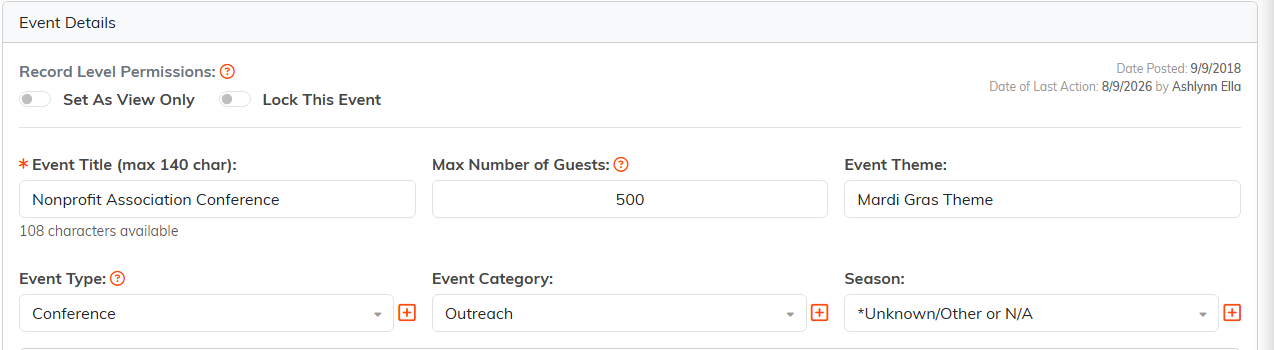
Event Details is where every event starts.
How Events Connect to the Rest of Argenta
Attendees are constituents, so an event builds on the records you already have rather than a separate list. Use Connections to tie an event to the campaign, program, or grant it belongs to, which is what lets you answer questions later about what a campaign actually produced.
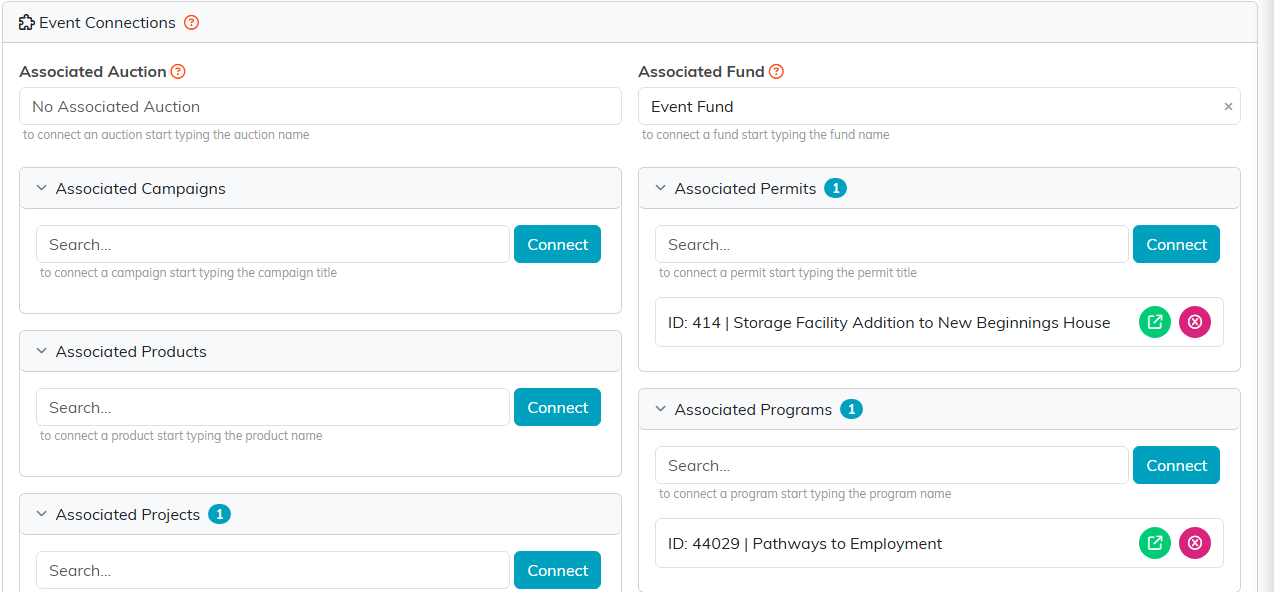
Connections ties the event to the campaign, program, or grant it belongs to.
Where to Go Next
This is the orientation. For the detail, see How To Design Your Public Event Ticket Sales Form, How To Sell Tickets to an Event in Argenta, and How to Track Event Attendance.
