Knowledge Base Article
How To Add A New Board Member
The short answer: To add a new board member in Argenta, open the Constituents menu, select Board Members, and click Add New. Use Constituent Lookup to find the person (board members must be individuals), then click Add Board Member & Enter Details. Argenta automatically sets their status to Active and their term start date to today, and you can adjust the status, term dates, category, and board position in their workspace.
Overview
Board members provide oversight, strategic guidance, and help with fundraising to keep a nonprofit aligned with its mission. Tracking board members in Argenta helps manage relationships, monitor tenure, organize activities, and streamline communication.
Finding Board Members
Board members in Argenta are constituents who are designated as board members. To find them, open the Constituents menu and select Board Members.
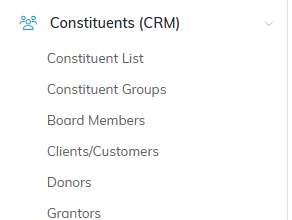
Board Members sits under Constituents in the main menu.
Adding a New Board Member
- From the Board Members list, click Add New.
- Use the Constituent Lookup field to find the individual you want to designate as a board member.
- Click Add Board Member & Enter Details to open their workspace.
When you add a board member, Argenta automatically sets their status to Active and their term start date to the current date. You can change both values as needed.

Add New at the top of the Board Members list.
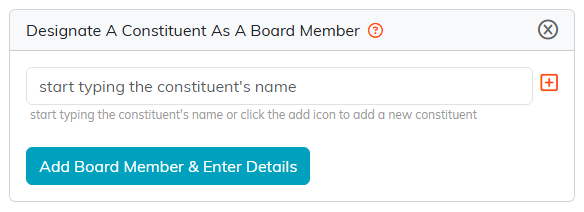
Look the person up here. Board members have to be individuals.
Board Member Workspace
The Board Member Details page is divided into two parts: the constituent card and the board member details.
The workspace itself holds nine more pages beyond the details: Skills & Experience, Training, Follow-Up, Notifications, Contact Log, Email Log, Board Member Files, Board Member Notes, and Record Permissions. For files and notes, see Add Related Files and Add A Note to the Notes Section.
If you are bringing a whole board across from another system, use the board member importer rather than adding people one at a time.

The workspace menu, with nine more pages beyond the details.
Constituent Card
The constituent card shows key information about the person, including:
- Constituent ID, name, and email address
- Mailing address, city, state, and zip code
- Constituent type (individual, household, or organization). Board members must be individuals.
- Affiliations (e.g., donor, member, volunteer)
- Phone numbers and best contact method/time
If multiple phone numbers exist (cell, home, work), each is displayed.
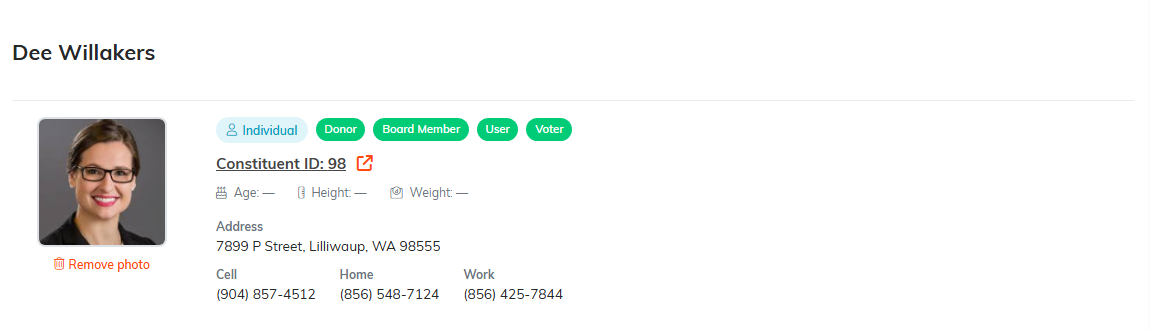
The constituent card, with their affiliations and contact details.
Board Member Fields
- Status: Automatically set to Active when added. You can change it at any time.
- Term Start Date: Defaults to the current date but can be adjusted.
- Term End Date: Optional; enter if your board uses defined terms.
- Category: Used for grouping, filtering, and reporting. Argenta comes with predefined categories, but you can add new ones directly in the workspace.
- Board Position: Defaults to "Board Member" but can be changed to a specific position like President or Treasurer.

Status starts at Active and the term start date at today. Both can be changed.

Category is for grouping and reporting. Position defaults to Board Member.

The buttons at the bottom of the page.
Record Security
Permissions let you control who can view or edit a board member record. Open the Record Permissions tab in the workspace. It has two panels:
- View Only Access: When View Only is turned on for the record, most users can look at it but not change it. Anyone you add to this panel can still edit the record.
- Locked Record Access: When the record is Locked, it is hidden from most users. Anyone you add to this panel can still open and access it.
In each panel, start typing a name in the Add User box, select the person, and click Add. To remove someone's access, click the pink remove icon next to their name.

The two switches that drive record level security.
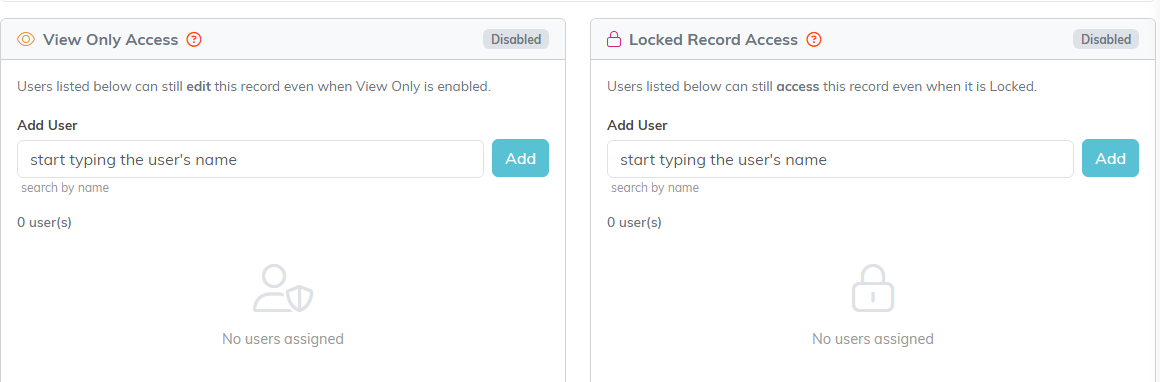
The two panels on the Record Permissions tab.
Record Audit
The audit section shows:
- Who created the record and on what date
- Who last accessed or modified it and on what date
To see detailed user activity, check your Activity Logs from the top-right menu.
Summary
- All board members are constituents designated as board members.
- You can track status, term dates, categories, and positions.
- Use record-level security to control access and protect data.
- View audit logs for full transparency and accountability.
Frequently asked questions
How do I add a board member in Argenta?
From the Constituents menu, choose Board Members, click Add New, look up the person, and click Add Board Member & Enter Details. They must be an individual constituent. Status defaults to Active and the term start date to today, and both can be changed.
Where do I find board members in Argenta?
Open the Constituents menu and select Board Members to see the full list.
What information can I track for each board member?
Status, term start and end dates, a category for grouping and reporting, and a board position such as President or Treasurer. Their constituent card also shows contact details, address, affiliations, and phone numbers.
Can I control who sees or edits a board member record?
Yes. The Record Permissions tab has View Only Access (most users can look but not change it) and Locked Record Access (hidden from most users). Add specific people to either panel to grant them access.
Does Argenta track changes to a board member record?
Yes. The audit section shows who created the record and when, and who last modified or accessed it. For detailed activity, check the Activity Logs in the top-right menu.
