Knowledge Base Article
How To Add A New Fund Transfer
Argenta has a dedicated spot for the transfers you make between your funds, called Fund Transfers. A fund is a designated pool of money set aside for a specific purpose.
A fund transfer moves money from one fund to another. To move money between bank accounts instead, use Account Transfers.
Getting There
From the main menu, choose General Financials > Fund Transfers. This opens your list of fund transfers, with the total across the list shown at the top.
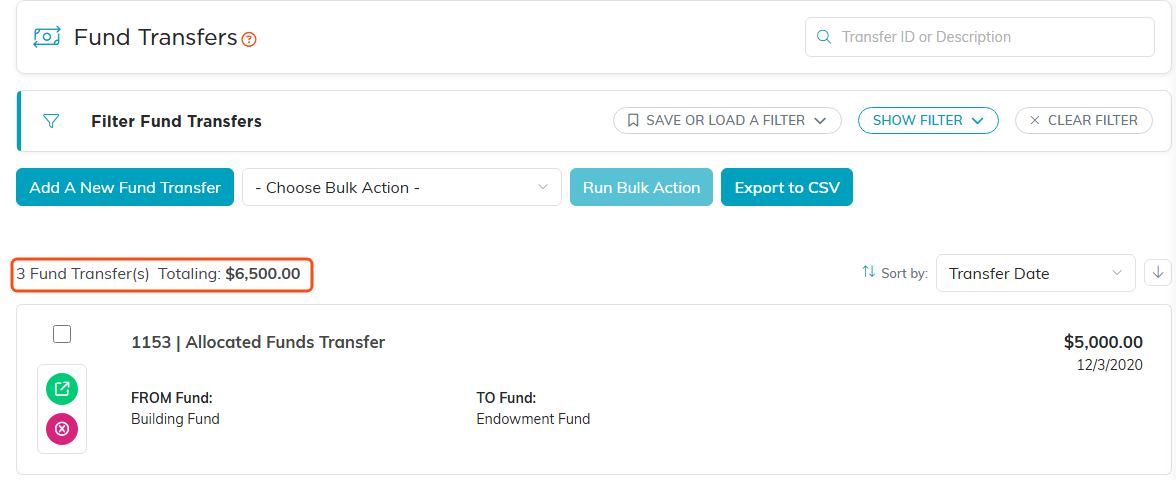
The Fund Transfers list. The total across the list sits above the first transfer.
Adding a Transfer
- Click Add A New Fund Transfer. Argenta creates the transfer and opens its Fund Transfer Details page
- Fill in the fields:
- Transfer Date (required): The date you moved the money. Type it or use the date picker
- Amount (required): The amount of the transfer
- From Fund (required): The fund the money comes out of
- To Fund (required): The fund the money goes into
- Transfer Description/Reason: Why you made the transfer. Worth filling in, your future self and your auditor will thank you
- Click Save All Changes to stay on the record, or Save All & Exit Record to save and go back to the list. Exit Record leaves without saving your latest edits

Add A New Fund Transfer sits above the list.
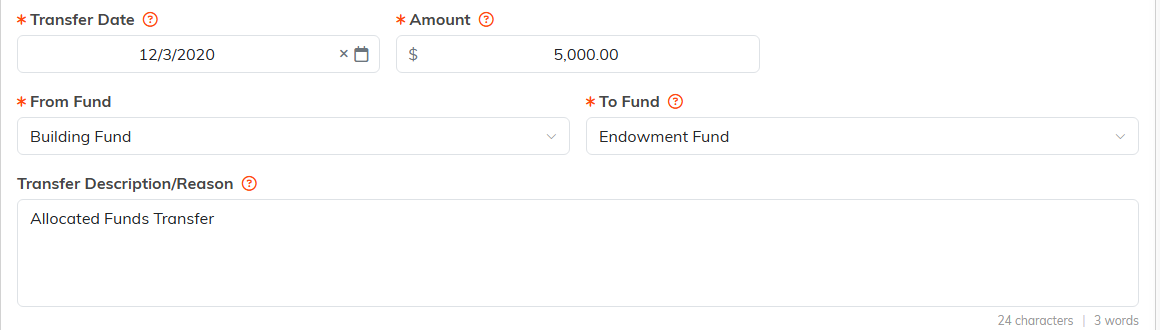
Fund Transfer Details. Transfer Date, Amount, From Fund and To Fund all carry the orange asterisk.
Required fields are marked with an orange asterisk.

The three buttons at the bottom of the record. Exit Record does not save.
Working With the List
- Click the green arrow to open a transfer
- Click the pink X to delete one
- Use the filter panel to narrow the list, and Export to CSV to pull it into a spreadsheet
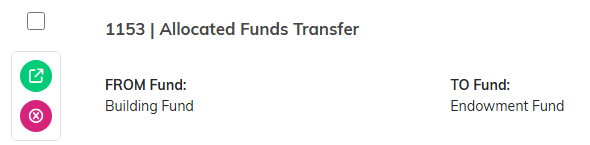
The green arrow opens a transfer. The pink X deletes it.

The filter panel narrows the list. Export to CSV is highlighted.
