Knowledge Base Article
How To Terminate A Staff Member in Argenta
When someone leaves your organization, terminate their staff record rather than deleting it. Terminating keeps their employment history, their previous positions, and everything tied to them, which is what you need for your records later.
Before You Start: Anyone Marked as a Manager
Argenta will not terminate a staff member whose Management Status is set to Manager. You will get a message saying you must reassign their direct reports first. This check looks at the Management Status field itself, so it stops you even when the person has nobody reporting to them.
To get past it:
- Open the person's Direct Reports page and move anyone listed there to their new manager.
- Go back to Staff Member Details and change Management Status to Non-Management.
- Click Save All Changes.
Now you can terminate. The guard is deliberate, it keeps you from stranding staff under a manager who no longer works there.
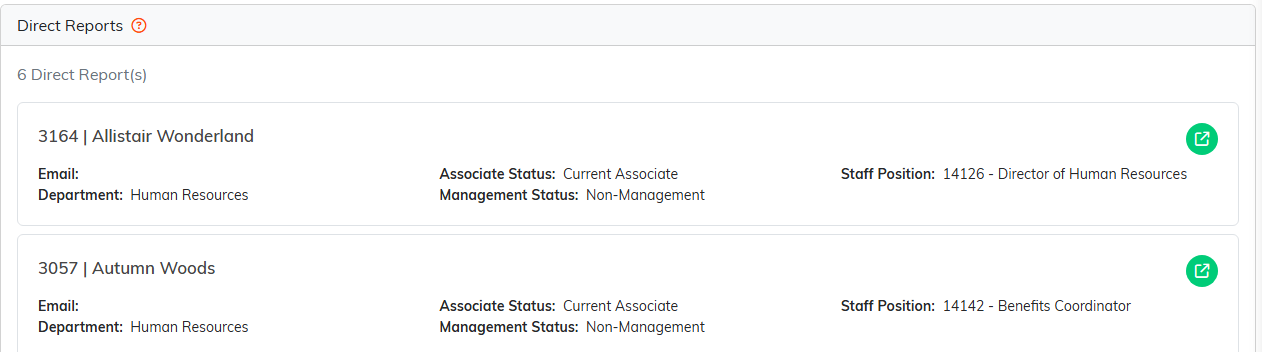
The Direct Reports page. Move everyone listed here to their new manager first.

Management Status sits on Staff Member Details. Change it to Non-Management.
Terminating a Staff Member
- Go to Staff & HR > Staff Members and open the person.
- On Staff Member Details, scroll to the Termination card and fill in Date of Termination and Reason for Termination. Set the Eligible for Rehire switch in that card's header while you are there.
- Click Terminate Employment in the button bar at the bottom of the page.
- Confirm when Argenta asks whether you are sure. Your termination date and reason are saved along with it, so there is no separate save step.
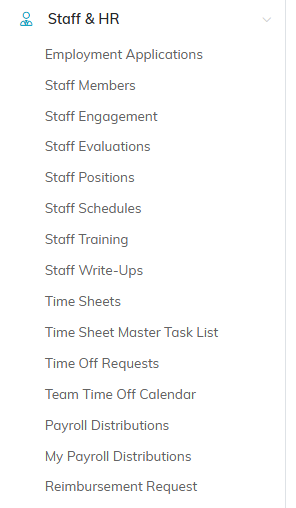
Staff Members sits under Staff & HR in the main menu.

The Termination card. Eligible for Rehire is the switch in its header.

Terminate Employment sits in the button bar at the bottom of the page.
What Happens
- Their status changes from Active/Employed, shown in green, to Inactive/Terminated, shown in pink
- Both the primary and the secondary position they held are written to their Previous Positions page automatically, so their history is preserved without you retyping it
- The record stays in Argenta, so their history, files, and notes are all still there

Active/Employed reads in green while the person is still on staff.

The position they held is written to Previous Positions for you.
If Someone Comes Back
Open the terminated staff member and click Reinstate Employment, which replaces the Terminate button once someone is inactive. Confirm, then set their current position and the rest of their details.
A Note on Finding Them Later
The staff list defaults to Active Staff, so a terminated person can look like they have vanished. Switch the status dropdown above the list to Both Active & Inactive, or to Inactive/Terminated to see only the people who have left.
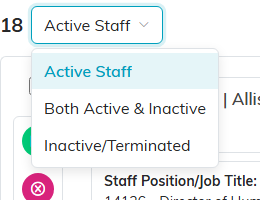
The status dropdown above the staff list.
