Knowledge Base Article
How To Manage Refunds in the Argenta General Financials Module
Argenta tracks refunds in two places under General Financials, depending on which direction the money is moving.
Refunds Payable vs Refunds Receivable
- Refunds Payable: money you owe back to someone. The key field is Constituent Receiving Refund. Use this when you are returning an overpayment, a cancelled registration, or a donation a donor asked you to reverse
- Refunds Receivable: money coming back to you. The key field is Constituent Giving Refund. Use this when someone owes you a return of funds
Both work the same way. Pick the one that matches the direction of the money.
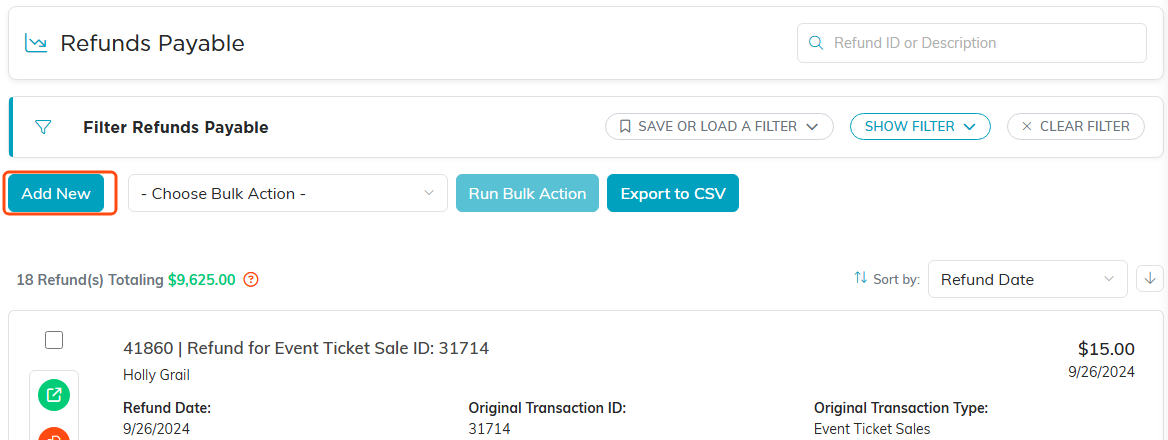
Refunds Payable. Refunds Receivable looks the same, with Constituent Giving Refund instead.
Adding a Refund
- Go to General Financials > Refunds Payable or Refunds Receivable
- Click Add New
- Fill in the Refund Details. Fields marked with an orange asterisk are required:
- Fund, Deposit Account, and Account: where the money is coming from or going to
- Refund Date
- Constituent Receiving Refund (or Giving Refund): search for the person. You can add a new constituent right from the field, or open their record with the button beside it
- Refund Amount
- Refund Method: how the money moves, such as check or card
- Refund Category: optional, for grouping refunds in reporting
- Refund Description: optional, but the fastest way to remember why this refund happened
- Check #/Reference #: fill this in when you refund by check
- Click Save All Changes to stay on the record, or Save All & Exit Record to save and return to the list. Exit Record leaves without saving your latest edits

Where the money is coming from or going to. All three are required.

The orange plus beside the lookup adds a new constituent. The green button opens their record.

Refund Amount and Refund Method are required. Check number is for a refund by check.
Card Refunds
A refund record has fields for the Stripe Charge ID, Stripe Transaction ID, and Stripe Customer ID. Recording these ties your refund back to the original card transaction, which makes reconciling a Stripe payout far easier when the refund reduces it.

The three Stripe fields on a refund record.
Organizational Units
If your organization uses them, you can assign a refund to a Chapter, Division, or Department, and to a District and Precinct for political organizations.

Chapter, Division and Department sit below the Stripe fields.
Working With the List
Search by Refund ID or Description, filter the list, and export it to CSV. Each refund record also has its own Files and Notes pages for supporting documentation.

Related Files and Refund Notes are tabs on the refund itself.
Refunding a Specific Transaction
Refunds attached to one record are handled on that record instead. Open the payment, donation, order, or event ticket sale and use its own Refunds page. Use Refunds Payable and Refunds Receivable for refunds you are managing at the general financial level.

A donation's own Refunds tab, with Issue A Refund.
