Knowledge Base Article
Add Meeting Minutes
Meeting Minutes record what was discussed in a meeting and what was decided, so the decisions survive after everyone's memory of the room has faded.
Go to Workflow & Productivity > Meeting Minutes. Projects have their own Meeting Minutes page inside the project workspace for meetings about that project.
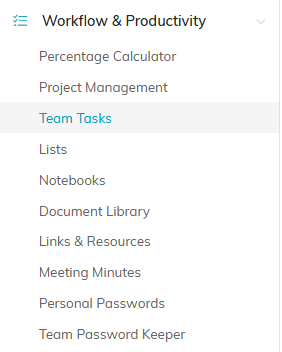
Meeting Minutes sits under Workflow and Productivity in the left menu.
Adding Meeting Minutes
- Click Add New. Argenta creates the record and opens the Meeting Minutes Workspace.
- On Meeting Minute Details, enter the Meeting Date (required) and the Title of Meeting Minutes (required).
- Add a Category, a Short Description, and an Associated Client/Customer if the meeting concerned one.
- Set Chapter, Division, or Department if the meeting belongs to part of the organization.
- Save.
For a meeting you hold regularly, use the orange Copy & Add New icon on the list rather than starting fresh each time.

Add New creates the record and opens the workspace straight away.
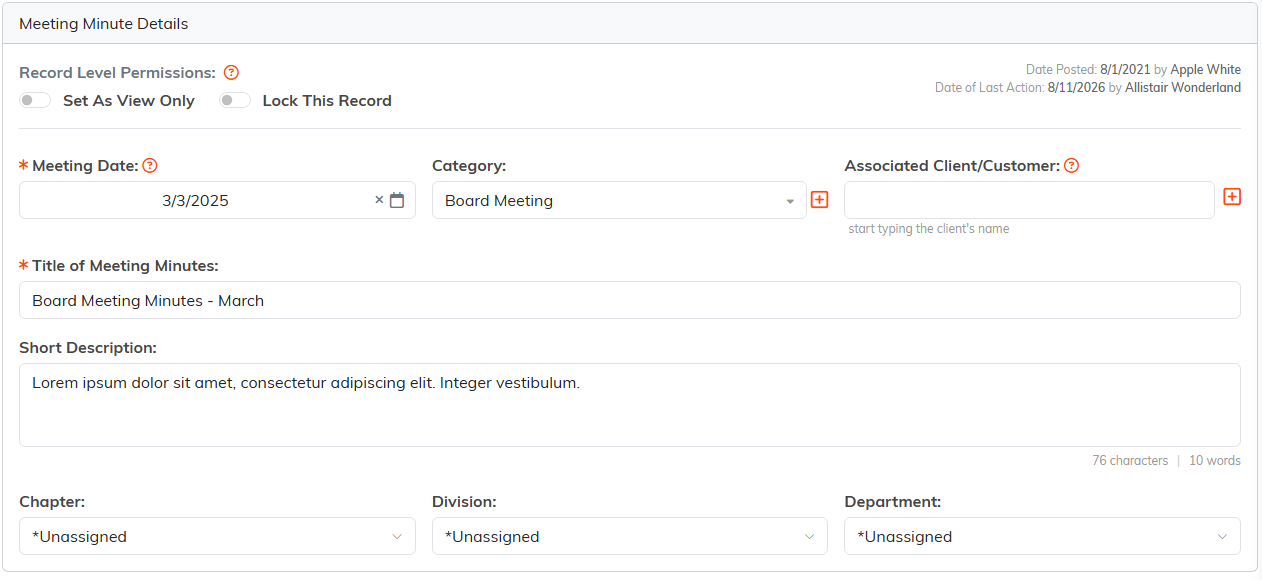
Meeting Date and Title of Meeting Minutes are the two required fields.
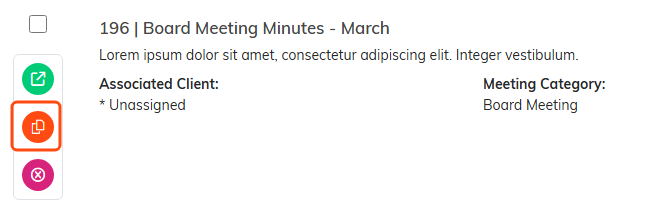
The orange icon copies a meeting you hold regularly into a fresh record.
Recording the Minutes
The details page is the header only. The minutes themselves go on one of two pages:
- Meeting Minutes (Text) - type or paste them into Argenta, which keeps them searchable
- Meeting Minutes (File(s)) - attach a document, for minutes drafted and approved elsewhere
Either is fine. Text is easier to search later; a file is easier when minutes are formally signed off.
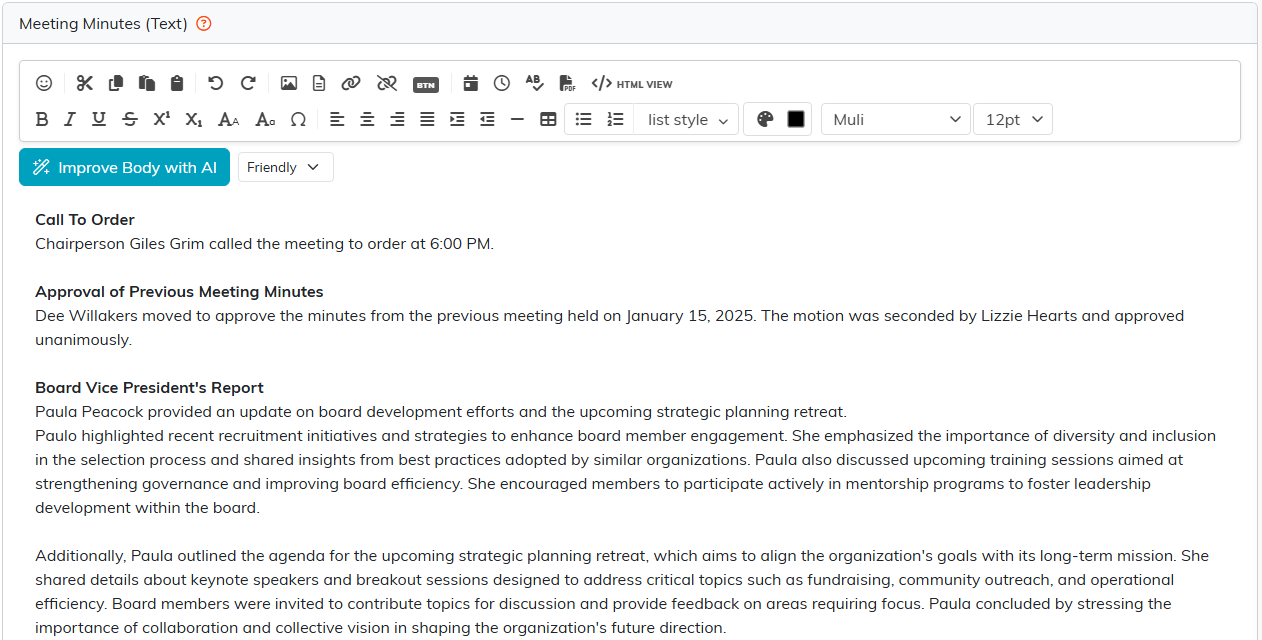
Typing the minutes into Argenta is what keeps them searchable.
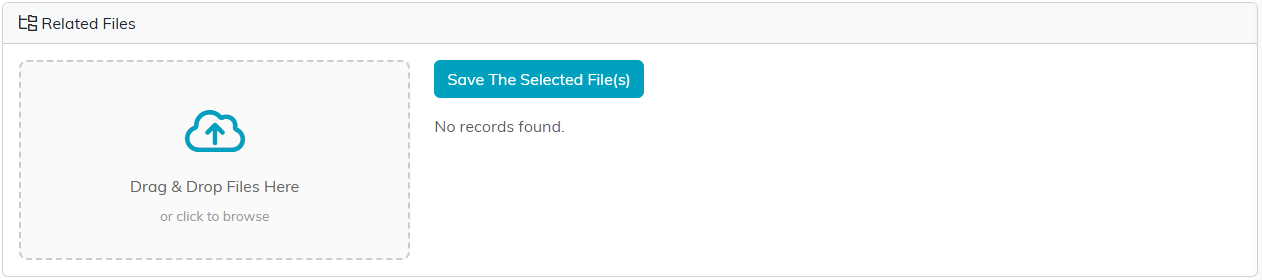
Attach the document here instead when the minutes were approved elsewhere.
Action Items
Use Meeting Checklists for what people committed to, ticking each item off as it is done. Keeping the follow-ups on the meeting record means the commitments stay attached to the meeting that produced them.
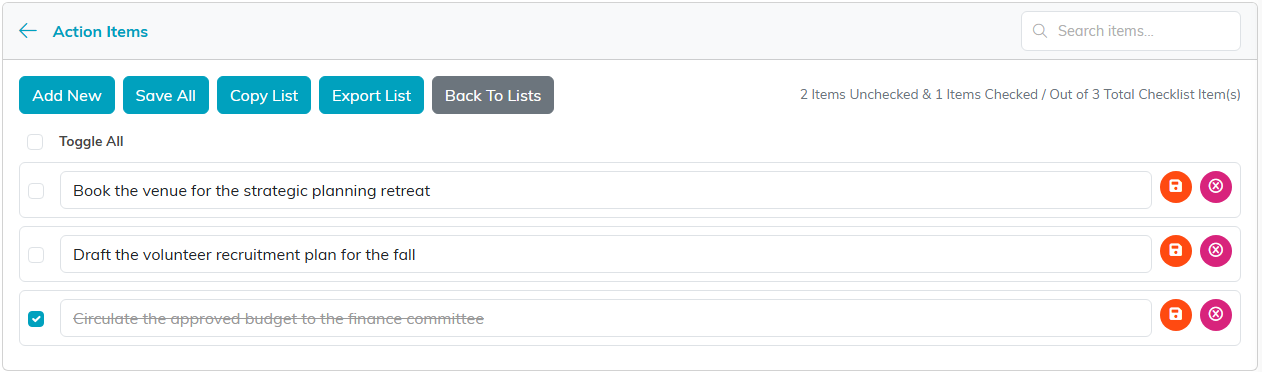
Each commitment gets its own line, ticked off as it is done.
Linking the Meeting to Other Records
The Connections page ties the minutes to the records the meeting was about, so the meeting surfaces when someone is looking at that record rather than only when they search the minutes list.
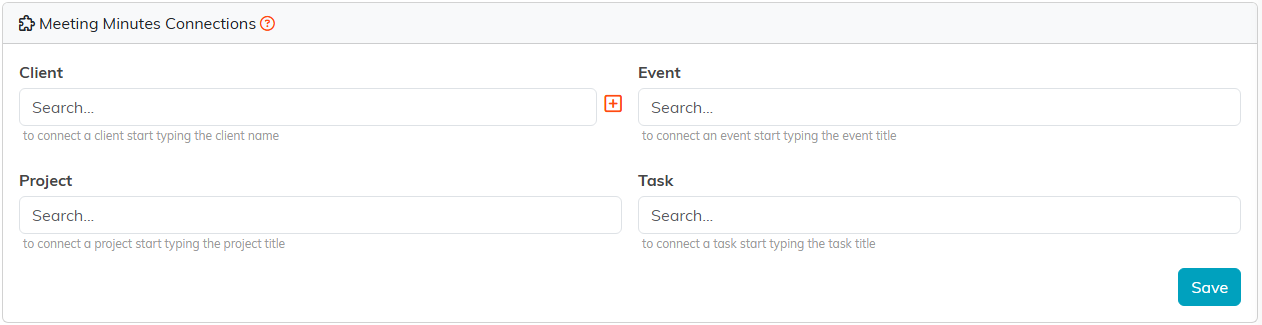
Connections tie the minutes to the records the meeting was about.
Record Level Permissions
Minutes can be sensitive, particularly board or personnel meetings. Set As View Only and Lock This Record at the top of the details page are the quick controls; the Record Permissions page grants access person by person.

Both switches sit at the top of the details page.
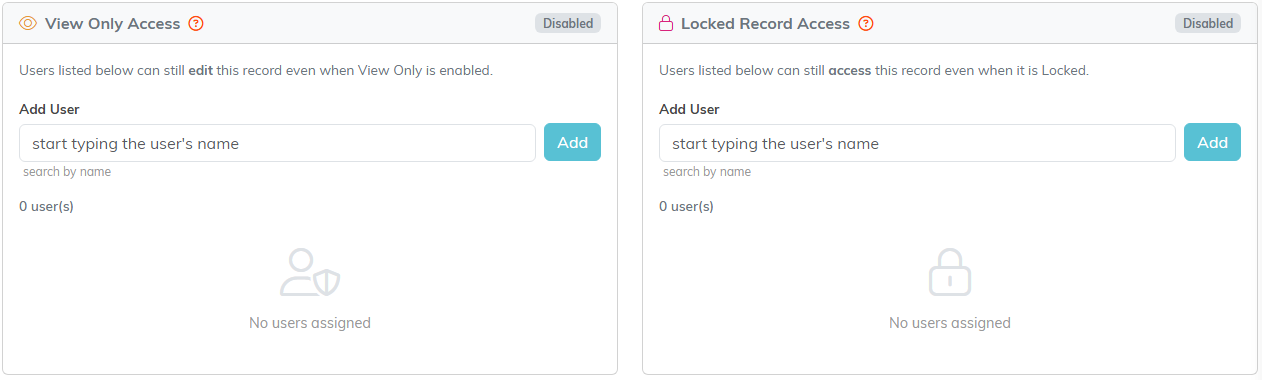
Record Permissions is where access is granted person by person.
The Meeting Minutes Workspace
- Meeting Minutes Details - date, title, category, description
- Connections - links to related records
- Meeting Minutes (Text) and Meeting Minutes (File(s)) - the minutes
- Meeting Checklists - action items
- Meeting Minutes Notes - internal notes
- Record Permissions - who can view or edit

Every page of the record is on this bar.
Making Them Findable
Search by ID or title, and export to CSV. Title minutes consistently, for example "Board Meeting 2026-07" rather than "Meeting", and a year from now you will still be able to find the one you want.

Search by ID or title, or send the whole list out to CSV.
