Knowledge Base Article
Add Expense Reimbursement Request
Argenta gives you a built-in form for requesting reimbursement on something you bought. When you submit it, the team member set as your Financial Manager is notified so they can process it.
Go to Staff & HR > Reimbursement Request.
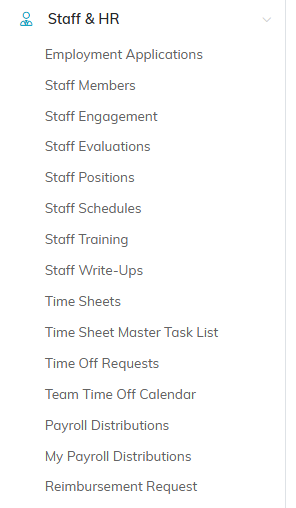
Reimbursement Request is the last item under Staff & HR.
Filling Out the Request
Five fields are required, marked with an orange asterisk: Date of Purchase, Payee, Expense Description, Team Member Who Made Purchase, and Total Cost of All Items.
- Date of Purchase - when you bought it
- Payee - the constituent receiving the payment, which can be anyone in your system
- Expense Category - pick from the dropdown
- Expense Description - what you bought
- Team Member Who Made Purchase - defaults to you, and you can change it
- Total Cost of All Items - the amount to be reimbursed
- Payment Method - how the purchase was paid for
- Check/PO/Reference Number - if you have one
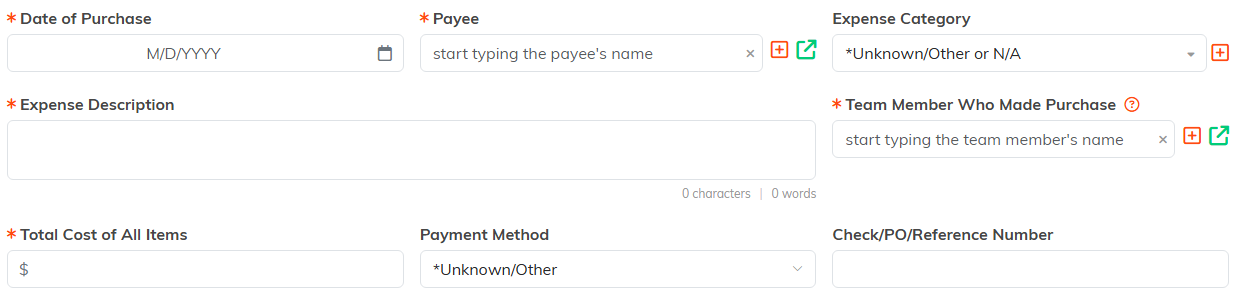
The five fields with an orange asterisk are the ones you have to fill in.
Recurring Expenses
Turn on Is This Expense Recurring? and the two fields beneath it unlock: Recurrence Frequency, and Auto Input Recurring Expenses? if you want Argenta to enter it for you each time. Leave the switch off and both stay greyed out.

Both fields stay greyed out until the switch is on.
Tying the Expense to Something
None of these are required, but filling them in is what makes your expense reporting useful later:
- Chapter, Division, and Department, plus District and Precinct for political organizations
- Related Client, Related Campaign, Related Event, and Related Project

None of these are required, and all of them make your reporting better later.
Receipt and Notes
Attach the receipt under Receipt File. Add anything the approver should know under Notes.

Drop the receipt in, or click to browse for it.
Submitting
Click Submit This Expense Reimbursement Request. You get a confirmation that the Financial Manager has been notified, along with two buttons: Submit Another Request to file a second one, or Return To Your Dashboard.

The submit button sits at the foot of the form.
