Knowledge Base Article
Add A Mission Trip Type
Mission Trip Types group your mission trips and set the default fund and fees that trips of that type inherit. You create and manage them in the Mission Trip Types section.
Add a mission trip type
- Open Mission Trip Types. From the left menu, go to Mission Trips > Mission Trip Types.
- Click Add New. This creates a new type and opens the Mission Trip Type Workspace.
The workspace has three tabs: Trip Type Details, Trip Type Default Fees, and Record Permissions.
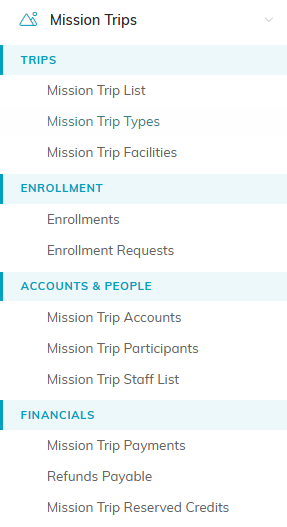
Mission Trip Types sits under Trips in the left menu.

Add New on the Mission Trip Types list.

The three tabs of the Mission Trip Type Workspace.
Trip Type Details
Start on the Trip Type Details tab and fill in:
- Status - set the type to Active or Inactive.
- Mission Trip Type (required) - the name of the type you're creating.
- Associated Fund (required) - start typing to search for the fund, then select it. This becomes the default fund for every mission trip of this type.
- GL Unearned Revenue - the GL account where unearned revenue for this type should post.
- GL Earned Revenue - the GL account where earned revenue for this type should post.
At the top of the tab you can also set Record Level Permissions with the Set As View Only and Lock This Record switches. Click Save All Changes & Continue to save and keep going, then open the Trip Type Default Fees tab.
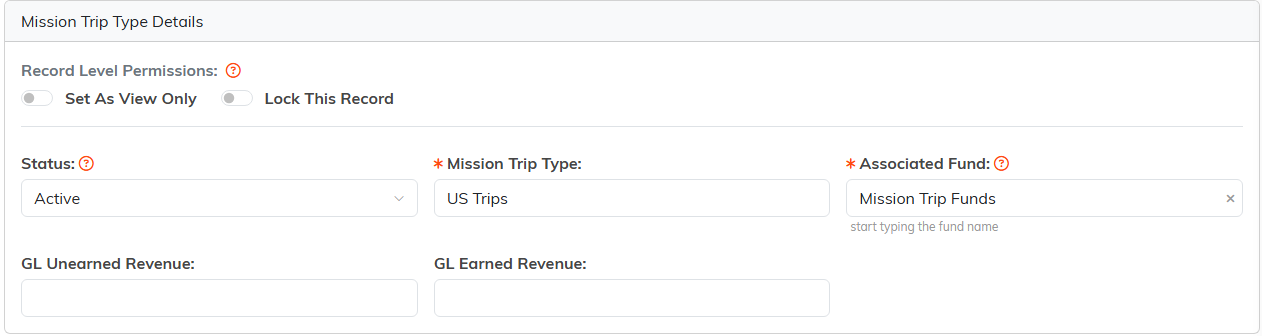
The Trip Type Details tab, with the record permission switches at the top.

Save All Changes and Continue keeps you in the workspace.
Trip Type Default Fees
Set the fees that trips of this type should start with. On the Trip Type Default Fees tab, click Add A New Trip Type Default Fee to open the Add Default Fee form:
- Fee Type (required) - a name for the fee.
- Fee Amount - the default amount for the fee.
- Active - leave this on to make the fee available at the mission trip level.
Click Save to add the fee. To change an existing fee, edit its values in the list and click the save icon on that row.
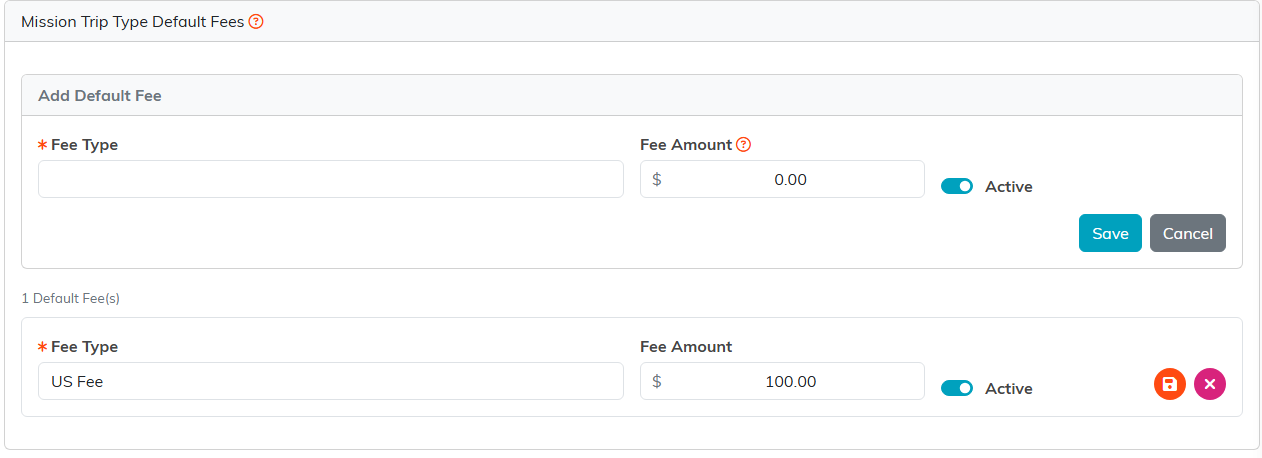
The Add Default Fee form opens above the fees already on the type.
Record Permissions
The Record Permissions tab controls who can see or edit this trip type when it's set to View Only or Locked. To give a specific user access, start typing their name in the Add User box, choose the user, and click Add.
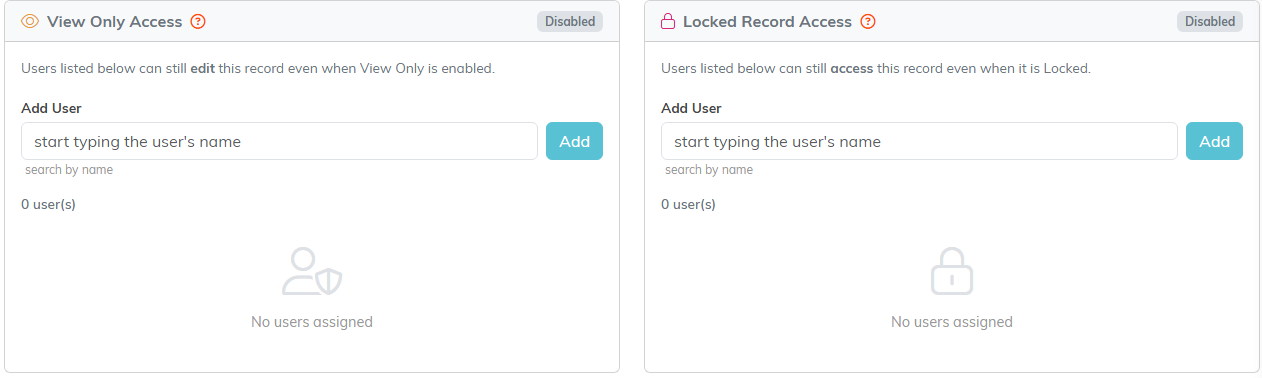
Add a user to either panel to give them access.
