Knowledge Base Article
Add A Mission Trip Account
A Mission Trip Account is an organization, household, or individual that takes part in your mission trips, a lot like a customer. An account can enroll in one or more mission trips. Every account is built on an existing constituent, so make sure the constituent exists first, then group them here as a Mission Trip Account.
Add a mission trip account
- Open the account list. From the left menu, go to Mission Trips > Mission Trip Accounts.
- Click Add New. This opens the Add A Mission Trip Account screen.
- Fill in the account. Only the constituent is required; the rest are optional but helpful.
- Click Add This Account. The new account is created and opens in its workspace.
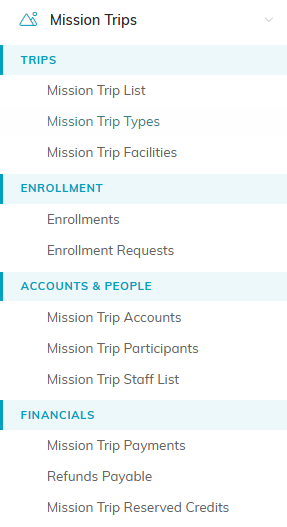
Mission Trip Accounts sits under Accounts and People in the left menu.

Add New on the Mission Trip Accounts list.

Add This Account creates the account and opens its workspace.
Fields
- Group/Account (Constituent) (required) - start typing to search for the constituent this account is for, then select them. If they aren't a constituent yet, add them first (see Add Constituents).
- Account Contact (Constituent) - the main contact person for the organization or household.
- Account Manager (Team Member) - the team member who supports this account.
- Account Type and Account Category - optional ways to classify the account. The choices come from your Classification Codes.
- Acquisition Source - how you acquired the account, for example a Facebook ad.
- Associated Campaign - a campaign to tie this account to, if there is one.
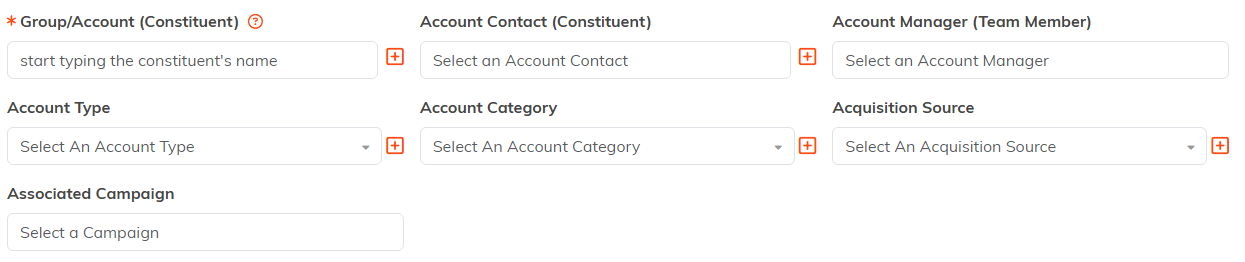
Only the constituent carries an orange asterisk. The rest are optional.
