Knowledge Base Article
Activity Logs
Argenta records what happens in your system: who signed in, who changed what, what came through your public forms, and what you sent out. Those logs are how you answer "who did this, and when?" without guessing.
Open the logs
Click Settings, the gear at the top right, and choose Activity Logs. That opens the logs workspace, which holds six logs you can move between along the top:
- Sign In Log
- Activity Log
- Modification Log
- Public Forms Log
- Master Contact Log
- Master Email Log
You need to be a Master Admin or Subscription Manager to reach them.
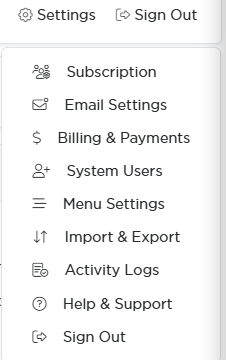
Activity Logs sits in the Settings menu at the top right.

The six logs run along the top of the workspace.
What each log holds
- Sign In Log. Every sign-in to your system with the date and time. This is where you check whether an account has been used, and when somebody last logged in.
- Activity Log. The activity that has taken place in your system and who did it. Search it by ID, page, section, or activity, and export the results.
- Modification Log. What was changed on your records.
- Public Forms Log. Activity on your public-facing forms, so you can see what the outside world submitted and when.
- Master Contact Log. Your organization's contact with constituents, gathered in one place rather than scattered across individual records.
- Master Email Log. The email Argenta has sent on your behalf.
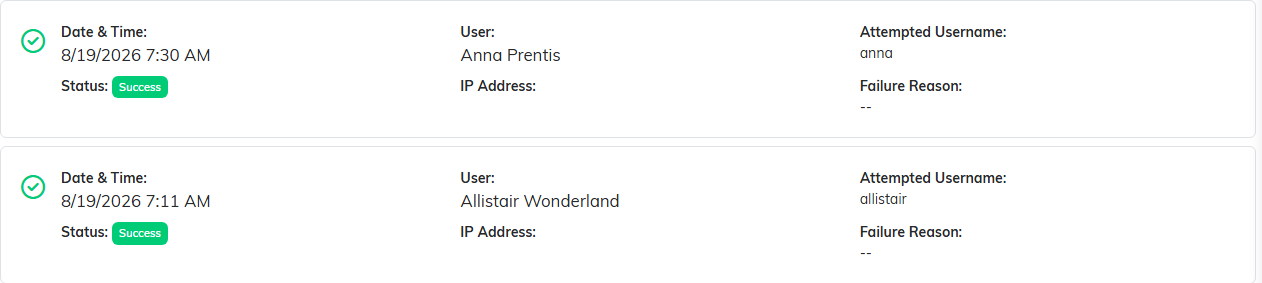
Sign In Log. Who signed in, when, and whether it worked.
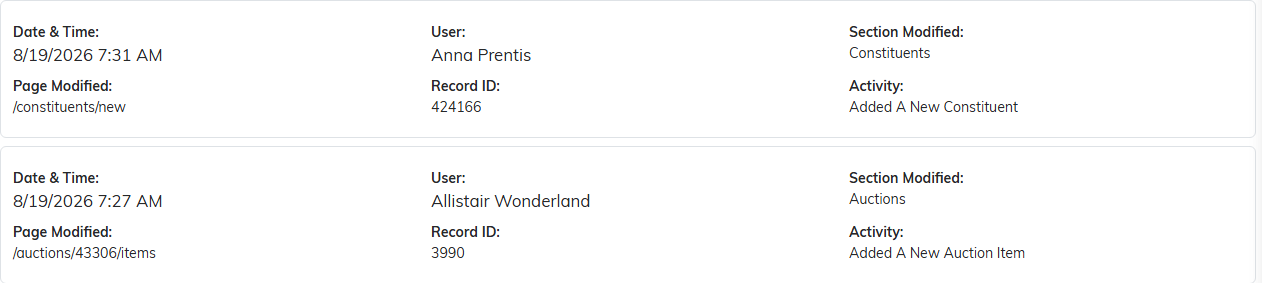
Activity Log. The page, the record and what was done to it.

Modification Log. The field that changed, with the old value beside the new one.
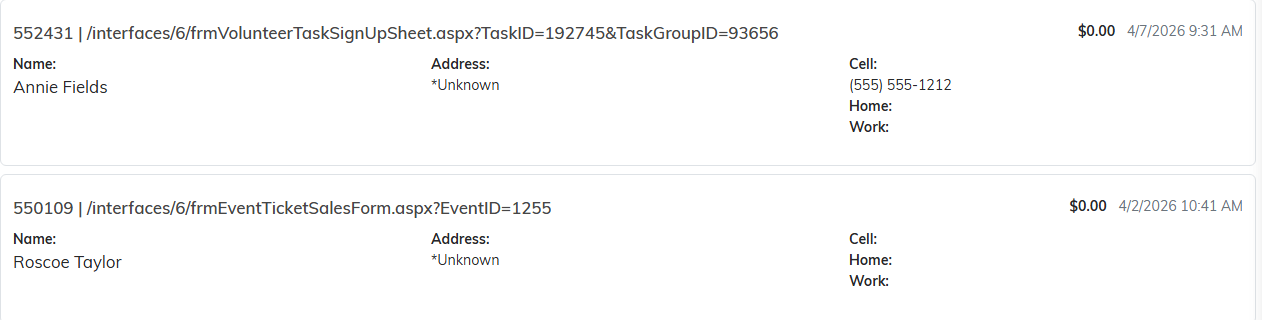
Public Forms Log. Which form was submitted, by whom, and when.
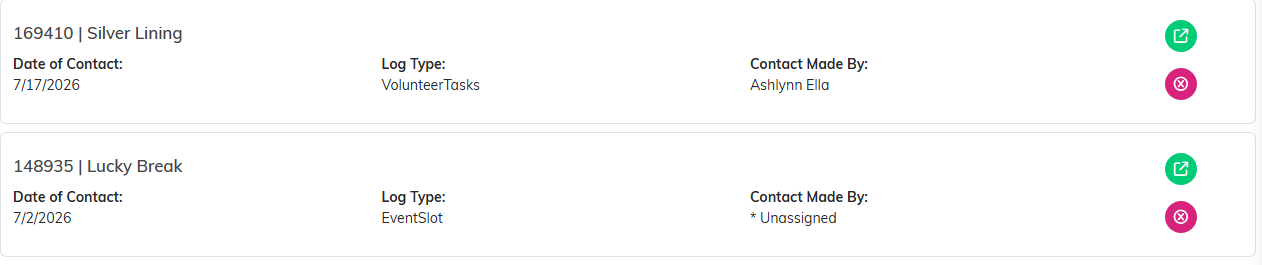
Master Contact Log. Every contact entry from every record, in one list.
Using them well
Each log is a filterable list, so narrow it down before you go looking. The Activity Log in particular is easier to read when you search for the page or section you care about rather than scrolling the whole thing.
One practical use: imports are tagged in the Activity Log with the batch they came from, so if a data import went in wrong, that is where you find out exactly what it touched.

Every log carries the same search box and filter bar at the top.
