Knowledge Base Article
Event Additional Guests
This explains who the ticket purchaser is, who additional guests are, and how to turn an additional guest into a constituent on your guest list.
Purchaser and Additional Guests Are Not the Same Thing
The purchaser is the person who buys the ticket, and they are saved as a constituent in Argenta. If the ticket admits more than one person, the extra people are recorded as additional guests, and they are not constituents. An additional guest is just a name on a ticket until you choose to promote them.
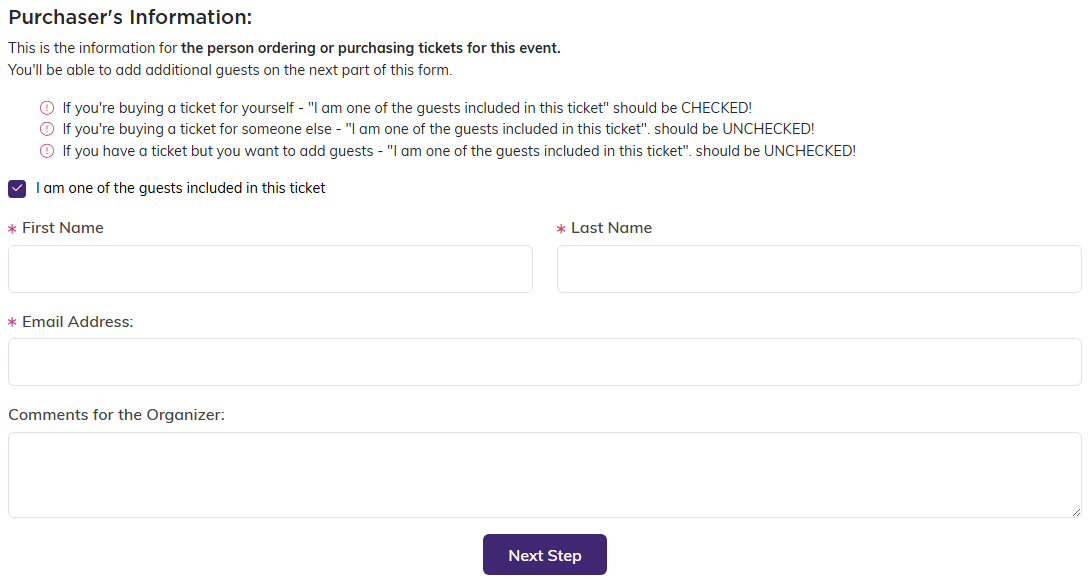
The public form asks for the purchaser first, then the extra guests.
Allowing More Than One Person Per Ticket
Additional guests only exist if a ticket admits more than one person, which is what you want for couples tickets or a table.
- Open the event and go to Ticket Settings in the workspace menu, under the Tickets & Sessions group.
- Find the ticket type and set Total Individuals Per Ticket to the number the ticket admits. For a couples ticket, enter 2.
- Save.
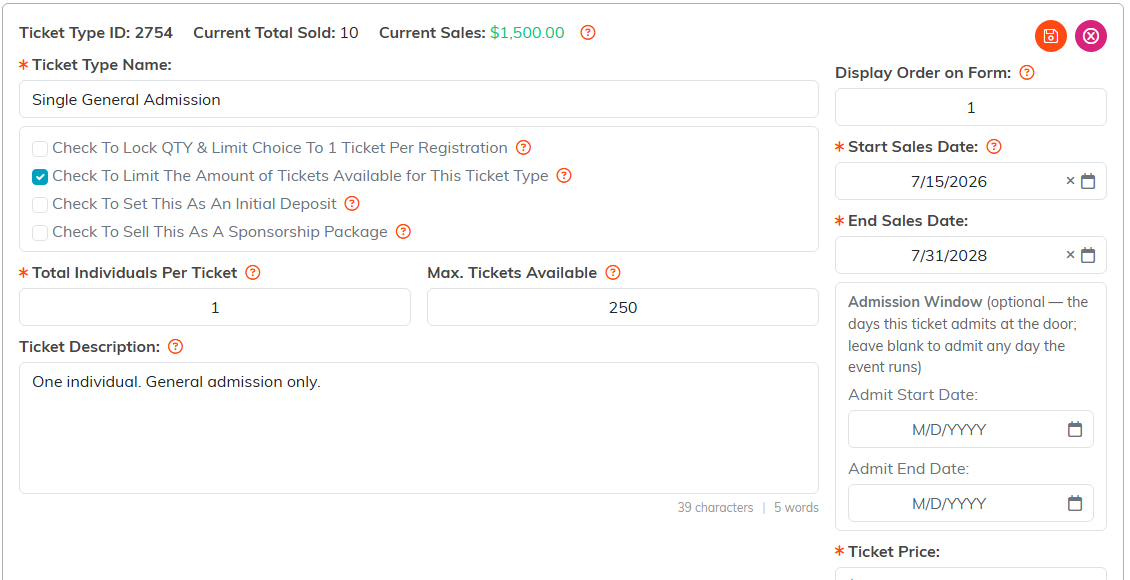
Total Individuals Per Ticket is the number the ticket admits.
That number controls how many guest-name fields the purchaser sees on the public form. Setting it to 2 gives them one additional guest name alongside their own.
Where They Show Up After a Sale
- Participants/Guests - the purchaser, who is also created as a constituent
- Event Ticket Sales - the sale itself. The green open icon on the row opens the Event Ticket Sales Workspace, where you can edit the record, apply a payment that was not taken at the time, issue a refund, and attach files or notes
- Additional Guests - everyone else on the ticket. The page header reads "Additional Invited Guests". These are not constituents yet
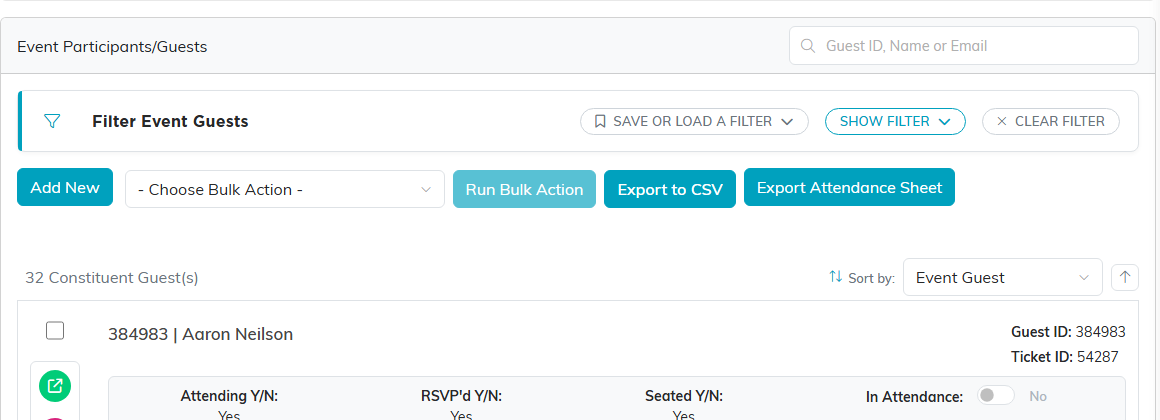
The purchaser lands on Participants/Guests as a constituent.
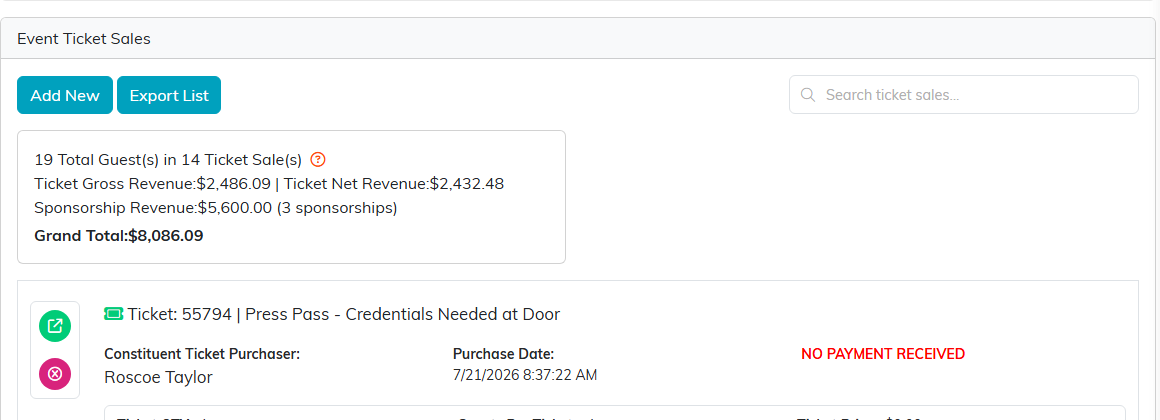
The sale itself sits on Event Ticket Sales.
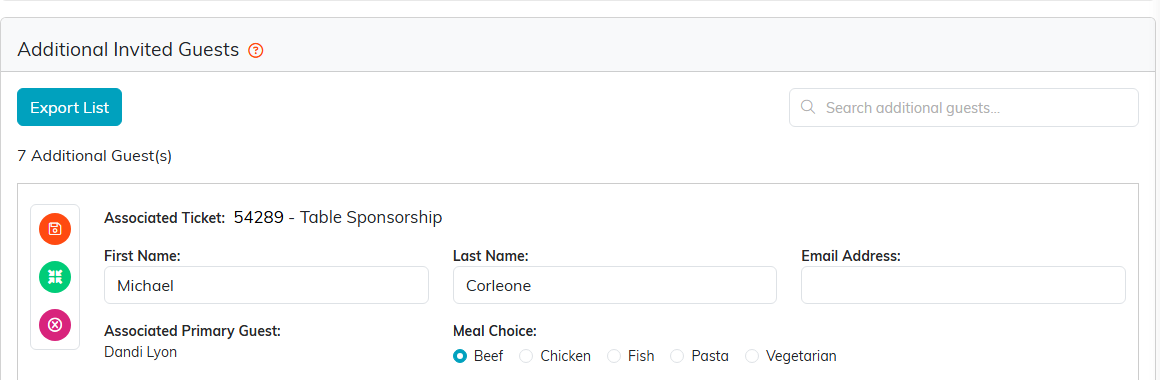
Everyone else on the ticket lands under Additional Guests.
If a purchaser does not know yet who they are bringing, tell them to put something like "Guest" in the first name field. You can correct it on the Additional Guests page once they decide.
Working the Additional Guests Page
Each row has three actions:
- Edit the details. Click into First Name, Last Name, or Email Address, type the change, then click the orange save icon on that row.
- Promote them. The green Create Constituent and Move To Participants/Guests button turns the guest into a constituent and moves them onto your guest list. They need a first name, last name, and email address first. If the email already matches an existing constituent, Argenta asks whether to use that person or create a new record.
- Remove them. The pink delete button, with a confirmation.

Orange saves the row, green promotes the guest, pink removes them.
When to Promote a Guest
Promote them when you want them on your guest list for attendance, seating, or meal choices, or when you intend to keep in touch after the event. Leave them as additional guests when they are a plus-one you will not follow up with. Either way the ticket count is right; the difference is whether you end up with a record you can use later.
For the rest of the event workspace, see Overview Part 1 of the Argenta Event Management System.
