Knowledge Base Article
Public Form: Receive Email Sign-Up Form
Every Argenta subscription includes a public email sign-up form, so people who find your website can ask to hear from you without anyone on your team retyping their details. Sign-ups arrive in Argenta as constituents, already opted in.
Where to find it
Go to Our Public Interfaces > Public Email Form. That one page holds everything: the public link to your form, the embed code for your website, and the Email Opt-In List of everyone who has signed up.
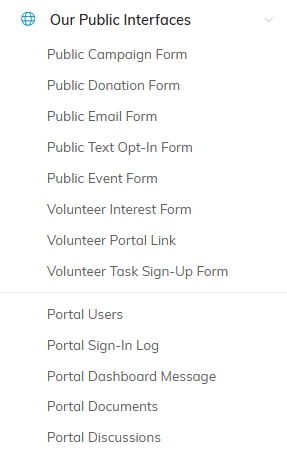
Public Email Form sits third in Our Public Interfaces.
What the form asks for
Two things, and that is deliberate. A short form actually gets filled in.
- Your name. One box for the whole name. Argenta splits it into a first and last name for you, so "Maria Delgado Ruiz" is saved with the first name Maria and the last name Delgado Ruiz.
- Email address. Checked for a valid format before the form will submit.
Your visitor clicks SIGN ME UP and gets a thank-you message confirming they are on your list.
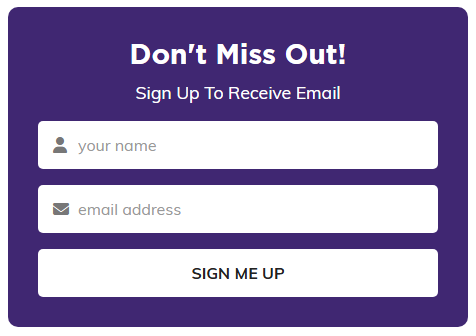
Two boxes and a button. That is the whole form.
What happens the moment someone signs up
- Argenta looks for them first. It matches on name plus email, then on email on its own, so a repeat sign-up does not leave you with a duplicate to clean up.
- If they are already a constituent, their record is left exactly as it is. A casual name typed into a one-line box never overwrites the fuller record you already built.
- If they are new, Argenta creates a constituent record from the name and email they gave.
- Either way they are opted in to General Email Communications. Sign up twice and you still get one opt-in, not two.
- Your organization is notified by email, with the new subscriber's name and address.
See who has subscribed
The Email Opt-In List sits right on the Public Email Form page. Search by name or email address, sort by constituent name, email address, or date added, and export the whole list to a spreadsheet.

Search, sort, bulk actions and export all sit on this one strip.
To unsubscribe someone, use the ban icon on their row, or tick several and use Bulk Actions. Either way they are marked Do Not Email and drop off the list.

The ban icon on a row unsubscribes that person.
You can also see the opt-in on the person's own record, on the Communication tab, in the Preferred Communication Methods card.

The same opt-in shows on the person's Communication tab.
Put the form on your website
There are two ways, and you can use both.
- Link to it. Copy the Public Email Form URL and use it in a button, a menu item, an email, or a social post. It opens a full page hosted by Argenta.
- Embed it. Copy the Embed Email Opt-In Control on Your Website code and paste it into one of your own pages. The form appears inside your site.
If you embed it, fill in Your Website Address(es) first (see below). The embed only loads on the sites you list there, which is what stops anyone else dropping your form onto their page.

The link on the left, the embed code on the right. Both copy with the orange icon.
Make it look like yours
Click Design Public Form to open Public Email Form Design, which has four sections:
- Form Content. Your headline and the wording above the sign-up box.
- Choose Form Colors. The sign-up box, the headline, and the button (including its hover and font colors).
- Form Banner Image. Tick Display Hero Image and upload a banner across the top.
- Share This Form. Your website addresses, the public link, and the embed code.

The four sections of Public Email Form Design.

Preview sits with the save buttons at the bottom.
Preview opens the live form so you can see it exactly the way a visitor will, before you share the link anywhere.
For more on customizing it, see How To Use the Public Email Opt-In Form. For every other public link your organization has, see Where to Find Public Form URLs in Argenta.
