Knowledge Base Article
Add Team Passwords
Team passwords for your organization's accounts can be stored in Argenta rather than in a spreadsheet or somebody's head. Only team members with permission can open the Team Password Keeper.
Add a team password
- Choose Workflow & Productivity > Team Password Keeper from the main menu. Your Team Passwords page opens.
- Click Add A New Password. The Add A New Team Password window opens.
- Fill in the details:
- Source, the website or company the login belongs to.
- Source Url, the address you sign in at.
- User ID, the ID used to sign in.
- Password.
- Associated Email Address, the address tied to the account. This is the one people always need and never remember, particularly when a password reset has to go somewhere.
- Save the entry.
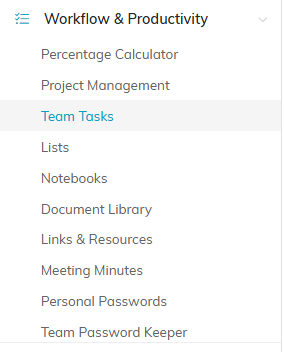
Team Password Keeper sits under Workflow & Productivity in the main menu.

Add A New Password sits above the list, next to the Team and User tabs.
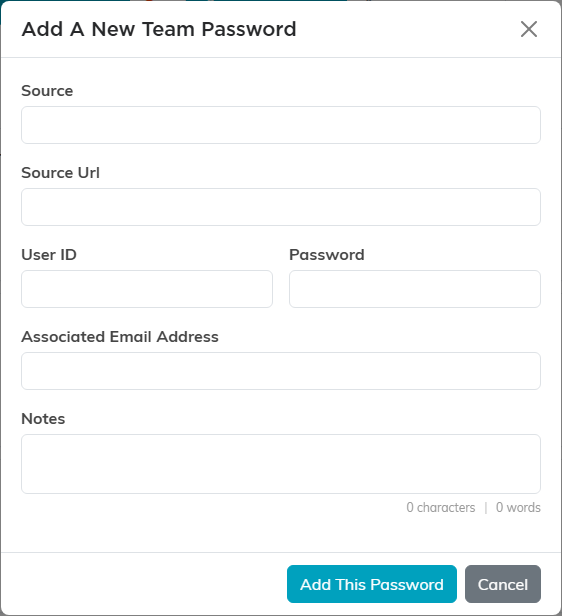
The Add A New Team Password window asks for everything at once.
Fill in the rest of the record
Opening a saved password gives you a few more fields worth using:
- Description, for what the account is actually for and who uses it.
- Chapter, Division, Department, District, and Precinct, so a password belonging to one part of your organization is only visible to the people working there.
Save with Save All Changes or Save All & Exit Record. Exit Record leaves without saving.
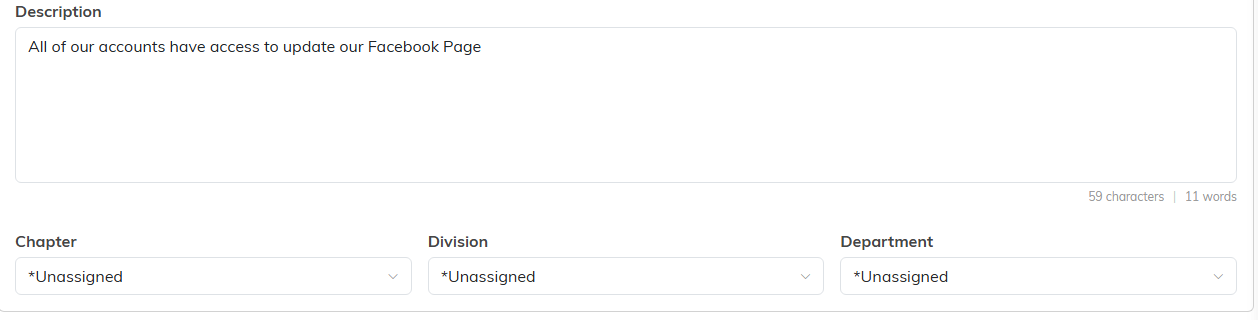
Open a saved password to add a description and set who it belongs to.
Working with the list
Search by account or source to find an entry. Each row lets you show or hide the password, and copy it without having to read it off the screen. You can also export the list.

The password stays masked. The eye reveals it and the icon beside it copies it.
Keep it tight
Two switches at the top of each password record control who sees it. Set As View Only lets the team read the entry without changing it, and Lock This Record keeps them out of it entirely, with exceptions named on Record Permissions. Use them on the accounts that should not be open to everybody with access to the keeper.

Both switches sit at the top of the password record.
For passwords that are yours alone, see Add Personal Passwords.
