Knowledge Base Article
Change The Enrollment Total For A Mission Trip Enrollment
A Mission Trip Enrollment is how a Mission Trip Account joins a trip, a lot like buying a ticket. Each enrollment has a Number Enrolled, and that number drives the account's billing and the trip's available slots. There are a few ways to change it.
Change it from the Enrollments list
Go to Mission Trips > Enrollments. Each row has a Number Enrolled field you can edit right in the list. Type the new number and press Enter to save it.
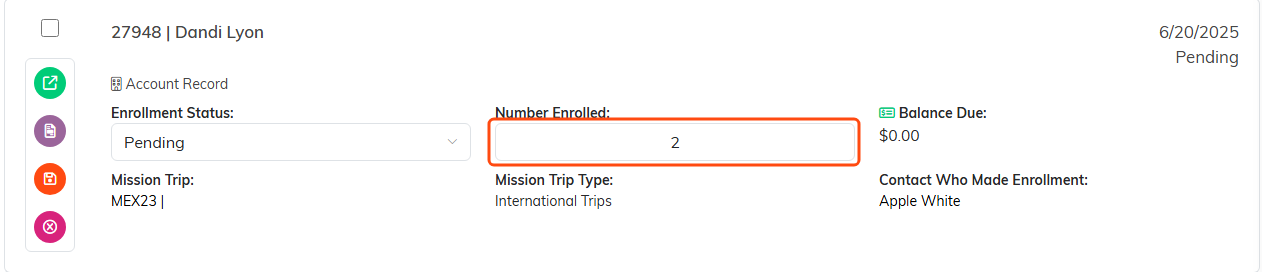
The Number Enrolled field is editable right on the row.
Change it on the enrollment
- From Mission Trips > Enrollments, click the green open icon to open the enrollment.
- On the Enrollment Details tab, update the Number Enrolled field (it has to be a whole number).
- Click Save All Changes & Continue or Save All Changes & Exit.
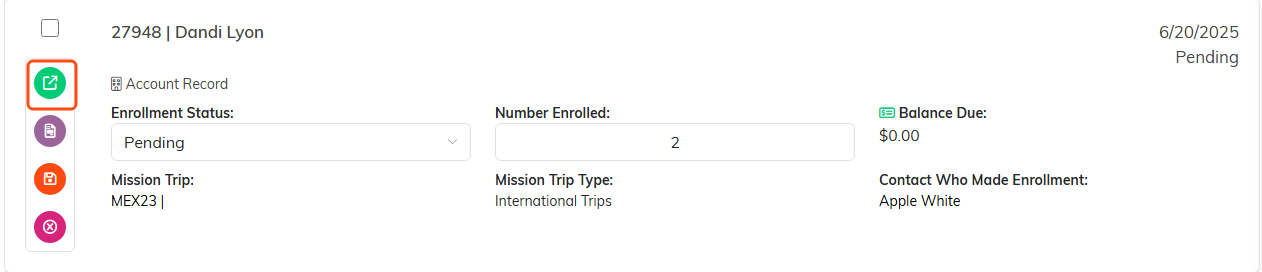
The green icon opens the enrollment.

Number Enrolled sits on the same row as the date and the status.

Save when you are done.
Change it from the Mission Trip
Go to Mission Trips > Mission Trip List and open the trip. On its Enrollments tab you'll see every account enrolled in that trip. Edit the Number Enrolled field for the account you want and press Enter to save.

The same field on the trip's own Enrollments tab.
What happens when the number changes
However you change it, Argenta recalculates the enrollment for you, so you'll see updates to things like Total Enrollment Cost and available slots. Every change is recorded on the enrollment's Enrollment Adjustments tab and shows up on invoices for that Mission Trip Account.
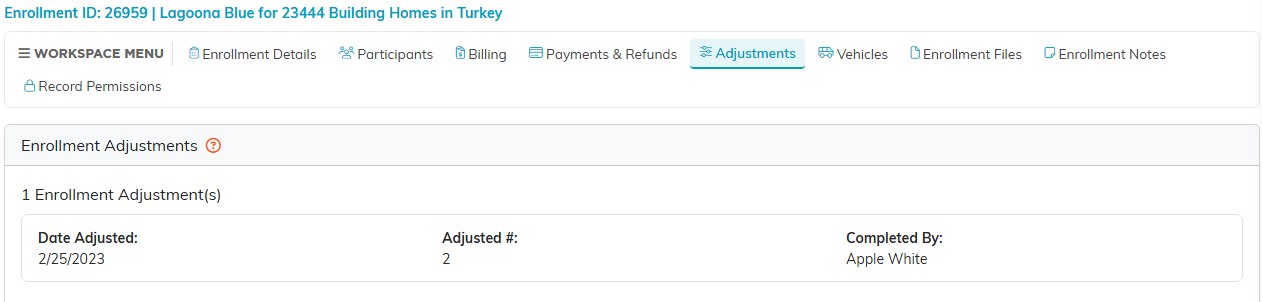
Every change lands on the Adjustments tab.
