Knowledge Base Article
Add Personal Passwords
Personal passwords for your own work accounts can be kept in Argenta. Each person has their own Personal Passwords page, and only you can see yours.
Add a personal password
- Choose Workflow & Productivity > Personal Passwords from the main menu. You can also reach it from your own menu at the top right, under My Passwords.
- Your page opens listing anything you have already saved, sorted by source.
- Click Add A New Password. The Add A New Personal Password window opens.
- Fill in the details:
- Source, the website or company the login belongs to.
- Source Url, the address you sign in at.
- User ID, the ID you use to sign in.
- Password.
- Associated Email Address, the address the account is registered to. Worth filling in, because it is what a password reset will be sent to.
- Save the entry.
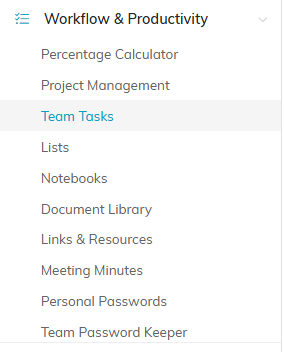
Personal Passwords sits under Workflow & Productivity in the main menu.
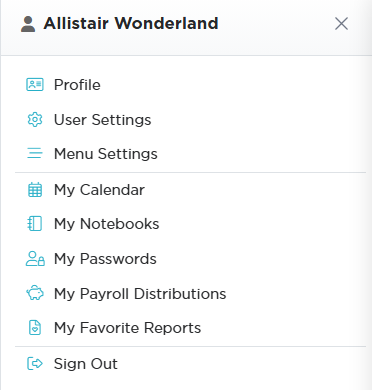
My Passwords in your own menu gets you to the same page.
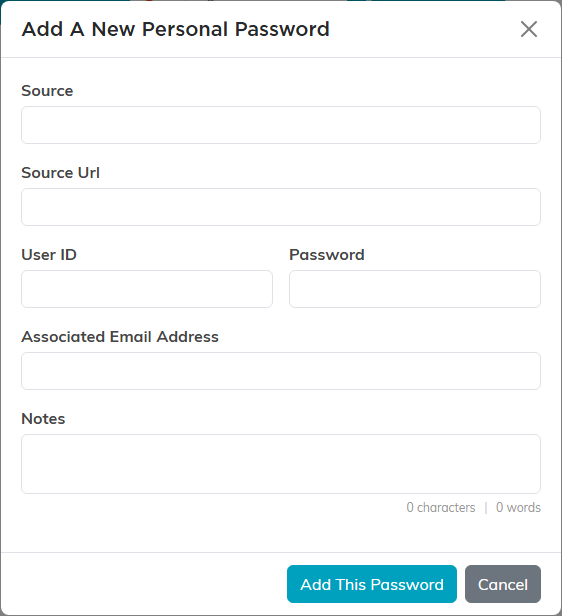
The Add A New Personal Password window asks for everything at once.
Add more detail later
Open a saved password and you can add a Description of what the account is for, along with your organizational groupings if they apply. Save with Save All Changes or Save All & Exit Record, or leave with Exit Record.
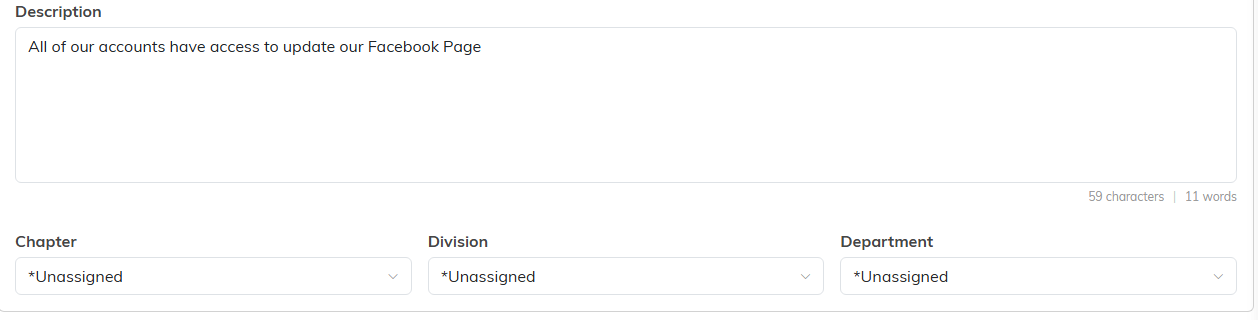
Open a saved password to add a description and your organizational groupings.
Working with the list
Search by account or source. Each row lets you show or hide the password and copy it straight to your clipboard, so you can paste it into a sign-in box without reading it out loud in an open-plan office. You can also export your list.

The password stays masked. The eye reveals it and the icon beside it copies it.
Personal or team?
Keep an account here when it is yours alone. If colleagues need the same login, it belongs in the Team Password Keeper instead, so the account does not go dark when you are away. See Add Team Passwords.
