Knowledge Base Article
Add Pledges
A pledge is an estimate of how much a donor plans to give over a set period. It is not a binding contract. You can record a pledge in Argenta and later turn it into a donation once the donor follows through.
Start a new pledge
From the left-hand menu, choose Fundraising > Pledges to open your list of pledges. Click Add New. Argenta creates a new pledge and opens the Pledge Workspace on the Pledge Details screen, ready for you to fill in.
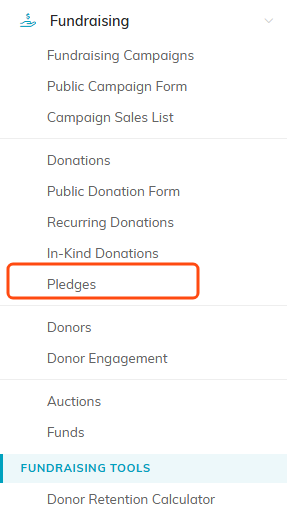
Pledges sits under Fundraising in the left menu.

Add New creates the pledge and opens its workspace.
Fill in the pledge details
- Record Level Permissions - Two switches at the top. Set As View Only lets others see the pledge but not change it. Lock This Record hides it from everyone except you, master admins, and users you grant access on the Record Permissions tab.
- Date of Pledge (required) - Type a date or pick it from the calendar. It defaults to today.
- Pledge Amount (required) - The amount the donor plans to give.
- Donor (required) - Start typing the donor's name and select them. Use the add icon to create a new donor on the spot.
- Recurrence (Y or N) - Choose Yes if the pledge repeats.
- Recurrence Frequency - If it recurs, set how often.
- Team Member Who Solicited - The staff member who brought in the pledge.
- Donation Category - Classify the pledge. Add a new category right from the dropdown if you need one.
- Associated Campaign - Tie the pledge to a campaign.
- Chapter, Division, Department - Assign the pledge to a part of your organization if you use these groupings.
Political teams also see District and Precinct dropdowns; choose the district first, then the precinct.
When you are ready, click Save All & Continue to save and keep working on the record, or Save All & Exit to save and return to the list. Cancel & Exit leaves without saving.

The two permission switches sit at the top of Pledge Details.

The three fields with an orange asterisk are the required ones.

Set Recurrence to Yes and the frequency beside it starts to matter.

The add icon beside each one creates a new value without leaving the page.

Political teams see District and Precinct here as well.

Save and stay, save and go back, or leave without saving.
Turn a pledge into a donation
When the donor follows through, click Convert To Donation, at the top of the workspace or at the bottom of the page. Argenta creates a matching donation and moves the pledge's files and notes over to it. A pledge can be converted once.

Convert To Donation can only be used once on a pledge.
Files, notes, and permissions
The Pledge Workspace also has Pledge Files and Pledge Notes tabs for attachments and notes, and a Record Permissions tab to control who can view or edit the pledge. For help with files, see Add Related Files. For notes, see Add A Note To The Notes Section.

The rest of the workspace: donations, files, notes and permissions.
