Knowledge Base Article
How To Unsubscribe A Lead
If you email your leads, sooner or later someone asks to be taken off the list. Argenta gives you a one step way to honor that across the whole system, so nobody has to remember not to contact them.
What unsubscribing actually does
Unsubscribing a lead does three things at once:
- Sets the lead's Status / Sales Cycle Stage to x DO NOT CONTACT and writes UNSUBSCRIBED! into the Final Outcome on the Sales Cycle tab.
- Flags the person's constituent record do not email, do not text, and do not solicit. Argenta's email sending honors those flags, so the person is skipped on future marketing sends.
- Adds a dated note to the lead's Lead Notes recording the request, so anyone who opens the record later can see exactly why it is flagged.
Nothing is deleted. The lead and all of its history stay on file, they just drop out of the default Active Leads view.
Unsubscribe one or more leads
- Go to Marketing & Engagement > Leads/Opportunities.
- Tick the box beside each lead you want to unsubscribe. To do a whole filtered set at once, open the - Choose Bulk Action - dropdown and pick Select All Records That Meet The Current Filter Criteria.
- In that same dropdown, choose Unsubscribe Selected Leads, then click Run Bulk Action.
- A confirmation window asks whether you are sure and reminds you this marks them do not email, do not text, and do not solicit. Confirm to finish.
Argenta tells you how many leads were unsubscribed and refreshes the list.
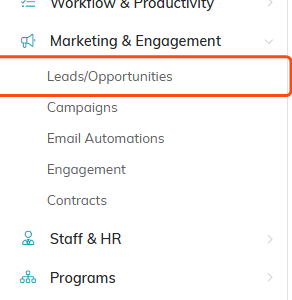
Leads/Opportunities sits under Marketing & Engagement.
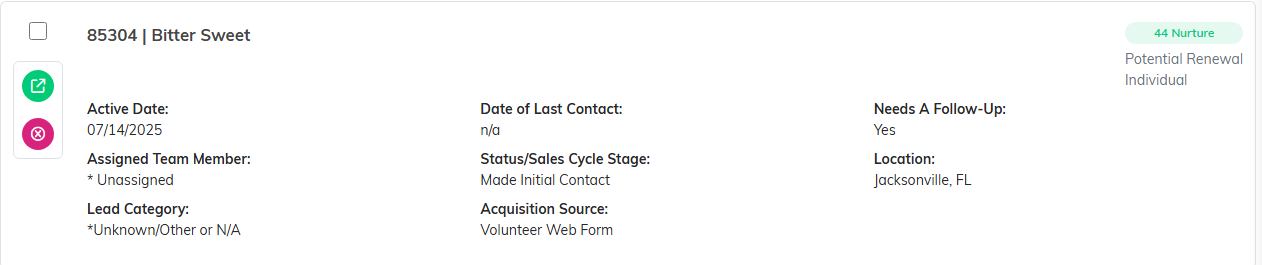
Tick the box at the left of each lead you want to unsubscribe.
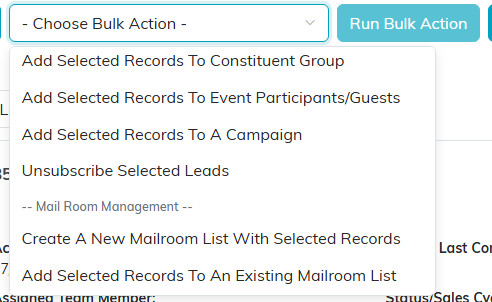
Unsubscribe Selected Leads sits in the same dropdown you used to select records.
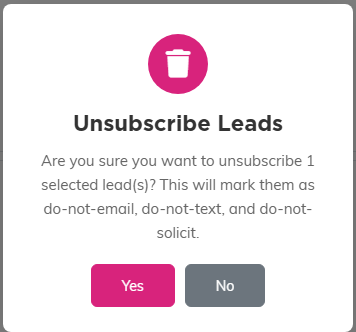
The confirmation spells out what the action sets before you commit to it.
Doing it inside a single record
You can get the same result from one lead's workspace. Open the lead, set Status / Sales Cycle Stage to x DO NOT CONTACT on either Lead Details or Sales Cycle, and save. That one is stricter: it also clears the mail and phone flags on the constituent, so every contact method is switched off.
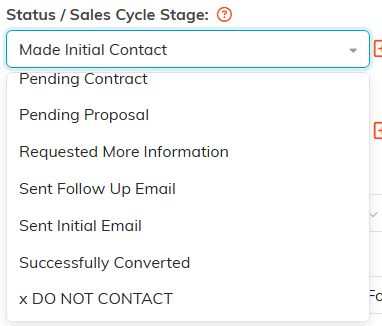
x DO NOT CONTACT sits at the bottom of the status list on the lead itself.
Finding them again
Unsubscribed leads disappear from the list because it opens on Active Leads. Change the dropdown at the top to All Leads to see them, or filter on the x DO NOT CONTACT status to pull up the whole set.
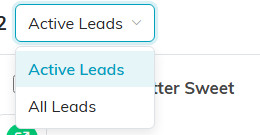
Switch this to All Leads to bring the unsubscribed ones back into view.
To handle an unsubscribe on the constituent side rather than the lead side, see How to Prevent Email from Being Sent to a Constituent and How to Exclude Do Not Solicit Constituents from Mailing Lists.
