Knowledge Base Article
Overview, Working with Material Donations
Nonprofit and political organizations take in gifts of goods, not just money. Argenta's Material Donations area is where you record those gifts, value them, and report on them, and it feeds the same material inventory you hand back out to the people you serve.
Material donations are their own thing, separate from the In-Kind Donations feature in Fundraising. Use Material Donations for goods you take into inventory and distribute again. Use In-Kind Donations for donated goods or services that support your operations.
To open the area, choose Materials Management > Material Donations from the menu on the left. The list loads with every material donation recorded for your organization.
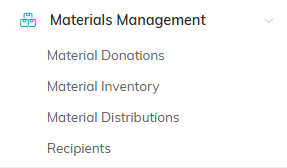
Material Donations sits under Materials Management on the main menu.
Count and total what you are looking at
Just above the list is a headline showing how many material donations match and their combined approximate value. It reflects your whole filtered set, not just the page in front of you, so it is a quick way to total a subset of your donations.

The headline totals your whole filtered set, not just this page.
Search, filter, and sort
- Search by donation ID or donor name in the box at the top.
- Filter by opening Filter Material Donations. You can narrow by donor, donor type and level, donation status, type and category, the team member who received the gift, an associated campaign or event, your chapter, division and department, and a donation date range. Political organizations also get district and precinct.
- Sort with the Sort by dropdown above the list (donation date, donor, status, team member, ID, or your organizational groupings), then use the arrow beside it to flip between ascending and descending. The list starts on donation date, newest first.

Search by donation ID or donor name.
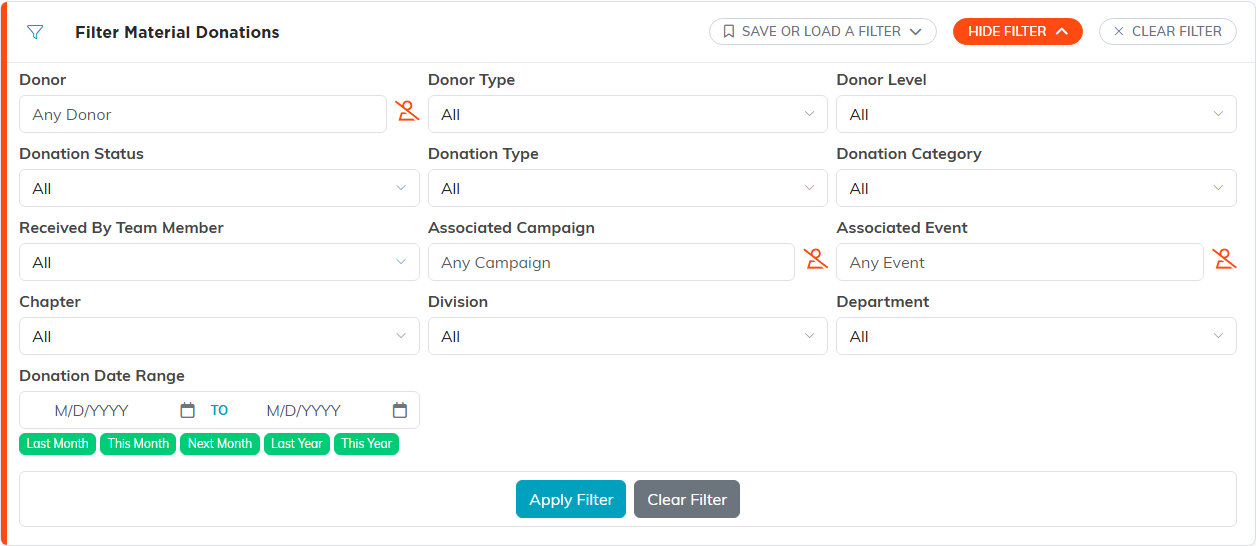
Show Filter opens every way to narrow the list.

The arrow beside Sort by flips the order.
Your filters are remembered, so the list looks the way you left it when you come back.
Export the list
Click Export to CSV to pull the donations down as a spreadsheet file. The export covers everything matching your current filter and search, not just the rows on screen. This button only appears for team members whose account allows exporting.

Export to CSV covers everything matching your filter.
Add, open, or delete a donation
- Add. Click Add New above the list. A short form opens asking for the Donor and the Date of Donation. Fill those in and click Add & Enter Details, and Argenta creates the donation and opens it in the Material Donation Workspace. Cancel & Exit leaves nothing behind. See Add Material Donations for the full walkthrough, or How to Record a Material Donation for the short version.
- Open. Select a donation in the list, then click the green open icon. See View and/or Update Material Donations.
- Delete. Select a donation and click the pink delete icon, then confirm. This cannot be undone. A locked record cannot be deleted from the list; open it and delete it from inside the workspace instead.
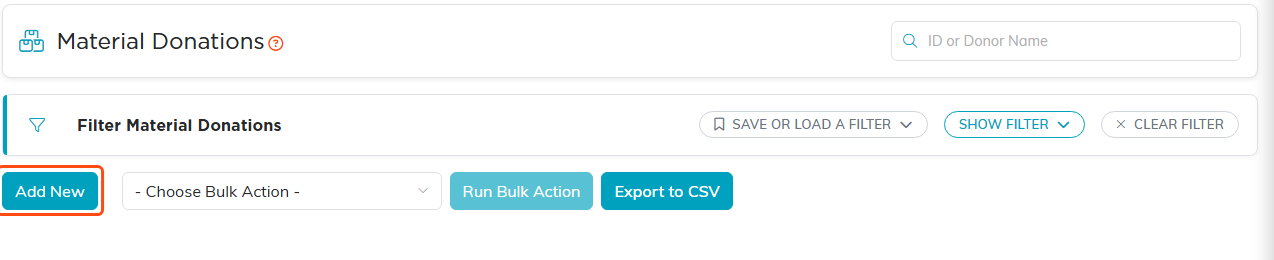
Add New asks for the donor and the date, then creates the donation and opens the workspace.
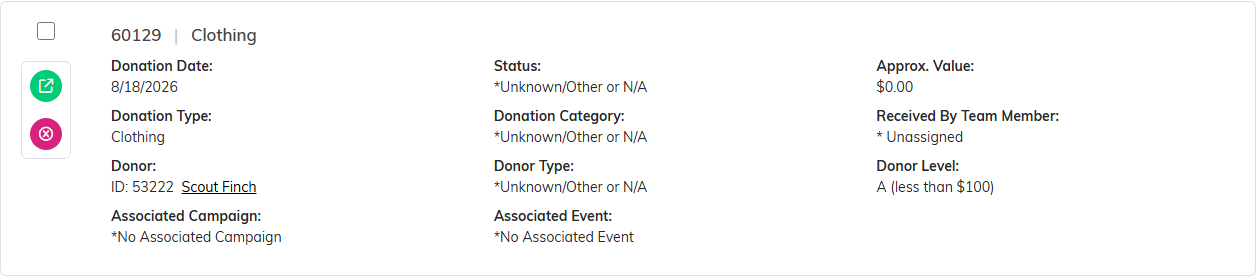
Green opens the donation, pink deletes it.
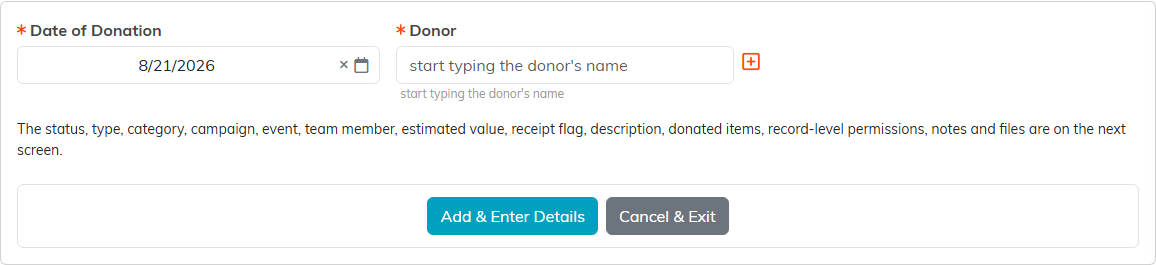
Donor and date first. Cancel & Exit leaves nothing behind.
How donations are classified
Every donation carries a Material Donation Status, Material Donation Type, and Material Donation Category. These are classification codes your own team sets up and maintains, so the choices are yours to shape. Add a new one from the add icon on the field itself while you are editing a donation.

The add icon on the field creates a new code without leaving the record.
Where the rest of it lives
- The items themselves live in Material Inventory. Recording a donated quantity adds that stock automatically.
- Handing goods back out is a distribution. See Add Material Distributions.
- Two reports read this data: the Material Donations Received Report and the Material Donation Types Report.
