Knowledge Base Article
Add Precincts
Precincts are the voting boundaries your organization works in, and adding them lets you tie constituents, delegates, events, tasks, and reports to a piece of the map instead of guessing.
Add a precinct
- Go to Voting & Elections > Precincts.
- Click Add A New Precinct. Argenta creates the record right away and opens the Precinct Workspace on Precinct Details.
- Fill in the details:
- Status. Active or Inactive.
- Precinct Number. Optional, up to 50 characters, and it takes letters as well as digits.
- Precinct Name. The only required field. Argenta will not let you save without it.
- Member Quota. Optional target number of members for the precinct.
- District. Pick from the districts you have already set up.
- Congressional District, State Senate District, House District. Each one pulls from your own classification code list, so use the add icon on the field to create a value on the fly.
- Click Save All Changes to save and stay on the record, or Save All & Exit Record to save and go back to the list. Exit Record leaves without saving.
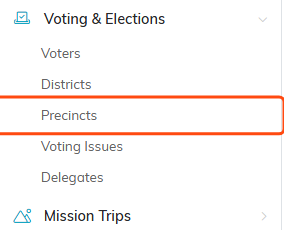
Precincts sits under Voting & Elections in the main menu.

Add A New Precinct creates the record and opens the workspace on it.
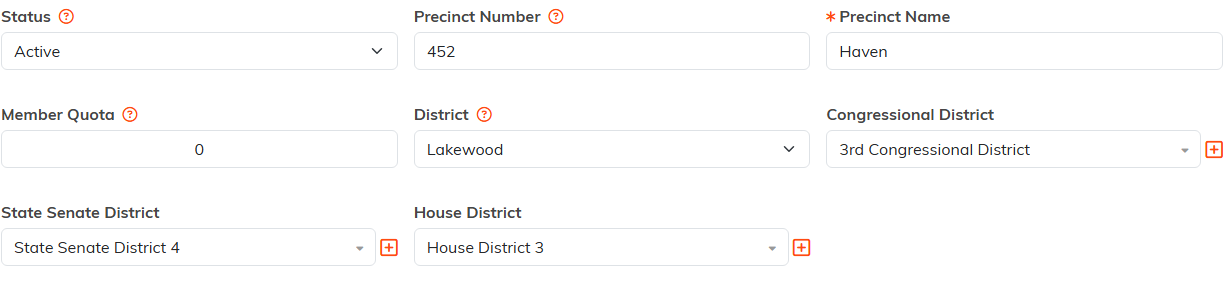
Only Precinct Name carries the red star. The plus icons add a classification code on the spot.

Exit Record leaves without saving.
Set the district first
The District dropdown only offers districts that already exist, so build those before your precincts if you want the link in place from the start. See Add Districts.
Control who can change it
At the top of Precinct Details there are two switches. Set As View Only lets people open the precinct but not edit it, and Lock This Record keeps it out of the hands of anyone without permission. Record Permissions in the workspace menu is where you grant that access.

Both switches sit at the very top of Precinct Details.
The rest of the Precinct Workspace
- Precinct Files. Attach maps, walk lists, or anything else the precinct needs.
- Precinct Notes. Keep a running history on the record.
- Record Permissions. Decide who can see and edit this one precinct.

The rest of the workspace sits in this menu.
Delete a precinct
Use the trash icon at the top right of the Precinct Workspace. Argenta blocks the delete if constituents, donations, events, expenses, tasks, or other records still point at the precinct, so clear those references first.

The trash icon sits at the top right of the workspace.
Find a precinct later
The Precincts list has a search box and a District filter, and you can select several precincts at once to run a bulk action or delete them together.
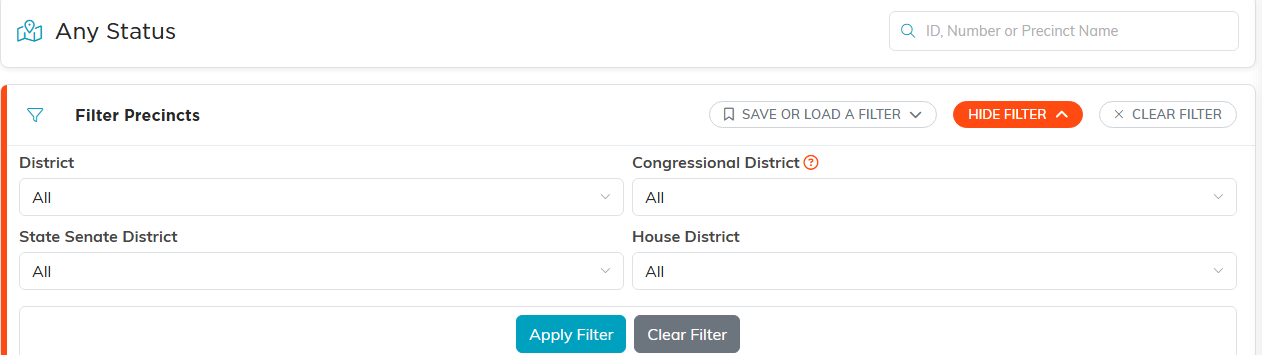
Search by ID, number or name, and filter by district.

Tick the boxes to run a bulk action across several precincts.
Note. Voting & Elections only appears in the menu for political organizations. If you do not see it, your account is not set up for it.
