Knowledge Base Article
Move A Mission Trip Payment From One Enrollment To Another
Sometimes a payment ends up on the wrong enrollment, or you need to shift it to a different participant. You can move a Mission Trip payment from one enrollment to another by re-pointing it to the enrollment you want, and Argenta recalculates the balances on both sides for you.
Move a payment to another enrollment
- Open the current enrollment. Go to the Mission Trip Enrollment where the payment is applied right now.
- Open the Payments & Refunds tab. Find the payment you want to move in the Enrollment Payments list.
- Open the payment. Click the green open icon next to it to go to the payment's detail page.
- Choose the new enrollment. In the Mission Trip Enrollment field, start typing to search for the enrollment you want, then select it.
- Save your change. Click Save All Changes & Exit.
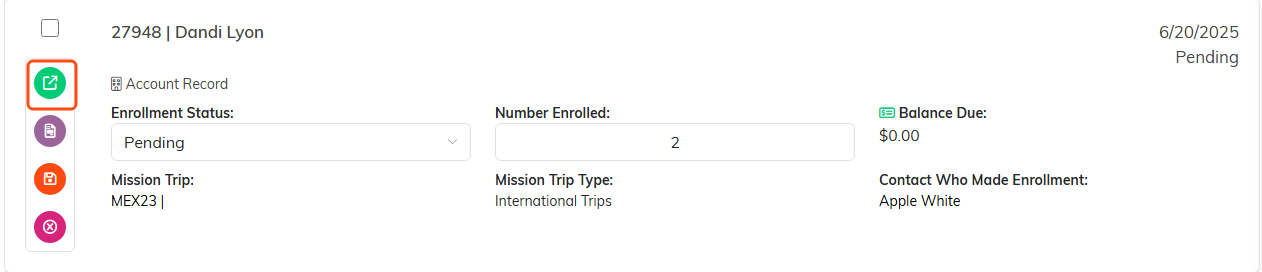
Open the enrollment the payment sits on now.

Payments and Refunds is the fourth tab.
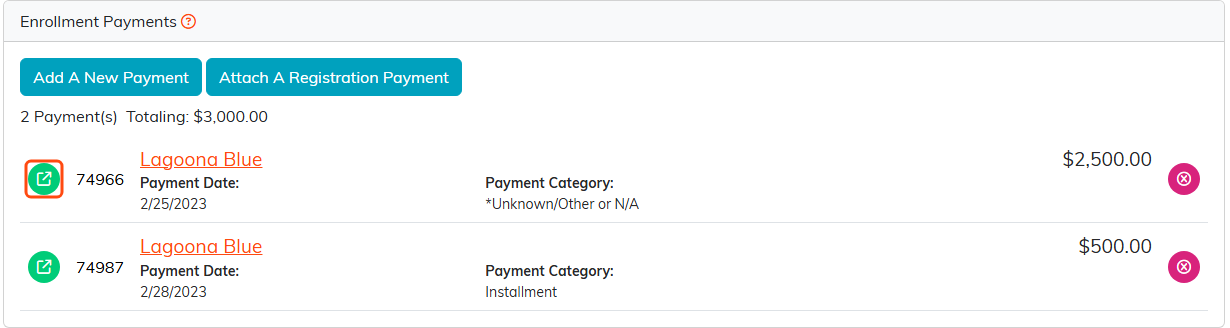
The green icon on the payment row opens the payment.

Type in the Mission Trip Enrollment field to search for the enrollment you want.

Save All Changes and Exit finishes the move.
What happens next
The payment drops off the original enrollment and shows up on the new one. Both enrollments have their Total of Payments Made and Balance Due recalculated automatically, so the numbers stay right on each side.

Both enrollments show their new totals straight away.
