Knowledge Base Article
Working with Account Registers
If you have accounts in your Chart of Accounts that use a register (like a checking or savings account), you can open the register to see every transaction that has hit that account.
To get to the Chart of Accounts, select General Financials > Chart of Accounts in the left sidebar. This lists all of your accounts.
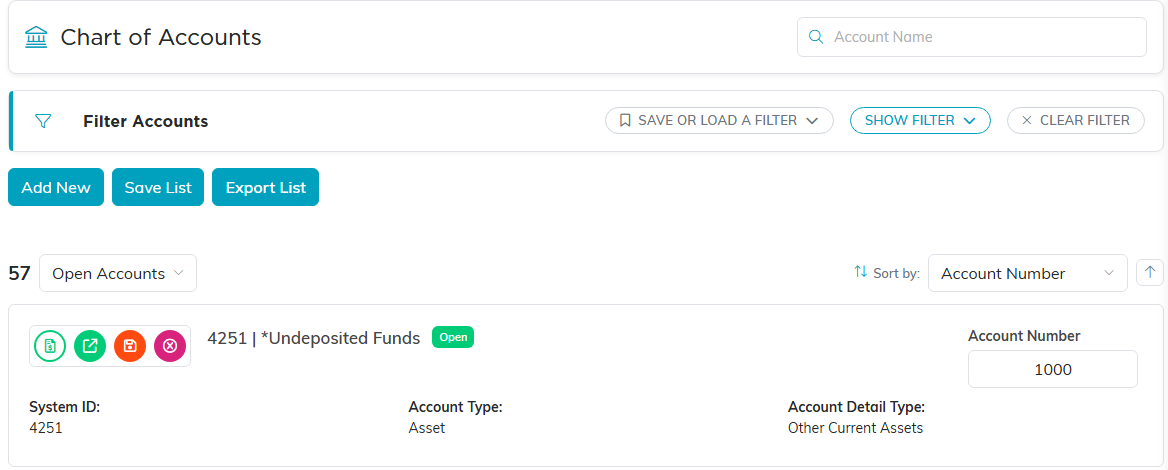
The Chart of Accounts.
Working from the Chart of Accounts
- Add a new account with the Add New button (see How To Use The Chart of Accounts in Argenta).
- Filter your accounts by Account Status, Account Type, or Account Detail Type.
- Export the list with the Export List button, which downloads a CSV file.
- Search by account name using the search box.

Search sits at the top right. Export List downloads the CSV.
Open an account register
To open a register, click the account register icon on the account's row. This is useful when you want to see all of the transactions for a specific bank account. The register opens showing every transaction, with a running balance.

The account register icon is the first of the four on the row.
From the register you can:
- Open any transaction by clicking its open icon to view or edit the original entry.
- Filter the register by transaction type, fund, reconciled status, payee, date range, or amount.
- Reconcile the account with the Reconcile Account button at the top (see How to Reconcile Your Account).
- Return to your account list with the Chart of Accounts button.
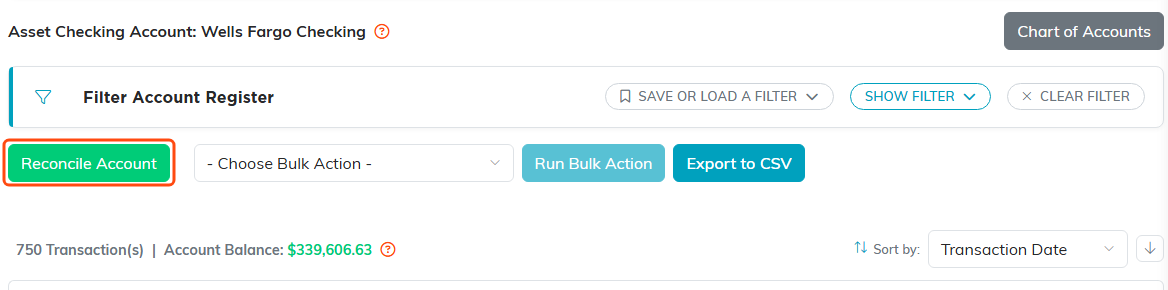
The register. Reconcile Account is highlighted, and Chart of Accounts takes you back.

Each transaction carries its running Balance. The green icon opens the original entry.
Edit or delete an account
To change an account's details, click its open icon on the Chart of Accounts to open the account. You can also edit an account number right in the list and click Save List to save your changes.

Save List saves the account numbers you edited in the list.
Inside an account, the Transactions tab shows every transaction that has hit the account, and you can open any of them to view or edit.

The Transactions tab inside an account.
To delete an account, click the delete icon on its row. You can only delete an account that has not been used anywhere in Argenta. Argenta asks you to confirm first, and deletion is permanent and cannot be undone.

The delete icon is the last of the four on the row.
