Knowledge Base Article
Overview, Working With Funds
This article explains how to work with funds: viewing them, opening a fund's register, editing, deleting, and bulk-reconciling transactions.
To get to Funds, select General Financials > Funds in the left sidebar. The Funds list shows each fund with its type, category, balance, and description.
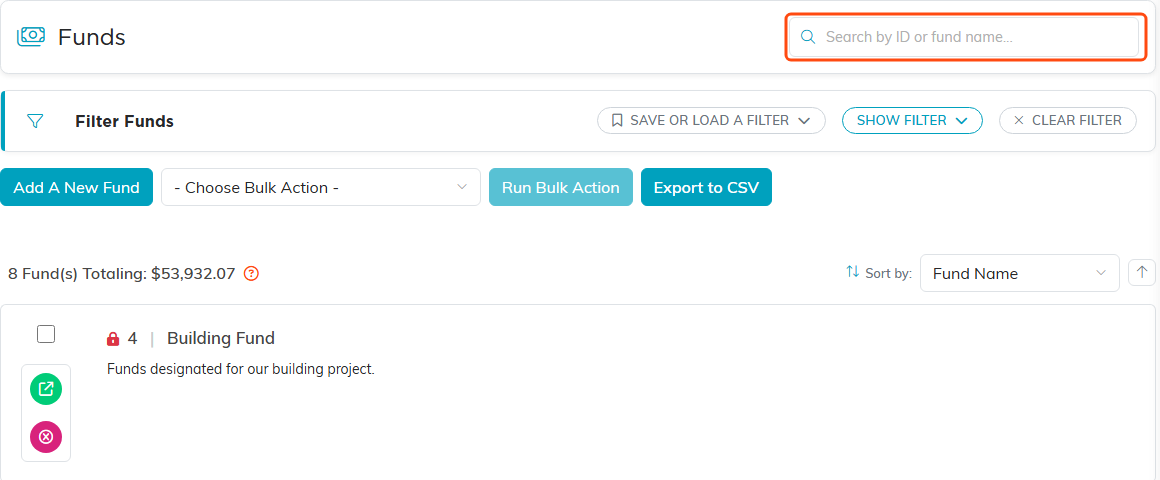
The Funds list.
Working with the Funds list
- Add a fund with the Add A New Fund button (see How To Add A New Fund).
- Open a fund by clicking the green open icon on its row. This opens the Fund Workspace.
- Filter and search the list (search by fund ID or name), and Export to CSV.

The green open icon opens the Fund Workspace.
The Fund Workspace
When you open a fund, the workspace has these tabs: Fund Details, Connections, Fund Register, and Record Permissions.

The four tabs in the Fund Workspace.
Edit a fund on the Fund Details tab, then click Save All Changes & Continue or Save All Changes & Exit.
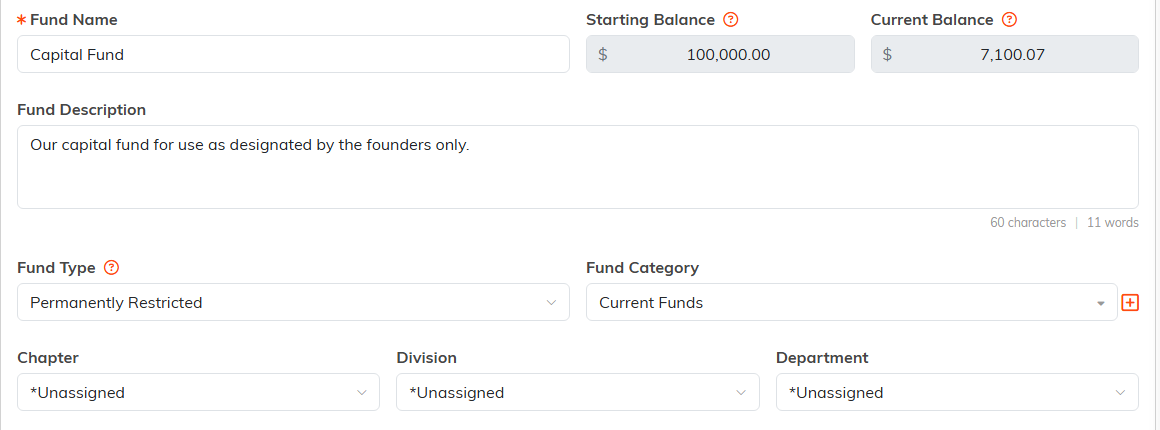
The Fund Details tab.

The buttons at the bottom of the tab.
The Fund Register
Open the Fund Register tab to see every transaction for that fund, along with a running fund balance. From here you can:
- Open any transaction by clicking its open icon, which takes you to the original entry (the donation, deposit, expense, and so on) to view or edit it.
- Filter the register (including by whether a transaction has been reconciled) and search by payee, payer, or description.
- Export to CSV.
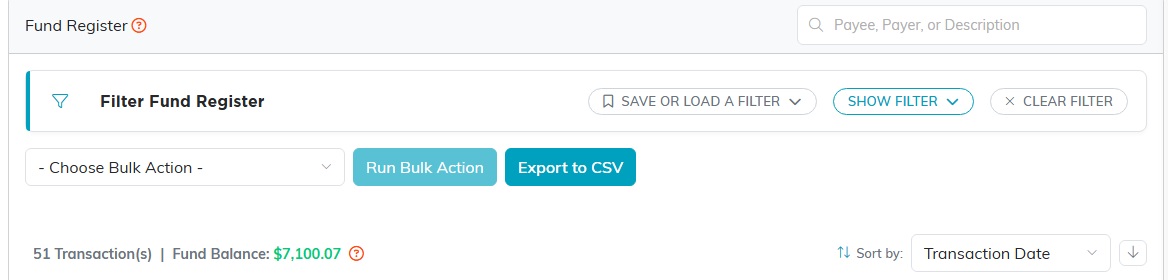
The Fund Register, with the running Fund Balance below the controls.

Each transaction shows whether it is Reconciled. The green icon opens the original entry.
You can view all fund transfers separately under General Financials > Fund Transfers.
Bulk-reconcile transactions
The Fund Register lets you reconcile several transactions at once. Filter the register to the transactions you want, then check the box on each one. Open the - Choose Bulk Action - menu, pick Mark Selected Transactions As Reconciled, and click Run Bulk Action.

Pick the action in the menu, then click Run Bulk Action.
Deleting
- A fund can be deleted only if it has no transactions. Click the delete icon on its row in the Funds list and confirm. Deletion is permanent.
- A transaction is not deleted from the Fund Register. To remove a transaction, open its original entry (or use the account register) and delete it there, which keeps the books balanced.

The pink delete icon on a fund's row.
