Knowledge Base Article
Overview, Working With Account Statements
Account Statements is where you keep the bank statements your organization receives. This article explains how to view, edit, and delete a statement. To add one, see Add Account Statements.
To get there, select General Financials > Account Statements in the left sidebar. The list shows every statement you have uploaded.
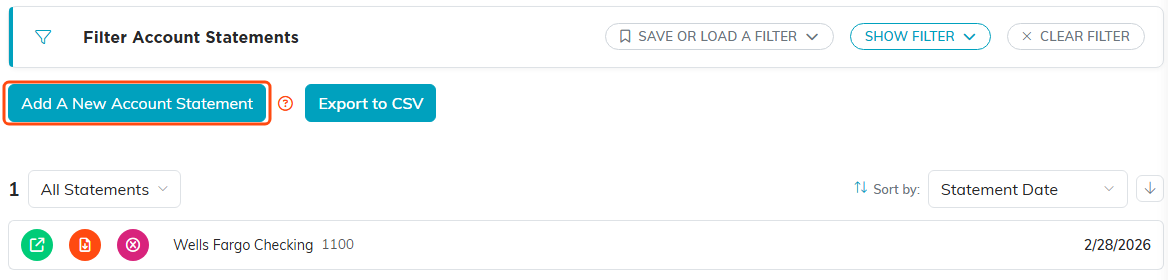
Your uploaded statements.
View or open a statement
Find the statement you want (search or filter the list), then click the green open icon on its row. This opens the Statement Details page, where you can click the current file to view it.

The green open icon is the first of the three on the row.
Working with the list
- Add a statement with the Add A New Account Statement button (see Add Account Statements).
- Filter the list with the filter options at the top. For how filtering works on any Argenta list, see How To Filter Lists in Argenta.
- Export the list with the Export to CSV button, which downloads a spreadsheet.
- Search by account name or number using the search box.

The search box sits at the top right of the list.
Edit or update a statement
Open the statement, then change any of these fields:
- Statement Date – click the field and pick a new date, or type one in.
- Associated Account – use the dropdown to choose the account this statement belongs to.
- Upload Your Statement Here – to replace the file, click the upload box or drag a new file onto it. The new file replaces the current one.

Statement Date and Associated Account.

The current file is listed under the upload box.
When you are done, click Save All Changes & Continue to save and keep working, or Save All Changes & Exit to save and return to the list.

The buttons at the bottom of the record.
Delete a statement
To delete a statement, open it and click the delete icon in the title bar (or the Delete This Record button at the bottom). Argenta asks you to confirm first. Deletion is permanent and cannot be undone, so delete carefully.

The delete icon in the title bar.
