Knowledge Base Article
Using Mailing Lists
The Argenta Mail Room is where you build and use mailing lists to reach your constituents by email, text message, or postal mail. This article shows you how to find your lists, create a new one, work with the constituents on a list, and prepare a postal mailing.
Finding your mailing lists
From the main menu on the left side of Argenta, open the Communication section. You will see two options: Mail Room (the main hub) and Manage Mailing Lists. Select Manage Mailing Lists to see all of your mailing lists. You can search by ID or list name, and each list shows its type (Email, Text, or Postal Mail), its ID, and the date it was created.

Manage Mailing Lists, with Add A New List.
Creating a new list
On the Manage Mailing Lists page, click the "Add A New List" button. In the "Add A New Mail Room List" window, choose the list type or types you want to create (Email, Text (SMS), and/or Postal Mail), enter a name in the "Mail List Title" field, and click "Add This List". Your new list will appear in the list.
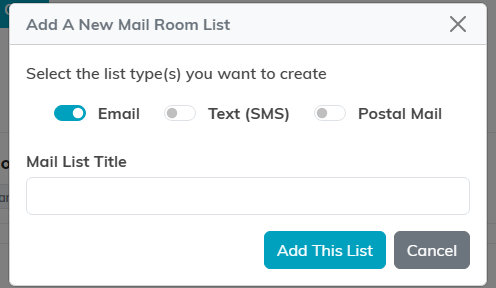
Pick the types, name it, add it.
Working with a list and its constituents
Each list in the grid has four actions: open it, turn it into a Smart List, copy it, or delete it. Use the open button (the arrow icon) to view and manage the constituents on the list. Use the wand to turn an email list into a Smart List that keeps its own membership up to date. Use the copy button to duplicate a list when you want to start a new one from an existing list. Use the delete button to remove a list.

1 open, 2 make it smart, 3 copy, 4 delete.
Once you open a list, you can do the following:
- Add a constituent: click "Add A Constituent", search for the person by name, and add them with the "Add This Constituent" button.
- Export the list: click "Export List" to download the list as a CSV file you can open in a spreadsheet or use for a mail merge.
- Bulk actions: select constituents using the checkboxes, then choose a bulk action. You can "Add Engagement for Selected Constituents" (choose the engagement type, the date, and an optional description) or "Remove All Selected Constituents from List".
- If you need to include constituents who are marked No Solicit, turn on the "Include No Solicit Constituents In List" switch.

Export List, and the No Solicit switch.
Sending postal mail and printing mailing labels
For postal mailings, open Send Postal Mail (the "Build & Use A Postal Mail List" page). Choose your list in "Select A Postal Mail List To Work With", then choose an action in "Select An Action To Perform" and click "Run Selected Action". Your options are:
- Create Mailing Labels: pick a print template from the "Select A Print Template" screen. Each template is available in a small or large font. Your labels open in a new browser window for printing, so if they do not appear, allow pop-ups for the site.
- Export The List To CSV: download the postal list as a CSV file.
