Knowledge Base Article
How to Reconcile Your Account
Reconciling an account means balancing your Argenta records against your bank. Argenta has reconciliation built in. (This is a financial page, so you need finance manager or administrator access.)
Open the reconcile screen
- Go to General Financials > Chart of Accounts and find the account you want to reconcile.
- Click the account register icon on that account's row to open its Account Register.
- In the register, click the green Reconcile Account button at the top. This opens the Reconcile Account screen.

Step 2. The account register icon is the first of the four on the row.
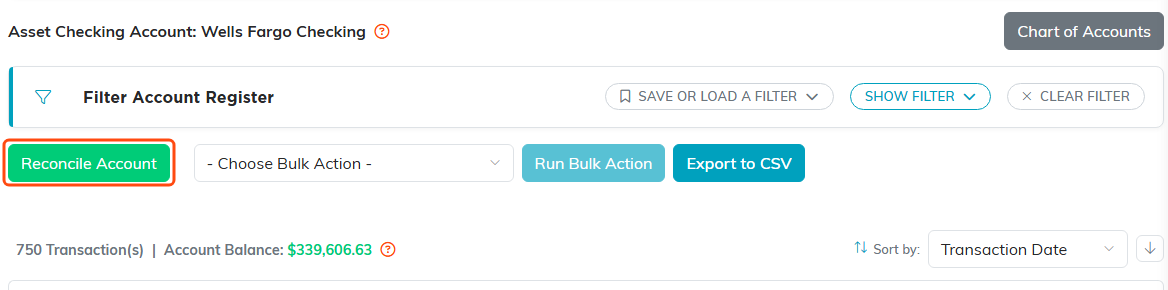
Step 3. The green Reconcile Account button at the top of the register.
Reconcile your transactions
- Enter your bank's balance in the Enter Your Bank Balance field (take it from your statement).
- Optionally, set a Statement Period (a start and end date) and click APPLY to show only the transactions in that window. Leave it blank to show every unreconciled transaction.
- Use the four figures at the top as your guide:
- Balance – your account's balance in Argenta.
- Unreconciled – the total of transactions that have not been reconciled yet.
- Difference – how far your account balance is from your bank balance.
- Discrepancy – how far off you still are; it reads BALANCED! once everything lines up.
- Check the box next to each transaction that has cleared your bank.
- Click Reconcile Selected Transactions. The figures update, and when the Discrepancy shows BALANCED! your account is reconciled.

Steps 1 and 2. Leaving the Statement Period blank shows every unreconciled transaction.

Step 3. The four figures. Discrepancy reads BALANCED! once everything lines up.
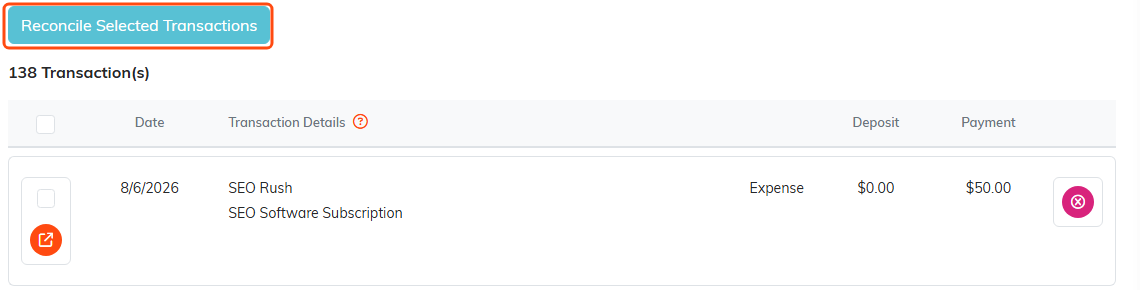
Steps 4 and 5. Tick each transaction that cleared, then click the highlighted button.
Reconciled transactions are marked as reconciled, so you can tell at a glance what has cleared. You can filter the account register by reconciled status at any time.
