Knowledge Base Article
How to Delete a Program
Learn how to remove a program from Argenta.
Important Warning
Deleting a program is permanent. Consider changing the status to Completed or Cancelled/Void instead, so you keep the history.
When Argenta Will Not Let You Delete
A program with money or spending attached to it is protected. Argenta stops the delete and tells you why if the program is:
- Locked. Open the record and delete it from the workspace, if you have permission
- Associated with payments
- Associated with one or more fiscal donations
- Associated with one or more in-kind donations
- Associated with one or more expenses
To retire a program like this, set its status to Completed or Cancelled/Void. The financial history stays intact for reporting.
From the Program List
- Navigate to Programs > Program List
- Find the program you want to delete
- Click the pink X to the left of the row
- Confirm the deletion when prompted
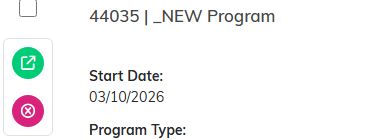
The pink X sits under the green open arrow on each row.
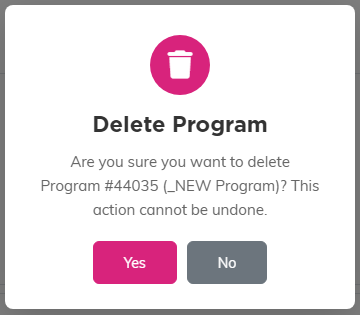
Argenta names the program in the confirmation, so you can check before you answer Yes.
From Within a Program
- Open the program you want to delete
- Click the Delete This Record button at the bottom of Program Details, or the trash icon in the title bar
- Confirm the deletion when prompted


The trash icon in the title bar does the same thing.
What Gets Deleted
When a program is deleted, Argenta removes:
- The program record and its details
- Program notes
- Record level permissions
- Its links to funds, participants, auctions, campaigns, grants, tasks, volunteer task groups, and volunteer tasks
The linked records themselves are not deleted. A grant or a participant connected to the program stays in Argenta, it just loses the connection.
Alternative: Change Status
Instead of deleting, set the status to Completed or Cancelled/Void to keep the record for historical reporting.
