Knowledge Base Article
How to Set a Program Budget
Learn how to establish and manage a budget for your program.
Setting the Budget
- Open the program or create a new one
- On Program Details, find the Budget field
- Enter the total budget amount
- Set Is Program Currently Funded? to Yes or No
- Save your changes

Budget sits on the right of Program Details.

Budget and Target Budget Are the Same Number
A program has one budget. It shows up in two places under two labels, and editing either one changes the same value:
- Budget on Program Details
- Target Budget on the Projected Expenses page, where it saves as soon as you leave the field
The Financial Summary also lists it as Target Budget, for comparison against your projected and actual numbers.
Accessing Detailed Financials
- Open the program
- Click Budget & Financials in the workspace navigation
- You land on Program Budget & Financials, with four cards across the top: Projected Expenses, Actual Expenses, Projected Income, and Actual Income. Each card shows a running total and how many items it holds
- Click any card to open that list and add entries
- Below the cards, the Financial Summary lays out projected income, projected expenses, Target Budget, and actual expenses side by side
Actual Income pulls together payments, invoices, donations, and sponsorships tied to the program, so its item count covers all four.

The four cards at the top of Budget and Financials. Click any one to open its list.
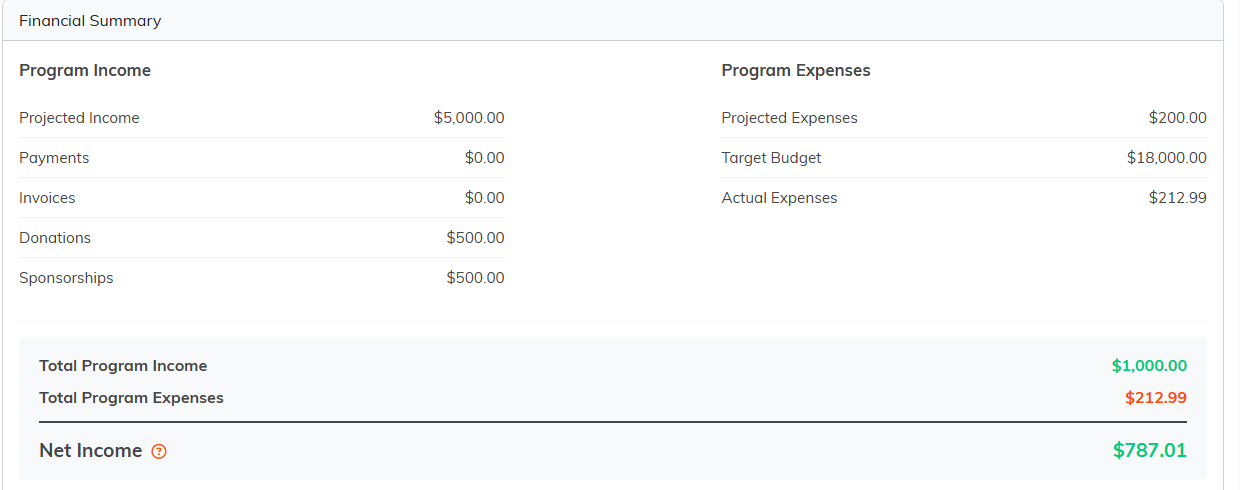
The Financial Summary sits below the cards.
Tips for Budget Management
- Set realistic budgets based on historical data
- Update the funded status as funding is secured
- Regularly compare actual expenses to projected expenses
- Use the Financial Summary for a quick overview
