Knowledge Base Article
How to Add Leads and Opportunities to a Program
Leads and Opportunities help you track potential participants, funders, or partners interested in your program.
Accessing Program Leads
- Open the program
- Click Connections in the workspace navigation
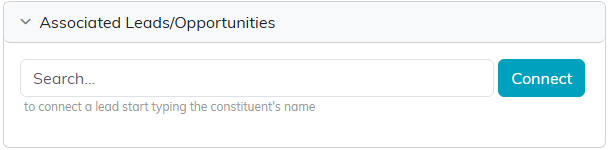
- Find the Associated Leads/Opportunities panel. Click a panel heading to expand or collapse it
Leads live on the Connections page, not as their own item in the workspace navigation.

What Are Leads?
In the context of programs, leads might include:
- Potential participants who have shown interest
- Prospective donors or funders
- Organizations interested in partnering
- People referred to your program
Adding a Lead
- In the Associated Leads/Opportunities panel, search for the lead or pick it from the list
- Click Connect
Managing Leads
- Open: Click the green arrow to open the full lead record in a new tab
- Remove: Click the pink X to break the connection. The lead itself is not deleted
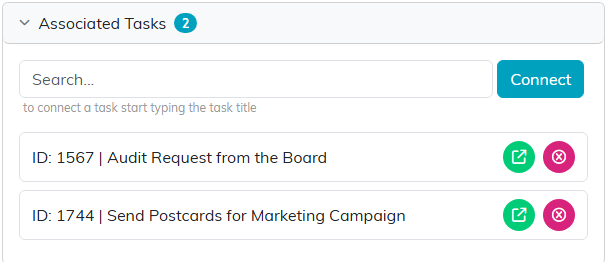
Every connection panel works the same way: green arrow opens, pink X breaks the link.
The panel has no export button and no mail room button. To email program leads, build the list in the Mail Room under Manage Mailing Lists.
Why Connect Leads to a Program
Connecting a lead to a program tells you which program brought someone in, which helps when you are deciding where outreach effort is paying off.
