Knowledge Base Article
How to Create an Auction
Setting up a new auction takes just a few minutes. Here's how.
Create the auction
- Go to Fundraising > Auctions in the left sidebar.
- Click Add A New Auction. Argenta creates the auction and opens the Auction Workspace on the Auction Details tab.
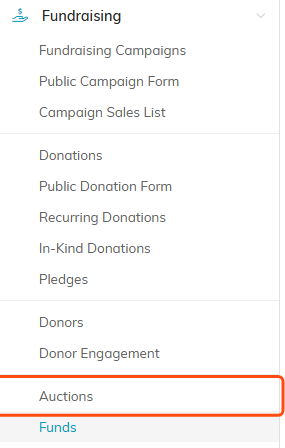
Start at Fundraising, then Auctions.

Add A New Auction sits below the filter bar.
Fill in the required details
These fields are marked with an orange asterisk:
- Auction's Current Status
- Auction Title (up to 140 characters)
- Start Date and Start Time, when bidding opens
- End Date and End Time, when bidding closes

Status and title are the first two required fields.

The start and end dates and times set when bidding opens and closes.
Add any optional details
- Auction Type and Category to classify it
- Fundraising Goal and Target Budget
- Auction Coordinator (a team member)
- A webinar link, if you are hosting an online auction
- Chapter, Division, and Department (political teams also see District and Precinct)
Click Save All Changes & Continue to save and keep working, or Save All Changes & Exit when you are done.

Type and category classify the auction so you can filter on them later.

Set a goal and a budget, and name the team member running it.

Hosting the auction on a webinar? Drop the link here.

Chapter, division and department tie the auction to your org structure.

Save and continue to keep working, or save and exit when you are done.
Finish setting up your auction
Use the workspace tabs to build out the rest:
- Auction Items: add the items up for bid.
- Connections: link the auction to a campaign and an event.
- Public Form Design: design the public bidding page with a banner image and an intro description.
- Sponsorships: record your sponsors.

The workspace tabs run across the top of the auction.
When you are ready to go live, turn on Make Auction Public on the Auction Details tab.

Make Auction Public sits with the record level permission switches.
