Knowledge Base Article
How to Make an Auction Public
Making an auction public lets supporters view your items and place bids on the public auction form.
Before you go public
Make sure you have set:
- The auction title.
- Start and end dates and times.
- At least one item set to show on the public form.
- The public form design (optional, but it looks better).
Make the auction public
- Open the auction.
- On the Auction Details tab, turn on Make Auction Public.
- Save your changes.

Make Auction Public sits at the top of the Auction Details tab.

Save the auction and the form goes live.
Share the public form
- In the auction workspace, open the Public Forms dropdown.
- Click Open Public Auction Form to preview it.
- Click Copy Public Auction Form Link to grab the URL.
- Share the link by email, social media, or your website.
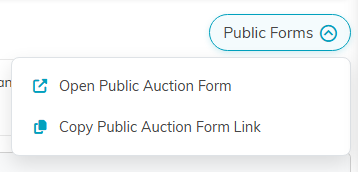
The Public Forms dropdown opens the form or copies its link.
How supporters take part
On the public form, supporters browse the items you have made public, view photos and descriptions, register with their name, email, and a card on file, and place bids while bidding is open. They receive an email confirmation for each bid.
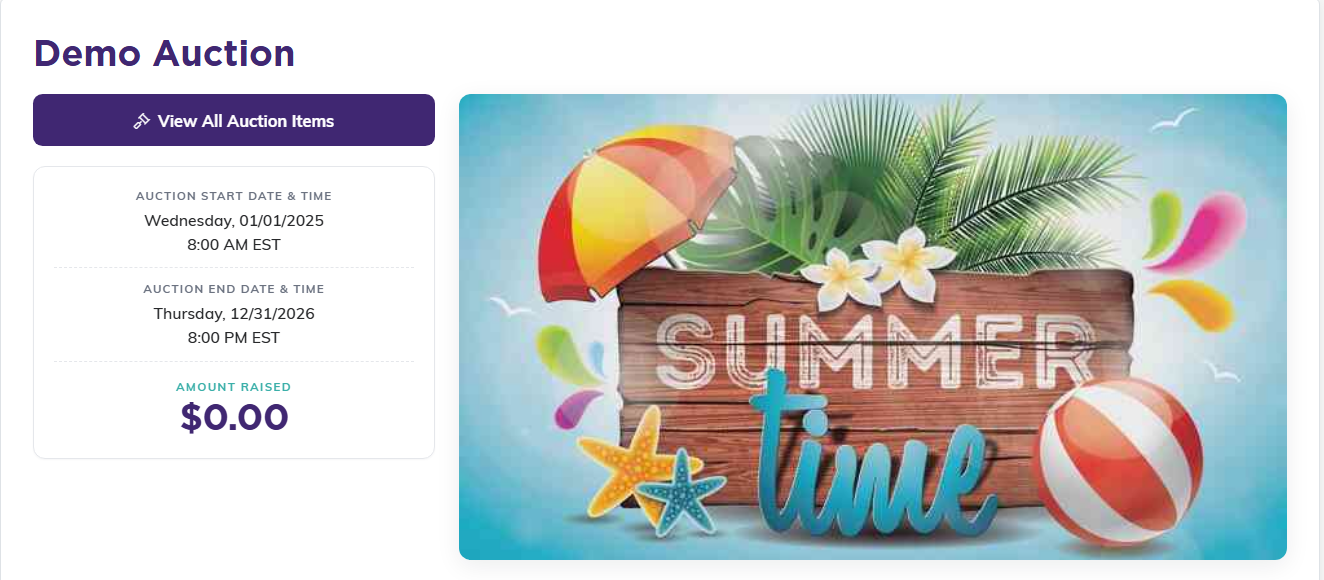
This is the page supporters land on.
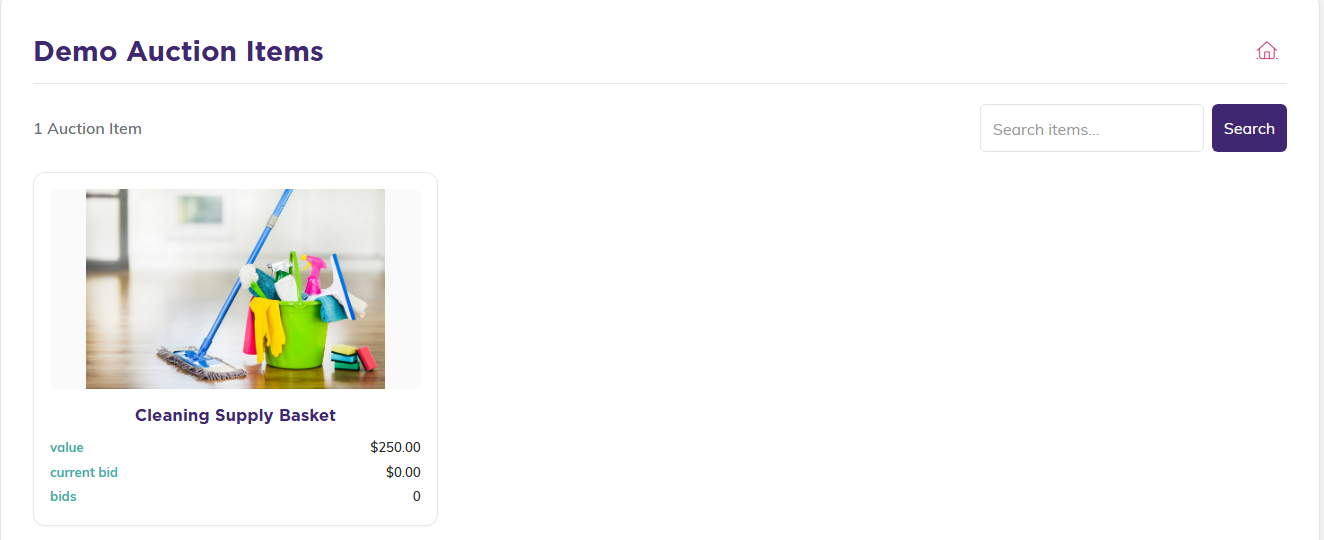
View All Auction Items opens the list they bid from.
Controlling what shows
Each item has its own Currently Public Item setting. Only items with it turned on appear on the form.
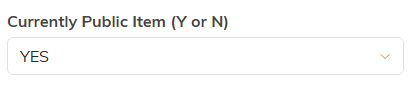
Set an item to YES and it shows on the public form.
