Knowledge Base Article
How to Monitor and Manage Auction Bids
The Bidding tab lets you watch every bid across your auction items in real time.
Open the Bidding view
- Open the auction.
- Click Bidding in the workspace navigation.

Bidding is one of the tabs in the auction workspace menu.
What you see
The tab lists every bid placed, each showing the auction item, the bidder's name, the bid amount, the bid date and time, and the item value.
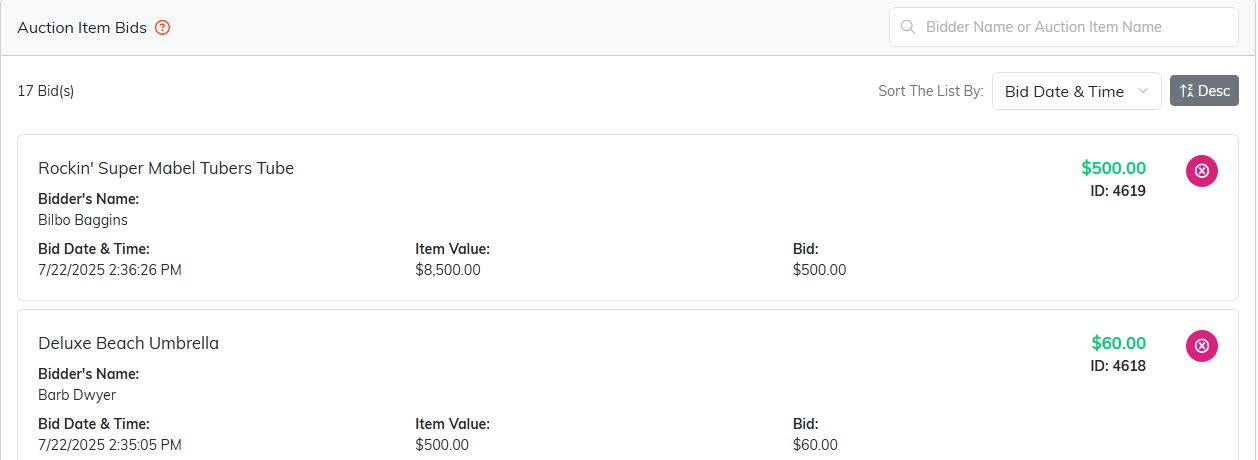
Every bid on the auction shows up here, newest first.
Finding a bid
- Search by bidder name or auction item name.
- Sort by bidder name, item value, bid amount, and more.

Search by bidder or item, and sort the list any way you need.
Where bids come from
Supporters place bids themselves on the public auction form; staff do not enter them. Argenta records each bid, enforces the minimum next bid, and tracks the current high bidder on every item automatically.
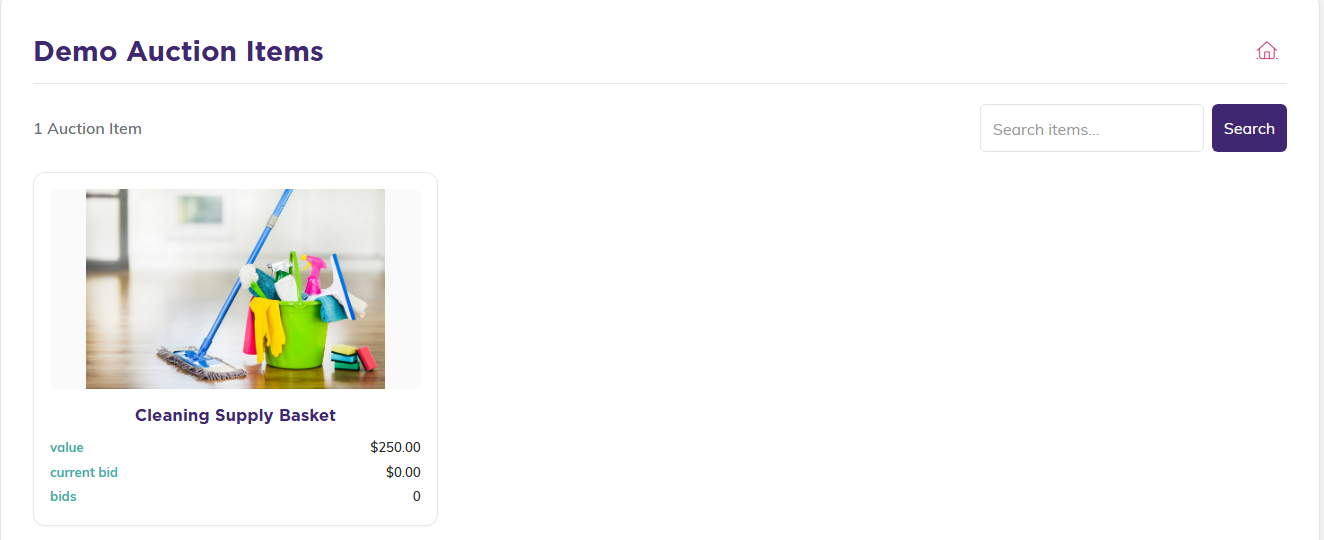
Bids come in from the public auction form, not from staff.
Removing a bid
If a bid needs to come off, click the pink delete icon on that bid. Argenta removes it and recalculates the item's winning bid and next bid, so use it carefully; it can change who is winning.

The pink icon on the right of a bid removes it.
After bidding closes
Bidding closes at the auction's end date and time. The highest valid bid on each item wins. Review the winners, then set the auction status to Complete.
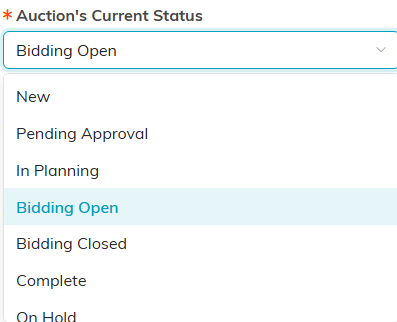
Set the status to Complete once you have reviewed the winners.
