Knowledge Base Article
How to Design the Public Auction Form
Customize how your auction looks to bidders on the public form.
Open Public Form Design
- Open the auction.
- Click Public Form Design in the workspace navigation.

Public Form Design is one of the tabs in the auction workspace menu.
What you can set
- Banner Image: upload a header image to brand the form (Save As Banner Image).
- Auction Content: write the introductory text bidders see, using the rich-text editor.
Click Save All Changes when you are done.
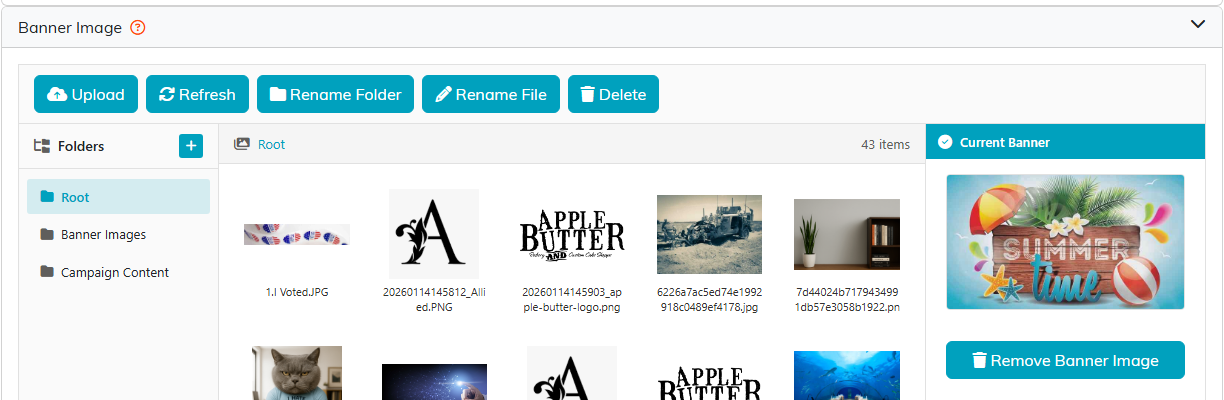
Pick a banner from your image library, or upload a new one.
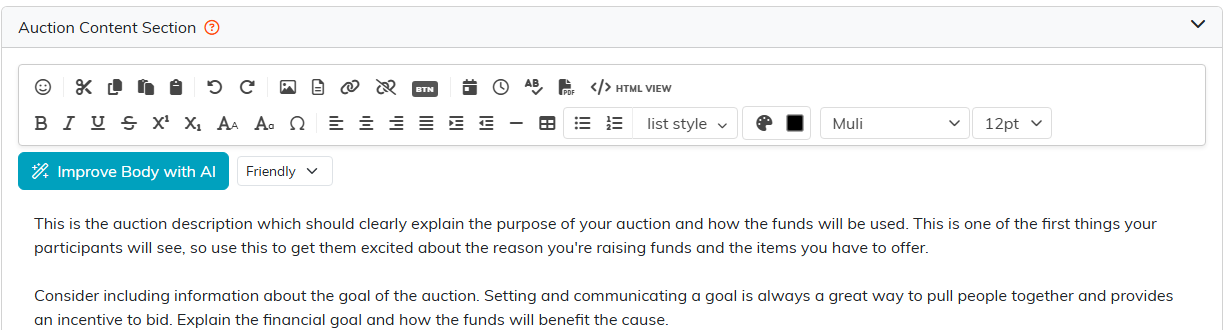
The Auction Content editor holds the text bidders read first.

Save All Changes sits at the top of the page.
Preview your form
- Open the Public Forms dropdown in the workspace navigation.
- Click Open Public Auction Form.
- Review what bidders will see, including how they register to bid with a card kept on file.
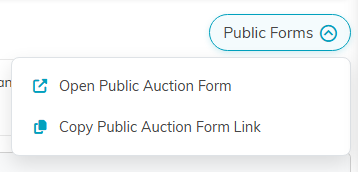
Open Public Auction Form shows you the live page.
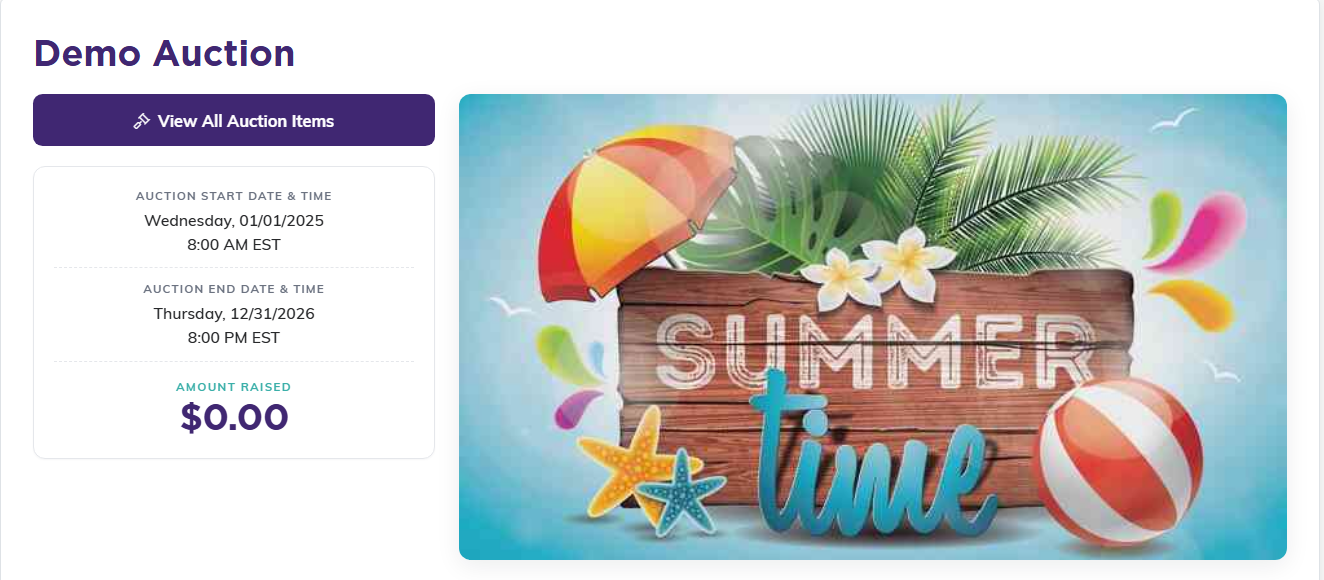
This is what your banner and content look like to a bidder.
Branding tips
- Use your organization's logo or event branding on the banner.
- Size the image for clean web display.
- In the content, explain the cause and mention the auction dates and bidding deadline.
