Knowledge Base Article
How to Track Auction Financials
Track how your auction is doing financially on the Budget & Financials tab.
Open Budget & Financials
- Open the auction.
- Click Budget & Financials in the workspace navigation.

Budget and Financials is one of the tabs in the auction workspace menu.
What the Financial Summary shows
- Income: projected income and sponsorships. In-kind (non-cash) sponsorships are shown for reference and are not added to the cash totals.
- Expenses: projected expenses, your Target Budget, and actual expenses.
- Net Income: total actual income minus total actual expenses.
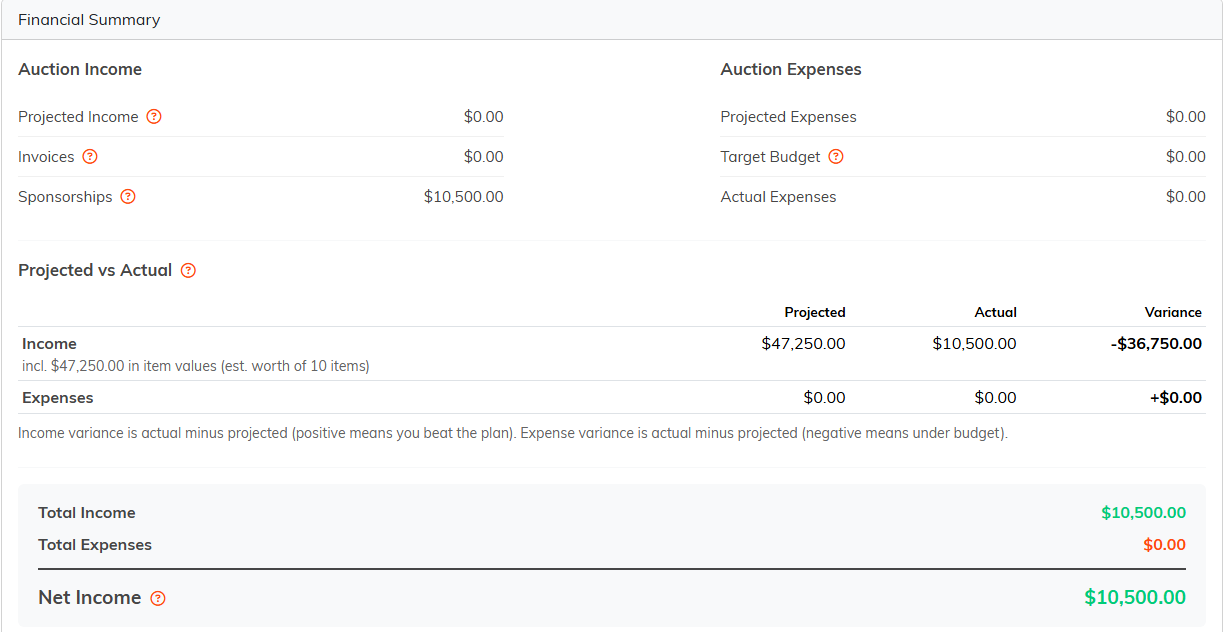
The Financial Summary adds up income, expenses and your net result.
Entering the detail
- Projected Income and Projected Expenses to plan ahead.
- Actual Income and Actual Expenses as the auction runs.
- Sponsorships are recorded on the Sponsorships tab and roll into the summary.

Each card opens the detail behind it, so you can add lines as you go.
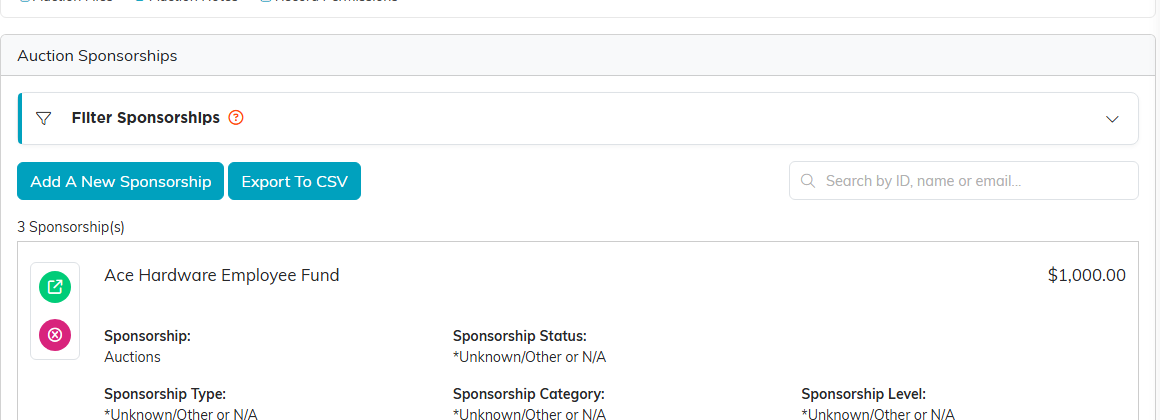
Sponsorships are entered on their own tab and roll into the summary.
Setting your goals
On the Auction Details tab, set the Target Budget and Fundraising Goal. Then add your projected numbers, track the actuals as you go, and check the summary for your net result.

Goal and budget live on the Auction Details tab.
