Knowledge Base Article
How to Connect an Auction to a Campaign
Connect an auction to a fundraising campaign and an event so the proceeds and reporting roll up together. These links live on the Connections tab.
Why connect an auction
- Auction proceeds count toward the campaign and event totals.
- You get unified reporting across your fundraising.
- It is one clear place to see how the auction fits the rest of your work.
Connect a campaign or event
- Open the auction.
- Click Connections in the workspace navigation.
- Use the Related Campaign field to pick the campaign, and the Associated Event field to pick the event.
- Each choice saves on its own and shows a green check. There is no separate save button.

Connections is one of the tabs in the auction workspace menu.
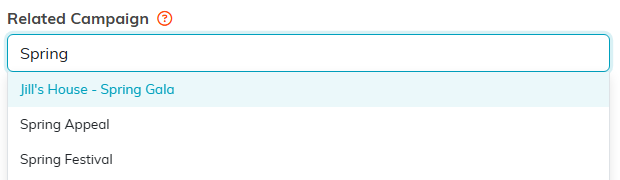
Start typing and pick the campaign from the list.
One campaign and one event
An auction links to a single campaign and a single event. Picking a different one replaces the previous link, which keeps the reporting accurate. To remove a link, clear the field.

One campaign and one event. The small x on the right clears a link.
Other connections
The same tab lets you link the auction to Associated Funds and Programs.

Funds and programs connect from the same tab.
