Knowledge Base Article
How to Track Project Progress
A project's progress is calculated from its task list, so you track progress by working the tasks rather than by typing in a number.
Where progress comes from
The Project Progress meter sits on the Project Details page. It shows the percentage of the project's tasks that are marked complete, with the count underneath, for example "4 of 10 tasks complete". Before you add any tasks it reads "No tasks yet". The bar turns green at 100 percent.
The same figure appears as % Complete on each card in the project list, so you can scan every project without opening any of them.

The meter on Project Details, with the task count beside it.

The same figure reads as % Complete on the card, next to the status badge.
Moving the meter
- Open the project and go to Project Tasks.
- Tick the checkbox beside each task as it is finished.
- The percentage updates on its own. There is no progress field to edit and no save step for it.
Actual Work Hours on Project Details works the same way. It totals the hours logged against the project's tasks rather than being typed in.

Tick the checkbox on a task and the percentage moves on its own.
Project status
Status is separate from progress, and you do set it by hand on Project Details. The list runs:
- New
- Approved/In Spec
- Assigned
- In Process
- Waiting On Client/Customer
- In Testing/QA
- Needs Final Approval
- On Hold
- Completed
- Cancelled/Void
On the project list, the status badge is color coded, so an overdue or stalled project stands out.
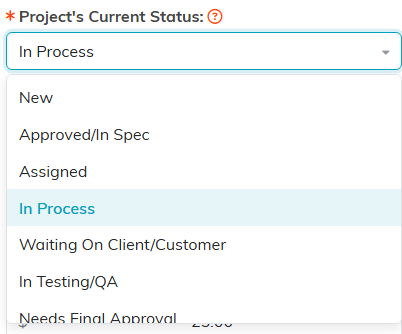
The status list on Project Details. It scrolls for the last few.
Asking for an update
Click Request A Status Update in the Project Details header to ask the project manager where things stand. It is the quick way to chase a project you do not own without writing a separate email.

Request A Status Update sits in the Project Details header.
Keeping the percentage honest
The meter counts tasks, not effort, so one small task and one large task each move it the same amount. Break work into pieces of roughly the same size and the number stays meaningful. If you need effort rather than task counts, compare Projected Work Hours against Actual Work Hours instead.

The two hours figures sit side by side on Project Details.
