Knowledge Base Article
How to Add Team Members to a Project
The project team is the list of people working on a project, along with what each one is doing and how many hours they are down for.
Add someone to the team
- Open the project and go to Project Team in the workspace navigation.
- Click Add New.
- In the Add Team Member box, fill in:
- Team Member, found by typing their name.
- Role In Project / Work Description, what this person is doing on this project.
- # of Hours, the hours allotted to them.
- Save. They appear in the team list.
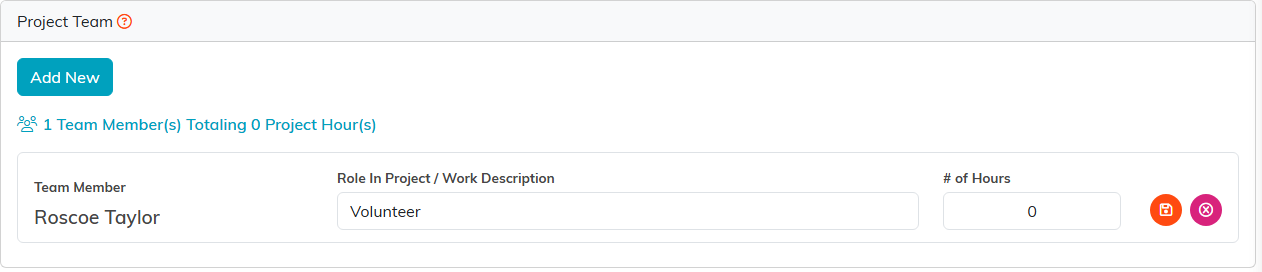
The Project Team page. The count and the total hours sit above the rows.
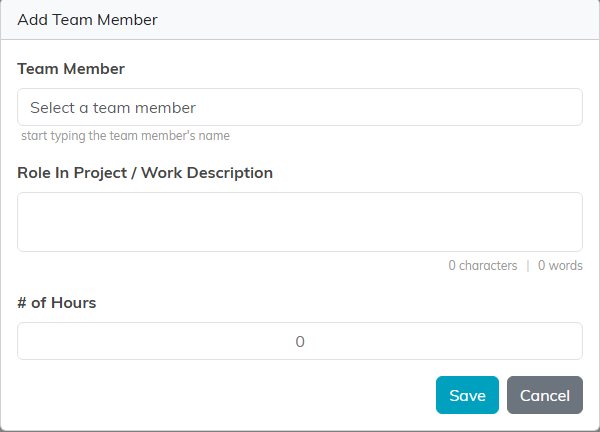
The Add Team Member box. Type a name to find the person.
Editing and removing
Every row on the team list is editable in place. Change the role or the hours right on the row, then click the orange save icon on that row. The pink delete icon removes the person from the project team.

Edit the row, then click the orange save icon on that row.
The manager and the team are different things
- Project Manager is a single person, set on the Project Details page. This is who owns the project, and who gets asked when someone clicks Request A Status Update.
- Project Team is everyone else contributing, each with their own role and hours.
Adding someone to the team does not assign them any work by itself. Tasks have their own Assignee, set on Project Tasks, so a person can be on the team, hold tasks, or both.

Project Manager is one person, set on Project Details.

A task carries its own assignee, shown on the row.
