Knowledge Base Article
How to Record Member Visits
Member Visits let you record when a member comes in, attends an activity, or checks in with your organization, so you can track engagement and participation.
Where Member Visits live
Go to Membership > Member Visits. This is the full list of recorded visits, with its own filters and export. You need at least one member on file before you can add a visit.
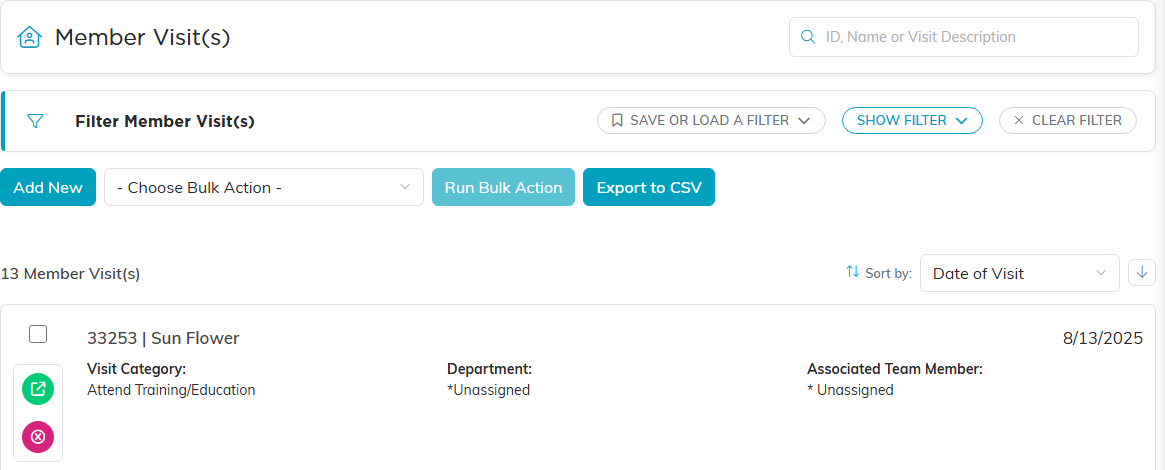
The Member Visits list, with its own filters and export.
Record a visit
- On the Member Visits list, click Add New. Argenta creates the visit and opens the Member Visit Details page.
- Fill in the details:
- Date of Visit (required)
- Member (required): start typing the member's name and pick them.
- Visit Category: the type of visit.
- Visit Description: any relevant notes.
- Chapter, Division, Department, and Associated Team Member as needed (political teams also see District and Precinct).
- Save with Save All Changes or Save All & Exit Record.
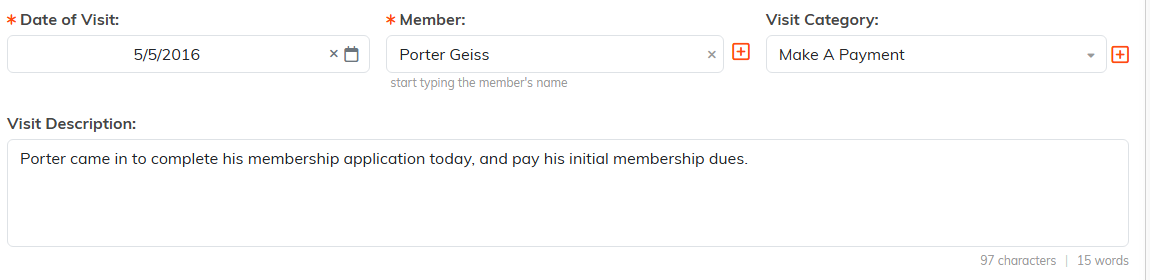
Date of Visit and Member are required. Everything else is optional.

Fill these in when you want to report on visits by area or by staff member.

Save All Changes keeps you on the page. Save All and Exit Record sends you back to the list.
Each visit also has Visit Files, Visit Notes, and Record Permissions tabs in its workspace.

The three extra tabs sit beside Visit Details.
Find and export visits
Open the filter panel on the Member Visits list to narrow by:
- Member
- Visit Category
- Team Member Visited
- Chapter, Division, Department
- Visit Date Range
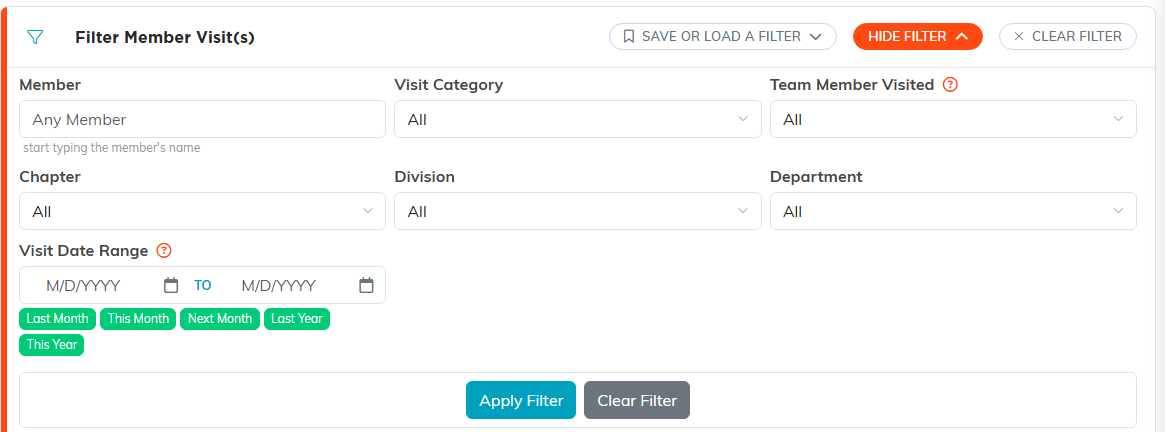
Show Filter opens the panel. The green chips fill the date range for you.
Click Apply Filter, then use Export to CSV to pull the results, or select visits and use Bulk Actions to build a Mail Room list for follow-up.

Bulk actions and Export to CSV sit right under the filter panel.
Why track visits
- Engagement: see who is active and who has not been in recently.
- Planning: understand usage patterns over a date range.
- Reporting: show participation to your board or stakeholders with a quick CSV.
