Knowledge Base Article
How to Record a Donation in Argenta
Recording a donation keeps your donor records and your accounting in sync. Here is the quick version; for the full field-by-field walkthrough, see Add Fiscal Donations.
Record a donation
- Choose Fundraising > Donations and click Add New. A short form opens asking for the Donor and the Donation Date. Fill those in and click Add & Enter Details, and Argenta creates the donation and opens it in the Fiscal Donation Workspace. Cancel & Exit leaves nothing behind.
- Select the Donor (or add a new one with the add icon), then enter the Donation Date and Donation Amount. These three are required.
- Add the details you track: Payment Method, Check # / Reference #, Payment Point of Entry, Donation Type, and Donation Category.
- To post the gift to your books, turn on Add To General Journal and choose the Fund, deposit account, and account. To tie the gift to a fundraising effort, use the Connections tab to link a campaign or event.
- Click Save All & Continue or Save All & Exit.

Step 1: Add New on the Fiscal Donations list.

Step 2: the three required fields.

Step 3: how the gift arrived.
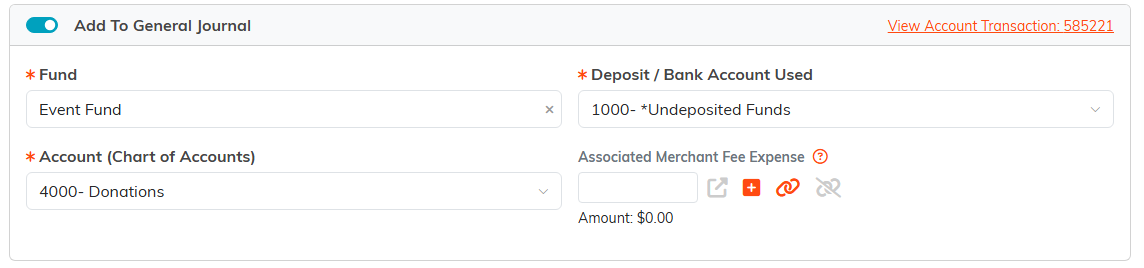
Step 4: posting the gift to your books.

Step 5: saving the donation.

The donation is created when you click Add & Enter Details, not before.
Cash gifts vs. other gifts
This flow is for cash and cash-equivalent gifts (cash, check, credit card). For non-cash gifts like goods or services, use the separate In-Kind Donations area instead (see How to Record and Track In-Kind Donations). To record a gift one party makes on behalf of another, see Add A 3rd Party Donation.
After you save
You can email the donor a receipt from the record with Send Donor A Receipt, and the gift immediately updates the donor's lifetime total and donor level.

Send Donor A Receipt sits at the top of the record.
