Knowledge Base Article
How to Track Event Attendance
Attendance is recorded on the event's Participants/Guests page. There is no separate attendance tab, so everything below happens on that one page.
Marking People Attended
- One person: flip the In Attendance switch on their row. It saves as you click.
- A group: tick the rows you want, then use the bulk actions menu. Under the Attendance heading you get Mark Selected Records As Attended and Mark Selected Records As Not Attended.

The switch on the row saves as you click.
To do a whole filtered set at once, use Select All Records That Meet The Current Filter Criteria first, then the mark action.
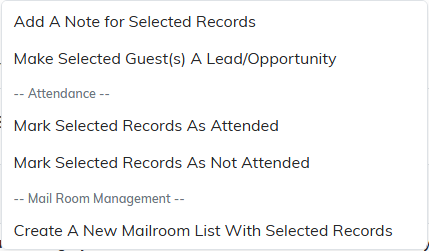
The bulk menu marks a whole selection at once.
Checking People In at the Door
For a ticketed event, you do not need to work the guest list by hand. Open the event's check-in page on any phone and scan each guest's QR code. It marks them checked in, keeps a live count, and warns you if a code has already been used that day. See QR Ticketing and Phone Check-In for Events.
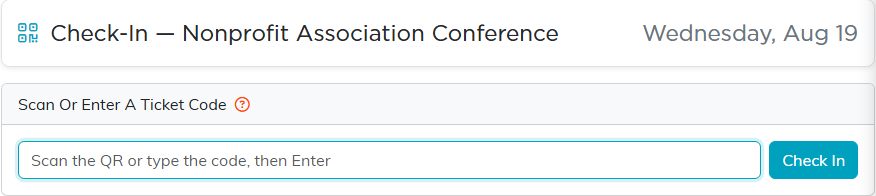
The check-in page works on any phone.
Walk-Ins
Click Add New on the Participants/Guests page to add someone who did not register, then mark them attended like anyone else.

Add New puts a walk-in on the guest list.
Seeing Who Came and Who Did Not
The filter panel has separate dropdowns for Has RSVP'd, Is Attending, Is Seated, and Was In Attendance, each offering Both Yes & No, Yes, or No. Filter Was In Attendance to No and you have your no-show list; filter to Yes and you have your real turnout.
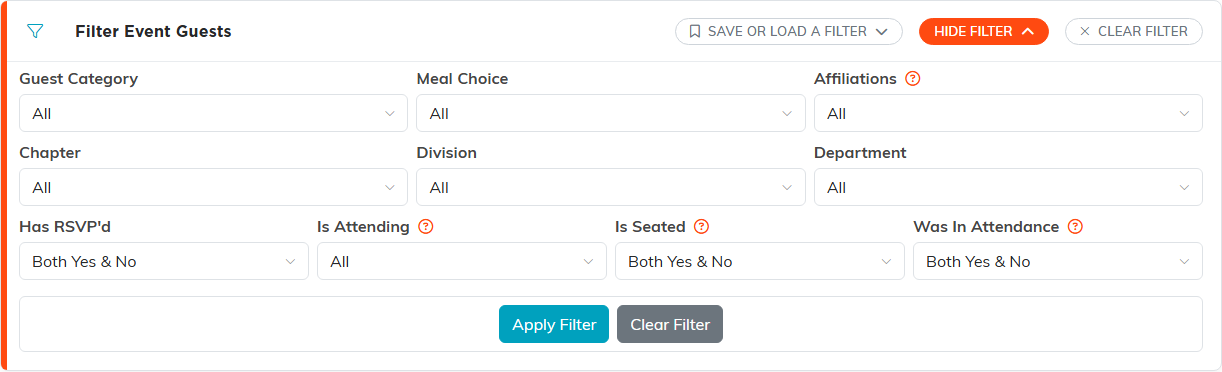
Was In Attendance set to No gives you the no-show list.
Keep the distinction straight. Attending is what someone said they would do. Attended is what actually happened. Reporting turnout off the RSVP figure is the usual way these numbers go wrong.
Getting the Numbers Out
- Export Attendance Sheet gives you a printable check-in sheet for the door. It is limited to admins and users with export permission.
- Export to CSV exports the guest list itself, filters and all, for grant reports or a sponsor.

Two exports: the check-in sheet and the guest list itself.
Cleaning Up Afterwards
The bulk actions menu has Remove All Who Didn't Attend Event under the Danger Zone. It deletes those guest records rather than flagging them, so only use it when you are sure attendance is fully marked. If you want to follow up with no-shows later, filter and export them first.
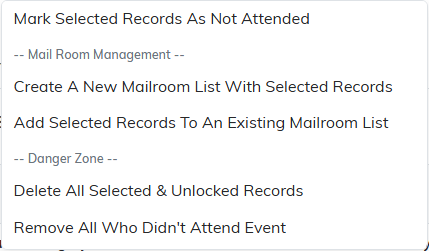
This one deletes the records. Be sure attendance is marked first.
