Knowledge Base Article
How to Filter Member Groups
Filtering the Member Groups list helps you find the exact groups you need and get an accurate count of the groups that match your criteria. You can combine as many filters as you like.
Open the filter
Go to Membership > Member Groups, then open the Filter Member Groups panel. Set any of the criteria below, click Apply Filter, and the list refreshes to show only the matching groups, with an updated record count. Click Clear Filter to reset.

Show Filter opens the panel. Clear Filter puts the list back to everything.
Filter criteria
- Group Status: Active Groups and/or Inactive Groups (leave it empty for any status).
- Group Level: one or more of your group levels.
- Group Category: one or more categories.
- Group Leader/Team Member: search by name, or use Unassigned to find groups with no leader; Clear removes the selection and Open views the person's record.
- Date Started Range: a start date, an end date, or both.
- Chapter, Division, Department: for organizations that use them.
- District and Precinct: for political organizations (choose a District before Precinct becomes available).
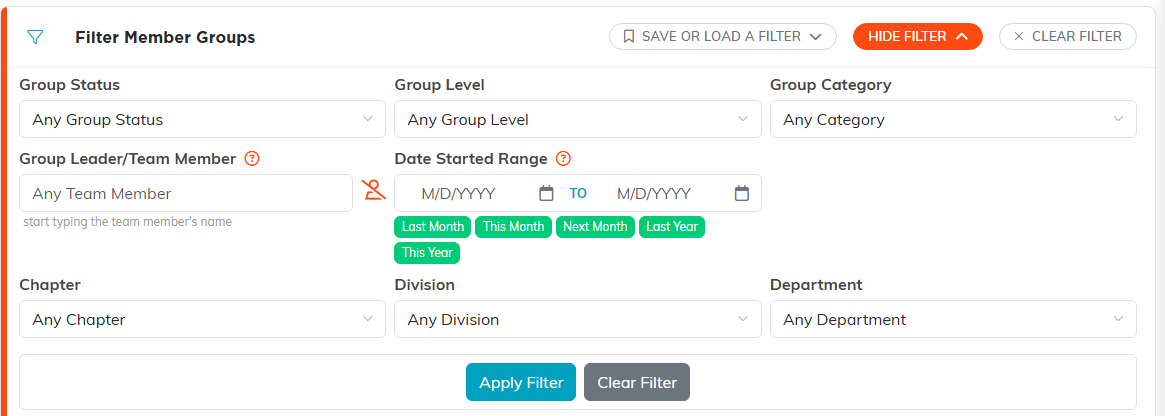
Set as many of these as you like. They stack, so each one narrows the list further.
Search, sort, and save
- Quick search: the search box finds groups by ID or Group Name.
- Sort by: Member Group ID, Date Group Started, Group Name, Chapter, Department, Division, District, or Precinct, ascending or descending.
- Save or Load a Filter: save a filter combination you use often and reload it later, so you do not have to rebuild it each time.
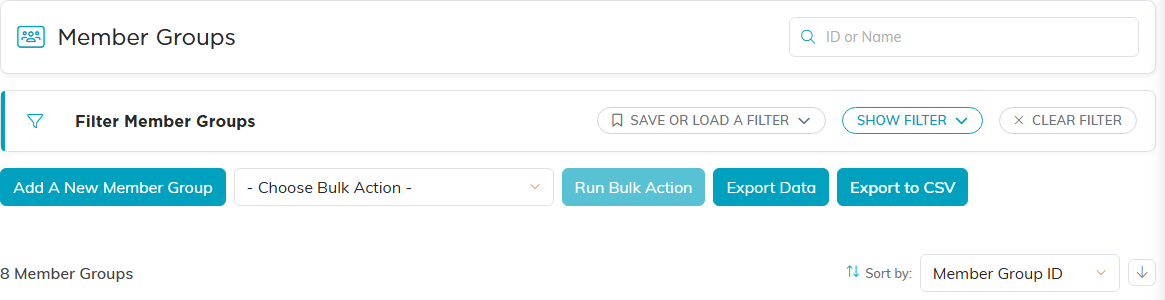
Search sits top right, Save Or Load A Filter on the filter bar, and Sort by above the list.
Your filter stays in place as you open a group and come back to the list, so you can work through a filtered set without losing your criteria.
Export the results
With a filter applied, use Export to CSV to download the filtered list. Admins also have an Export Data button for a full-detail export of every column, handy for reporting.

Both export buttons sit on the same row, under the filter panel.
