Knowledge Base Article
How to View Volunteer Hours and Service History
Once your volunteer tasks carry accurate times, Argenta can tell you what any one volunteer has given and what your whole program has given. Here is where to look.
Seeing One Volunteer's Service
A volunteer's hours are not summarized on their own record. They come from the tasks assigned to them, so the fastest way to see one person's service is from the task list:
- Select Volunteerism > Volunteer Tasks from the main menu
- Click Filter above the list
- Choose the person in the Volunteer field
- Set any date range you need
- Click Apply Filter
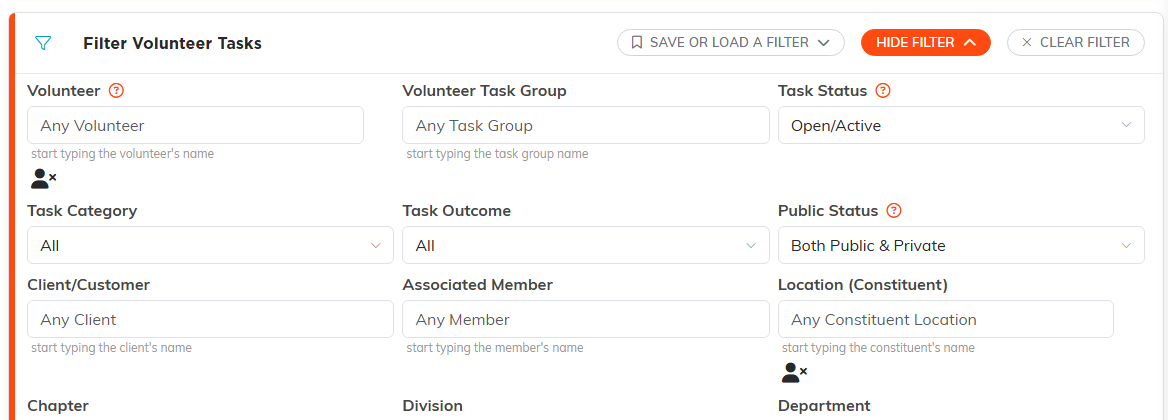
The filter panel. Pick the person in the Volunteer field and set your dates.
You now have every task that volunteer worked, with the hours on each. Click the Calendar button if you would rather see the same thing laid out by date.
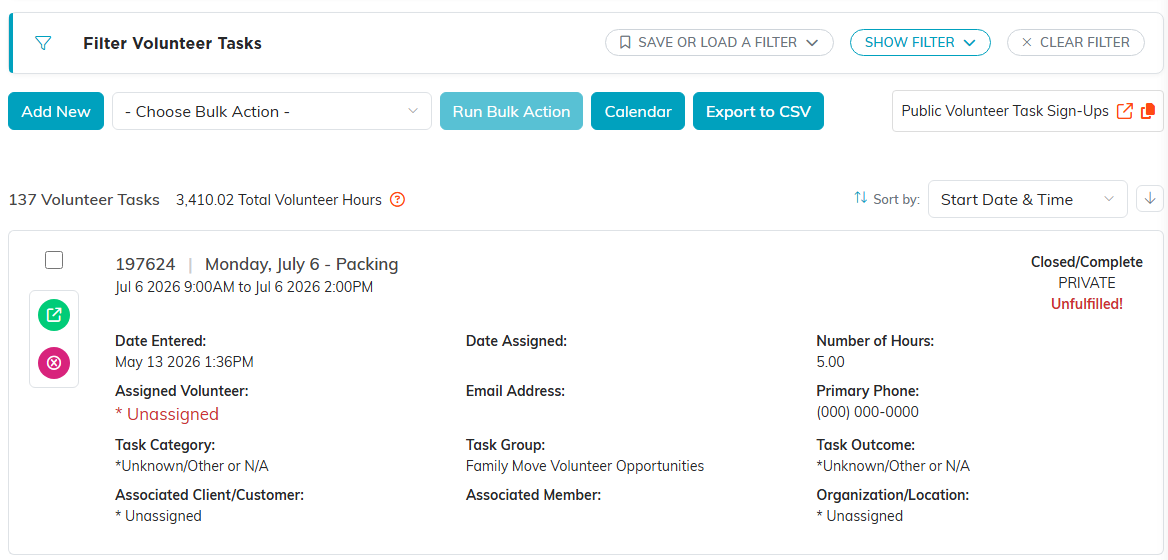
The filtered list gives you every task with the hours on each, and totals them at the top.
Reports for Hours and Service History
For totals across volunteers, go to your Reports section. Three reports cover this:
- Volunteer Hours, hours by volunteer
- Total Volunteer Hours, the aggregate across all volunteers
- Volunteer Service Details, a detailed breakdown of service
Set your date range and any filters, then run the report. Volunteer Hours is usually the one you want for recognition and year-end thank-yous. Total Volunteer Hours is the one for grant applications and board reports.
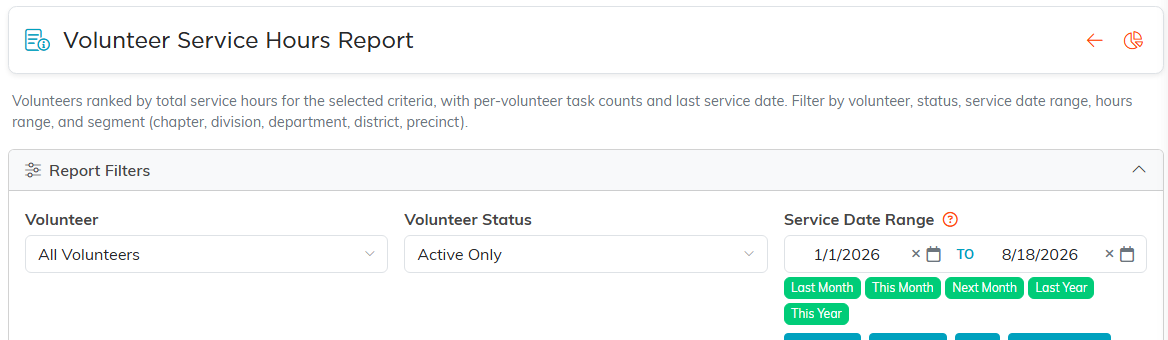
The hours report. Set the date range and any filters, then run it.

The report totals the figures for you above the detail.
Exporting the Numbers
Each of these reports has Export To CSV, Export To Excel, and Export To PDF buttons, so you can hand the figures to a funder or drop them into a board packet. Export buttons appear for administrators and for users who have export rights.

All three export buttons sit at the bottom right of the report.
Turning Hours Into a Dollar Figure
Grant reporting often asks for the value of donated time rather than the raw hours. Keep your rate table under Volunteerism > U.S. Volunteering Rates and multiply against the totals from the reports above. For how hours get onto tasks in the first place, see How to Record and Track Volunteer Hours.
