Knowledge Base Article
How to Use Time Sheets to Track Staff Hours
Time Sheets track the hours your staff work in a pay period, with each row tied to a task and, when you want it, to a project or grant. That gives you real hours behind payroll, project costing, and grant reporting.
How a Time Sheet Moves
Every time sheet follows the same path, and the Time Sheet Status field on Time Sheet Details tells you where it is:
- Someone creates the sheet for a staff member and a pay period.
- Hours go in on the Tasks & Hours page, a row per piece of work and a column per day.
- Submit for Approval sends it to the manager.
- The manager clicks Approve Time Sheet or Reject Time Sheet. A rejected sheet reopens so the staff member can fix it and resubmit.
Whoever approved or rejected it is stamped on the record in Approved/Rejected By.
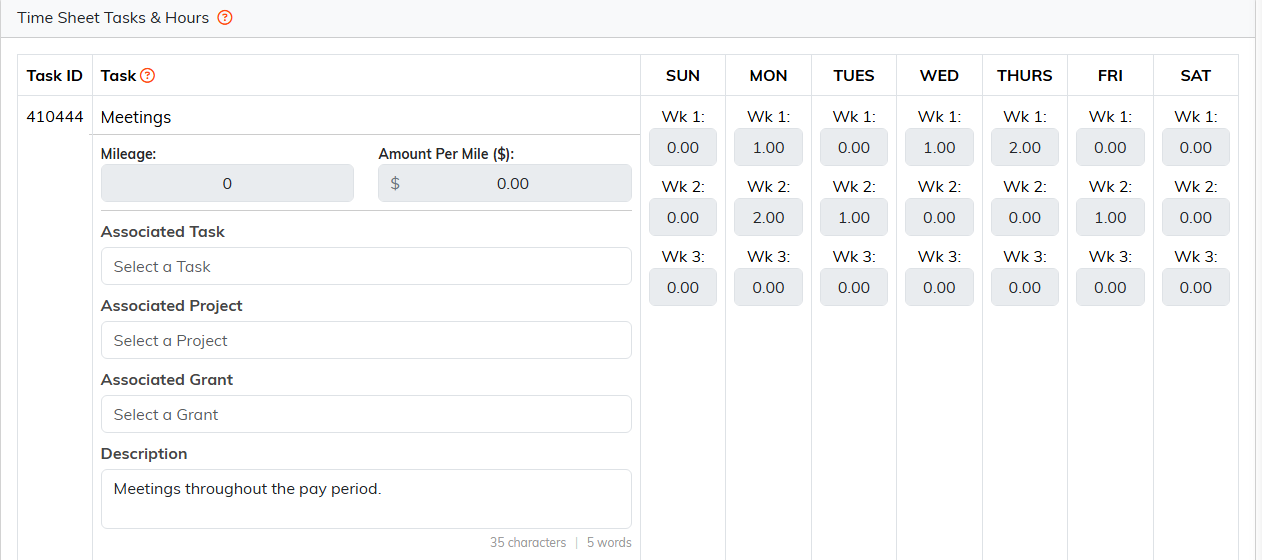
Hours go in on Tasks & Hours, a row per piece of work and a column per day.

Submit for Approval sends the sheet to the manager.

The manager sees these two once the sheet is in.
Where to Find Them
Go to Staff & HR > Time Sheets. Search by ID or staff member name, sort the list, and export it to CSV. The green open icon on a row takes you straight to that sheet's Tasks & Hours page, since that is where the work happens.
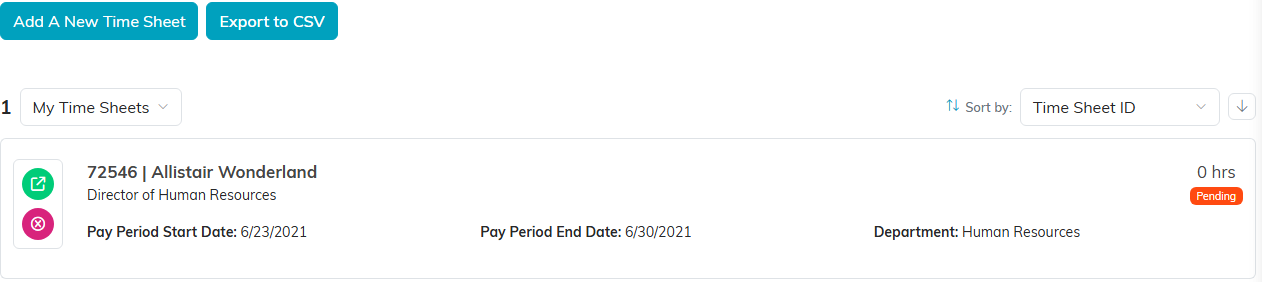
The green open icon on a row goes straight to Tasks & Hours.
The Time Sheet Workspace
- Time Sheet Details - the pay period dates, plus read-only status, department, staff position, employee ID, manager, and approver
- Tasks & Hours - the grid where hours are entered, and where the submit and approve buttons live
- Related Files - supporting documents
- Time Sheet Notes - internal notes

The four pages of the time sheet workspace.
Pay Periods
Argenta does not lock you into a fixed pay period. You set Pay Period Start and Pay Period End on each time sheet, so weekly, every two weeks, twice a month, or monthly all work the same way. Both dates are required.
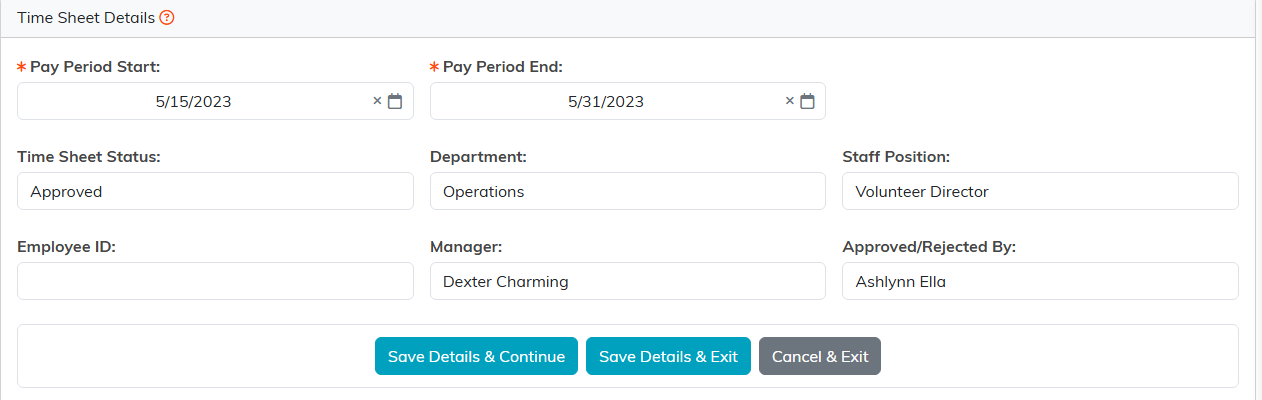
You set the pay period on each sheet, so any cycle works.
The Task List Behind the Hours
The tasks staff pick from come from your Time Sheet Master Task List, also under Staff & HR. Keeping that list tidy is what makes the hours worth reporting on later, so set it up before you roll time sheets out to your team.
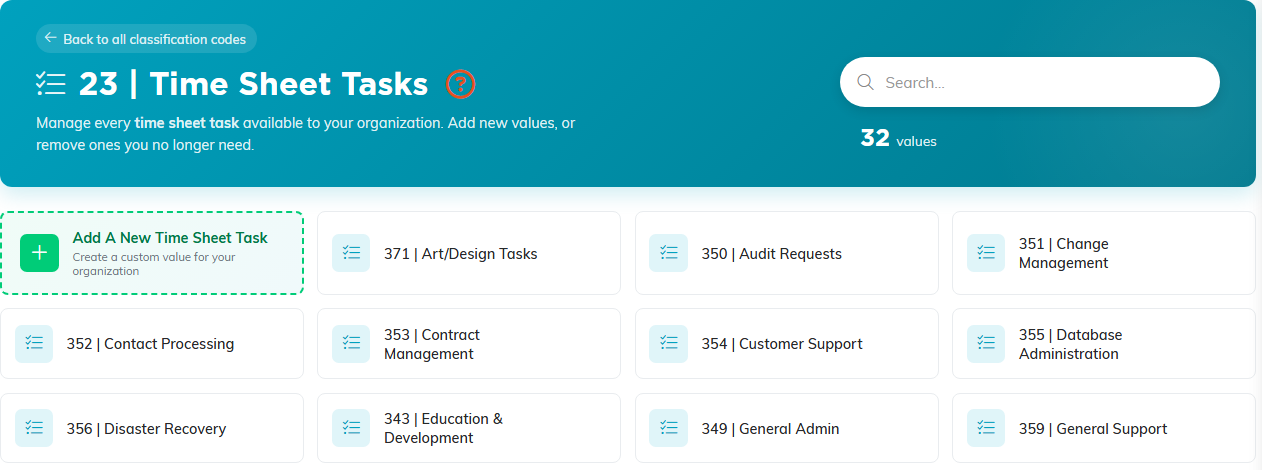
The master task list. Staff pick from these when they add a row.
Tying Hours to Projects and Grants
Each row on a time sheet can carry an Associated Project and an Associated Grant alongside the task. Filling these in is what lets you answer how many hours actually went into a program or a funded piece of work, rather than estimating it at report time.
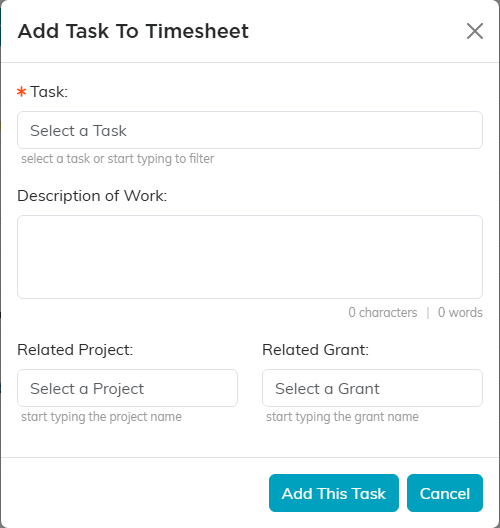
Related Project and Related Grant sit on the same row as the task.
Step by Step
For the full walkthrough of creating a sheet, adding tasks, and entering hours, see How To Enter A Time Sheet in Argenta.
