Knowledge Base Article
How to Record and Track In-Kind Donations
An in-kind donation is a non-cash gift: goods, professional services, donated use of property, auction items, or products. Argenta tracks these in their own module, separate from cash (fiscal) donations, so you can recognize the donor and keep clean records.
Record an in-kind donation
From the left-hand menu, choose Fundraising > In-Kind Donations and click Add New. A short form opens asking for the Donor and the Donation Date. Fill those in and click Add & Enter Details, and Argenta creates the record and opens the In-Kind Donation Workspace on the Donation Details tab. Cancel & Exit leaves nothing behind. Fill in:
- Donor (required) - Start typing the donor's name and select them, or use the add icon to create a new donor.
- Donation Date (required) - When the gift was received.
- Total Approximate Value - Your best estimate of the gift's value. (For a non-cash gift the donor ultimately determines the value; see the note below.)
- Donation Type and Donation Category - Optional ways to classify the gift; add a new option from the dropdown if you need one.
- Solicited By (Team Member) - The staff member who brought in the gift.
- Donation Description - Describe what was donated. This is the most important field for an in-kind gift, so be specific.
- Receipt Given, Thank You Sent, and Given in Honor of - Yes/No for each, with a name field if the gift is in honor of someone.
- Chapter, Division, Department - Assign the gift to a part of your organization if you use these groupings (District and Precinct appear for political teams).
Because an in-kind gift is not cash, there is no general-ledger, fund, or deposit-account posting here; that belongs to cash gifts, covered in Add Fiscal Donations. When you are done, click Save All & Continue or Save All & Exit.
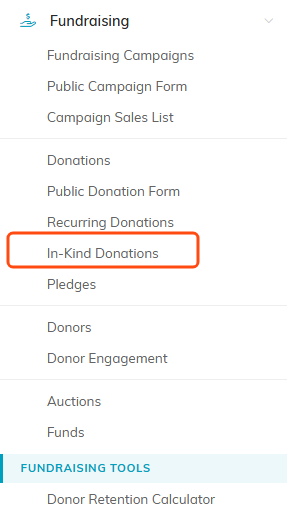
In-Kind Donations sits under Fundraising, just above Pledges.

Add New asks for the donor and the date, then creates the record and opens its workspace.

Donor and Donation Date carry the orange asterisk. Value is your estimate.

The add icon beside a dropdown creates a new option on the spot.

Describe what was donated. This is the field that earns its keep later.

The honoree name field sits beside the Given in Honor of choice.

Political teams see District and Precinct here too.
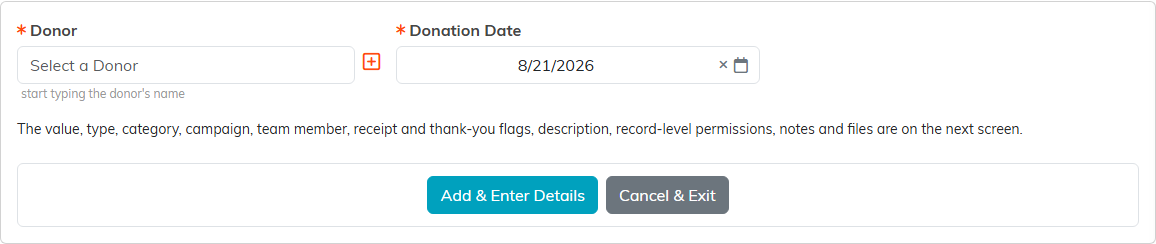
Donor and date first. Cancel & Exit leaves nothing behind.
Receipts and the rest of the workspace
Use Send Receipt to email the donor an acknowledgment, or Copy & Add New to start a similar record. The workspace has five tabs: Donation Details, Connections (tie the gift to a campaign, event, or program), Related Files (attach documentation or photos, see Add Related Files), Donation Notes, and Record Permissions.

Send Receipt, the two save buttons, and Copy and Add New.

The five tabs of the workspace.
A note on valuing and acknowledging
The IRS puts the burden of valuing a non-cash gift on the donor, not the nonprofit. A good acknowledgment describes the donated item, confirms that no goods or services were given in exchange, and leaves the dollar value to the donor. Services are worth tracking for recognition even though they are usually not tax-deductible.
Find and export your in-kind donations
Your in-kind gifts live on the In-Kind Donations list under Fundraising. Filter or search the list, then click Export to CSV to download whatever is currently displayed for reporting or your annual giving summary.

Export to CSV downloads whatever the list is showing.
