Knowledge Base Article
How to Use Property Management to Track Facilities and Real Estate
Property Management tracks the real estate and facilities your organization owns or uses: buildings, land, rental units, campuses. Each property carries its own appraisals, financials, leases, offers, and permits.
It has its own Property Management section in the left menu, holding Properties, Renters, Leases, Appraisals, Permits, and Property Maintenance. If you do not see it, it is switched off in your team's menu settings.
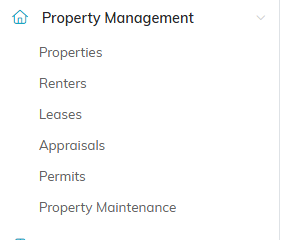
The whole section is here. If you cannot see it, it is switched off in menu settings.
Adding a Property
- Go to Property Management > Properties.
- Click Add New. Argenta asks for the property name first, on a short screen of its own.
- Type the Property Name and click Add & Enter Details. The property is created at that point and the Property Workspace opens. Cancel & Exit on this screen creates nothing at all.
- Fill in the rest of Property Details. Only the name is needed to create the record, so you can gather the rest as you go.
- Save.

Add A New Property sits above the Properties list.
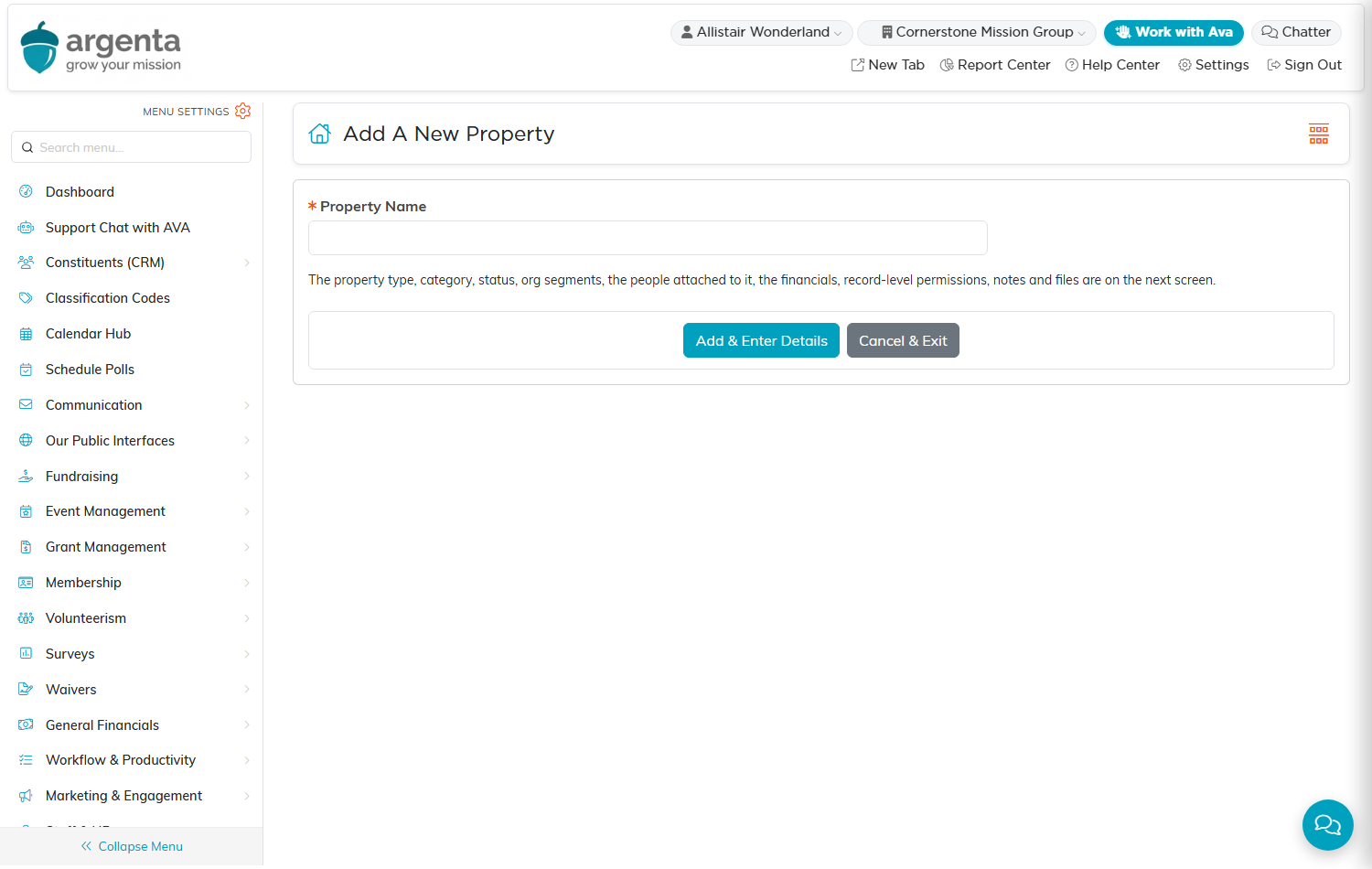
Argenta asks for the name first. Nothing is created until you click Add & Enter Details.
What Property Details Holds
- Property Name (required), Property Description, and Builder
- Property Address, City, County, State, and Zip Code
- Status, Property Type, and Property Category, all your own lists
- Date Purchased and Year Built
- Lender, Insured By, Warranty Available, and Warranty Provider
- Assigned To Team Member, whoever looks after this property
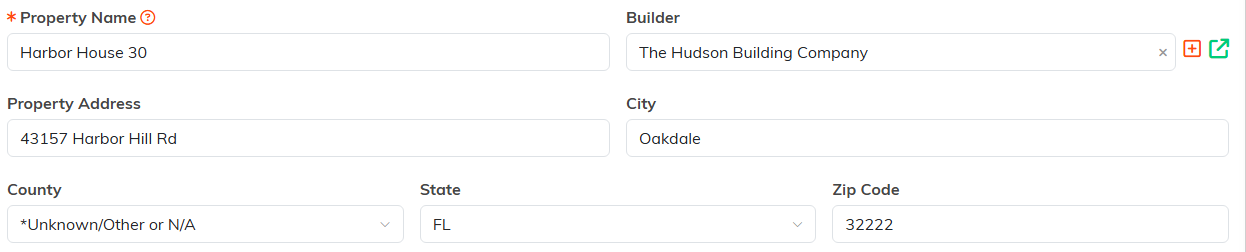
Only Property Name carries the red asterisk. Everything else can wait.

Status, Type and Category all come from your own lists.

Each of these points at a constituent or a team member you already have.
The Property Workspace
- Property Details - the record itself
- Connections - links to related records
- Appraisals - valuations over time, rather than a single value field
- Financials - the money side of the property
- Leases - agreements on this property
- Offers - offers made or received, for property you are buying or selling
- Permits - permits tied to the property
- Property Files - deeds, titles, insurance policies, inspection reports, floor plans
- Property Notes - internal notes
- Record Permissions - who can view or edit

Every page of the property is on this bar.
Valuation Is a History, Not a Field
There is no single current-value box on Property Details. Value lives on the Appraisals page, where each appraisal is its own record. That is deliberate: it keeps the history of what the property was worth and when, which is what an auditor or a board asks for.
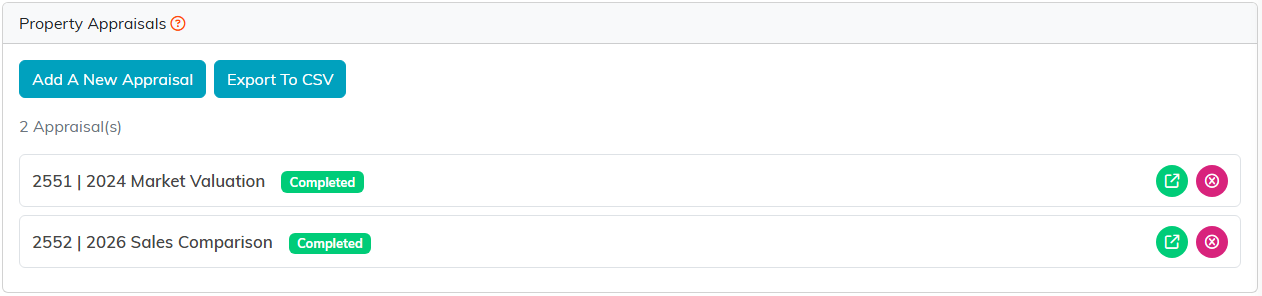
Two appraisals, two years apart. That is the history a board asks for.
Maintenance and Renters
Maintenance is its own list at Property Management > Property Maintenance rather than a tab inside the property, so you can see all outstanding work across every property at once. Renters and Leases work the same way, as their own lists, which is what you want when a lease is coming up for renewal and you are looking across the portfolio rather than at one building.
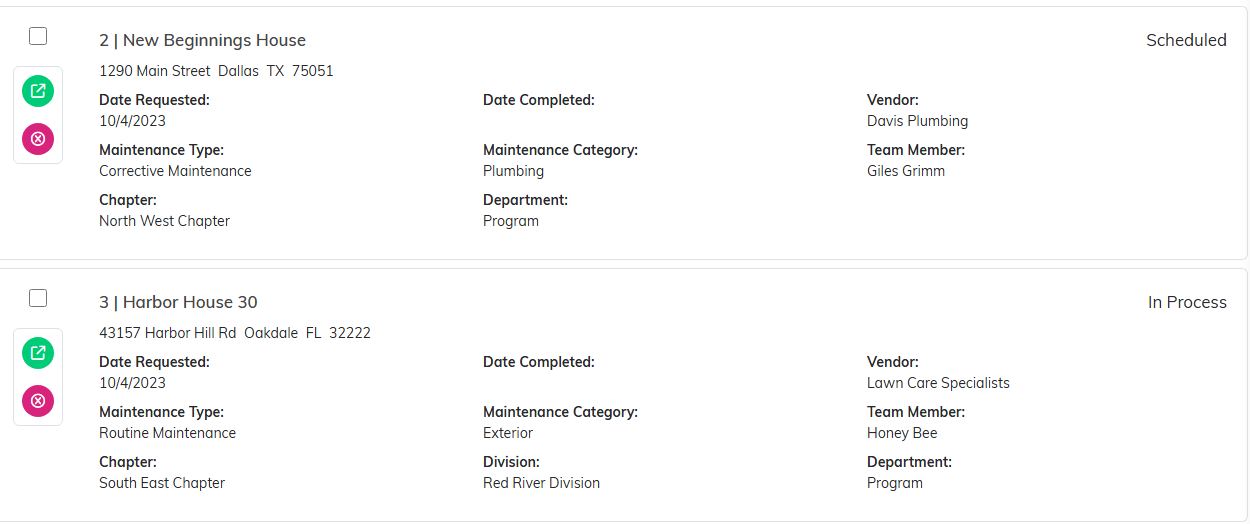
Maintenance is one list across every property, not a tab inside each one.
