Knowledge Base Article
How to Connect an Auction to an Event
If your auction is part of a larger event, you can link the two. This keeps your reporting tidy and rolls the auction results into the event.
Where to connect
- Open your auction.
- Click Connections in the workspace navigation.

Connections is one of the tabs in the auction workspace menu.
Choose the event
- Find the Associated Event field at the top of the page.
- Start typing the event name and pick it from the list.
- It saves on its own and shows a green check when saved.

Start typing the event name and pick it from the list.
One event at a time
An auction links to a single event. Picking a different one replaces the old link. To remove it, clear the field.

One event at a time. The small x on the right clears it.
Why it helps
- The auction money counts toward the event totals.
- You can see the auction and the event together in your reports.
- There is one clear place to manage the link.
Connecting a campaign too
Right next to it is the Related Campaign field. It works the same way if you also want to link the auction to a fundraising campaign.
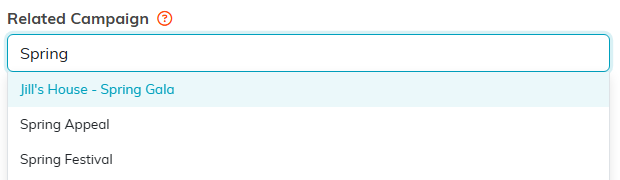
The Related Campaign field works exactly the same way.
