Knowledge Base Article
What Happens When Your Auction Closes
Your auction closes on its own at the end date and time you set. Here is what happens and what to do next.
Bidding stops automatically
When the end time arrives, the public form stops taking bids. You do not have to close it by hand, and the auction’s status is set to Complete for you at the same time.
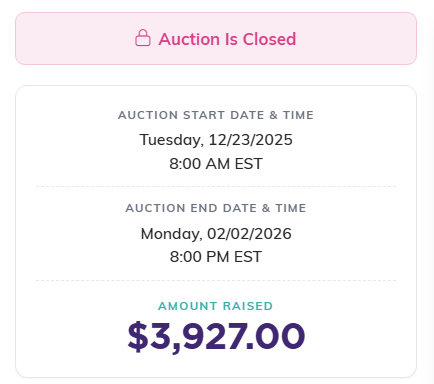
Once the end time passes, the public form says the auction is closed.
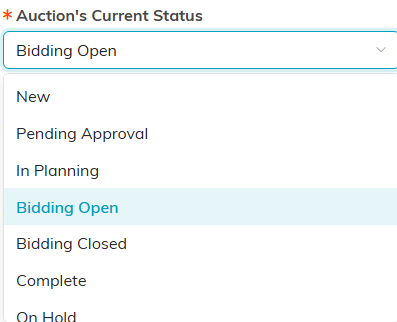
The status moves to Complete on its own.
The highest bidders win
For each item, the person with the highest bid wins. Each item is assigned to its winner, and the item’s final sale price is set to the winning bid amount.
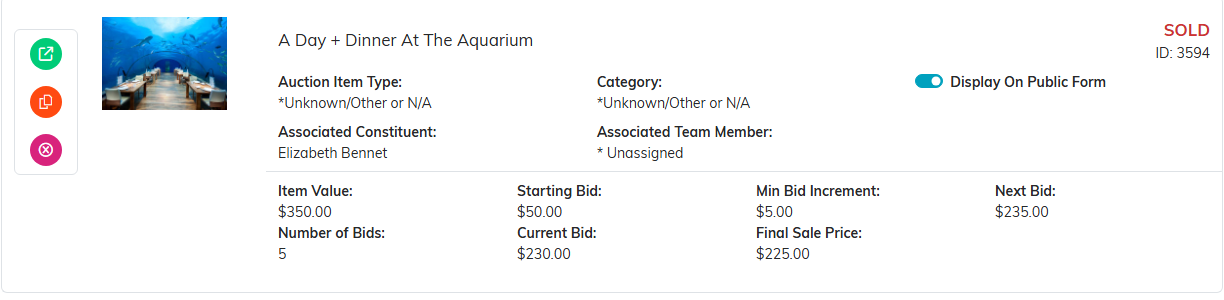
A sold item carries the winner's name and the final sale price.
Where to see who won each item
Go to Auction Items in your auction workspace. Each item shows Associated Constituent, which is the person who won it, along with the Final Sale Price and the number of bids placed. Items that sold are flagged SOLD, and the Was Sold During Auction filter narrows the list to just those.
Open a single item and you will see the same person again, this time labeled Highest/Winning Constituent Bidder. All three names refer to the winner.
The Bidding tab is a different view. It lists every individual bid that was placed during the auction, so it is the place to review bidding history, not the place to find your winners.
Getting a list to work from
If your permissions include exporting, the export button on the Auction Items list gives you one row per item. It includes Constituent Bid Winner, Final Sale Price, Purchase Instructions and Was Sold During Auction, which is what you want in front of you when you are arranging pickups or deliveries.

Export to CSV gives you one row per item to work from.
How winners are billed
Bidders save a card before they are allowed to place their first bid, so every winner already has a card on file. Each winning bidder gets one invoice covering everything they won, and that card is charged automatically for the invoice total.
If a card is declined when the auction closes, that bidder is emailed a link to pay their invoice instead, and the invoice stays unpaid until they act on it. That is the one case worth checking for, so glance at your invoices after the auction closes to confirm everything came through.
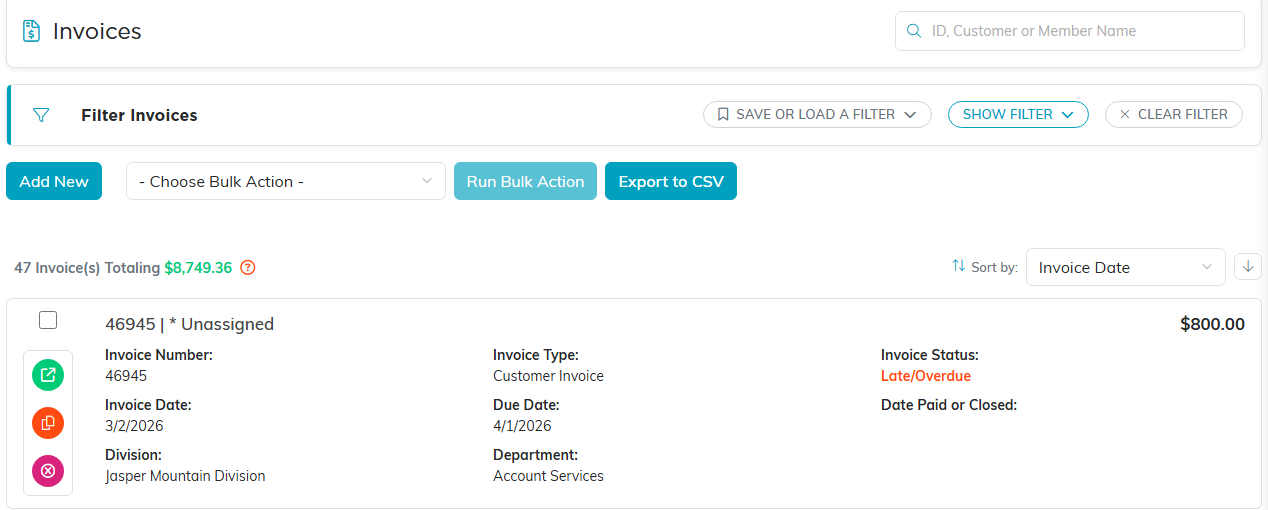
The Invoices list is where you check what is still unpaid.
Finishing up
- Review the winners and final sale prices on the Auction Items list.
- Check which invoices are still unpaid, and follow up with those bidders.
- Check your Budget & Financials summary to see the income.
- Arrange to deliver or hand off the items to the winners.
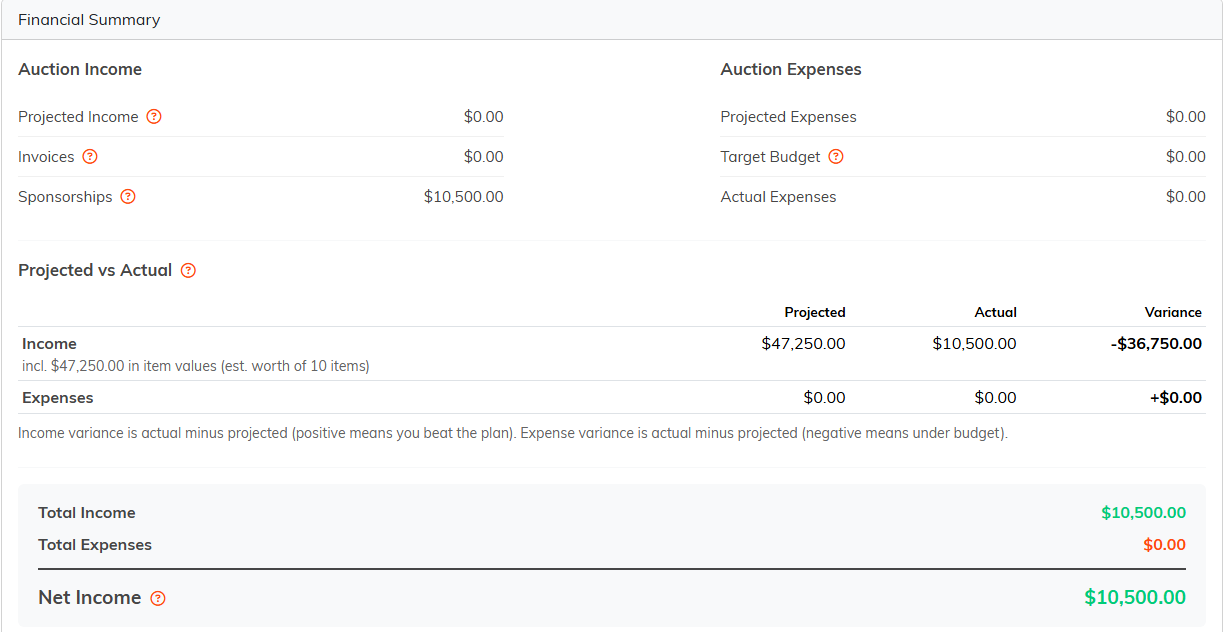
Budget and Financials shows what the auction brought in.
A tip
Thank your winners and your donors soon after the auction. A quick thank-you goes a long way toward next year.
